Penalties
Penalties are the core of race-day officiating. When you observe a rule violation, you submit a penalty through the app — it takes a few taps.
Submitting a penalty
Tap Report Penalty from the race mode screen. The steps are the same on every device: athlete number → penalty → penalty box (only when there's a choice) → details. (On a wide screen, such as an iPad in landscape, the first two steps share one screen — see Full details below.)
1. Enter the athlete number
Type the athlete's race number on the keypad, then tap the arrow key. The app checks the number against the race's number series and shows the athlete's name and country flag. The arrow stays off for a number that isn't in the race.
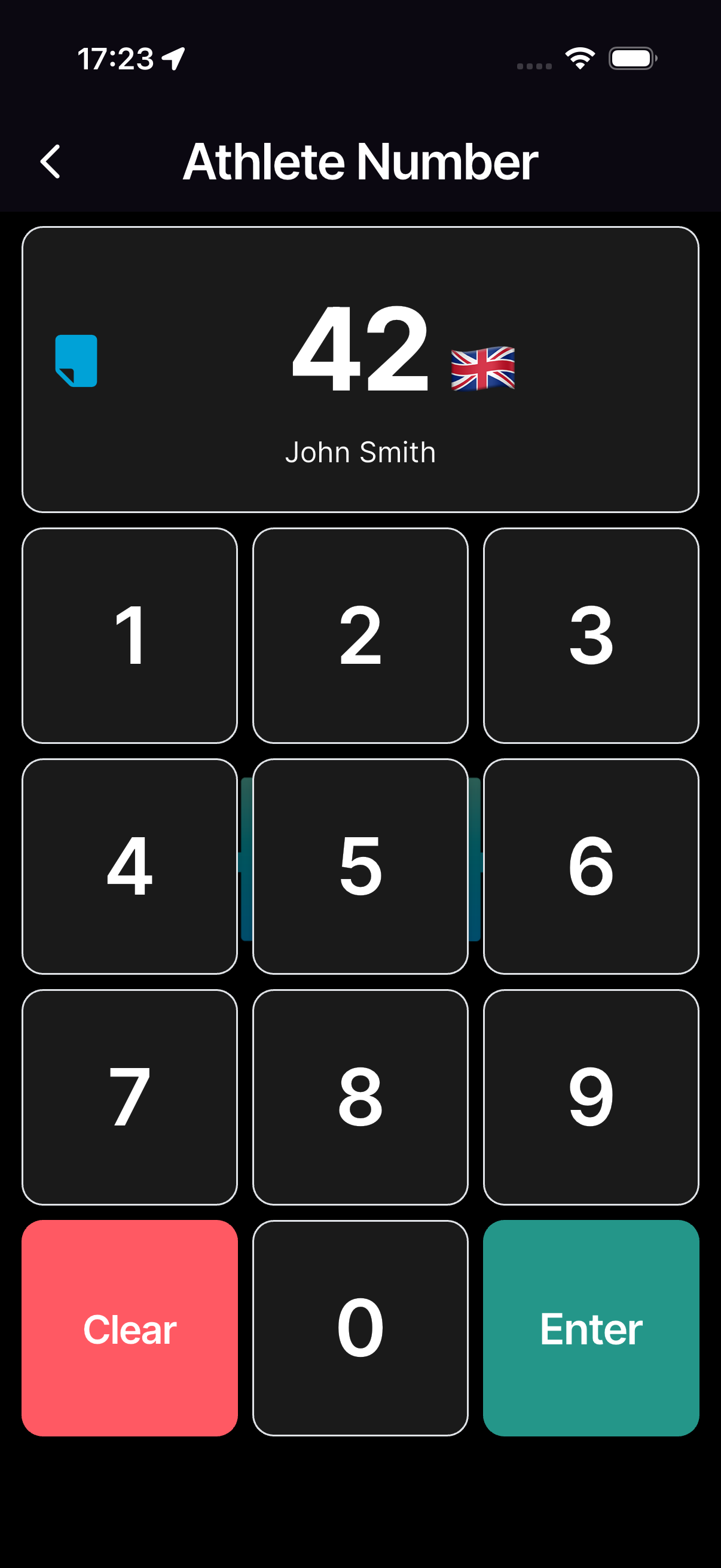
Sometimes the app asks one more question first:
- Relay races — a team number opens Select Athlete. It shows the team's name so you can check it's the right team. Pick the leg (A–D) and tap Confirm.
- A number used in two categories — Select Gender asks which athlete you mean.
- An athlete already out of the race (for example DNF) — the app warns you. Tap Continue to report anyway, or Cancel.
On a merged race, the number decides which race the penalty belongs to. The submit screen shows the athlete's race under their name.
2. Pick the penalty
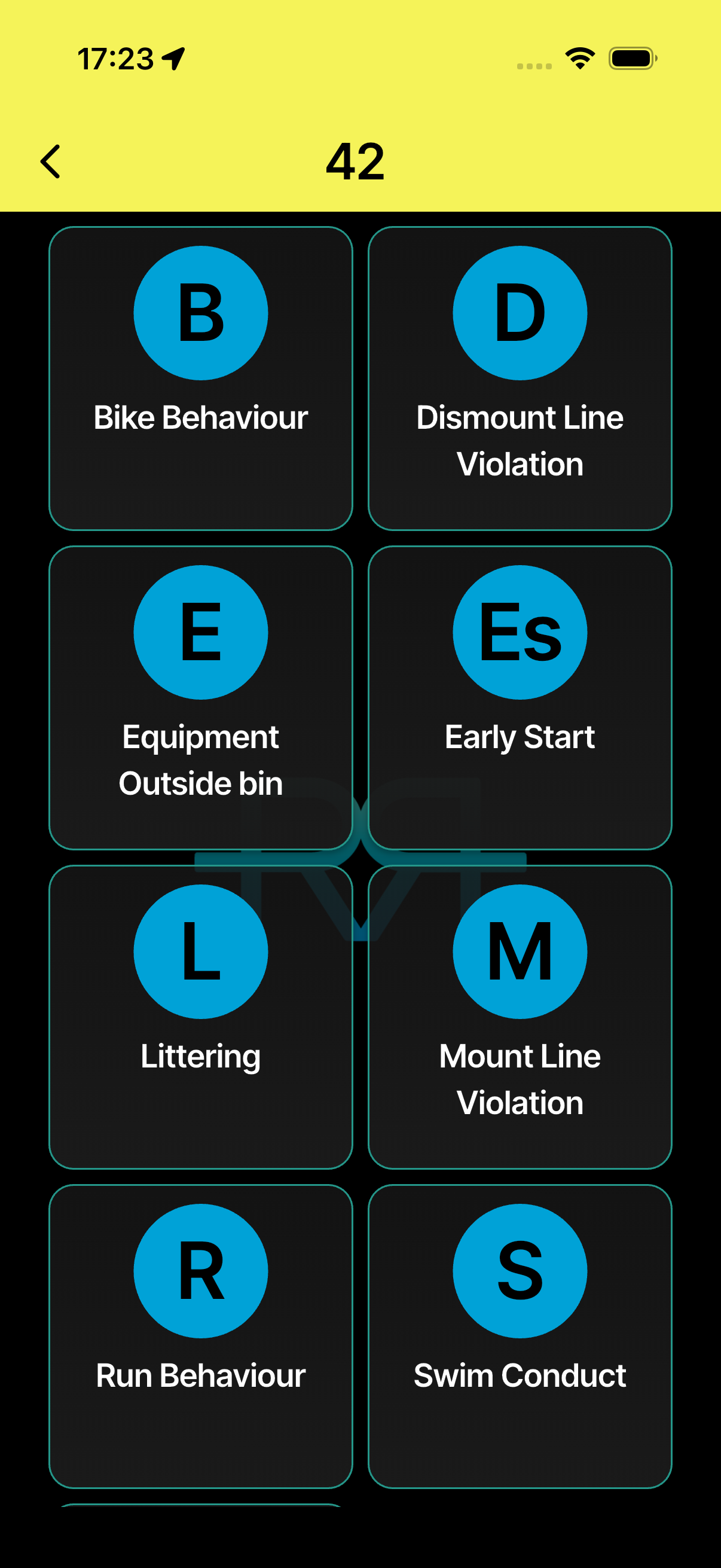
One colour-coded list shows every penalty you can give:
- Drafting (blue) at the top — only on races where drafting isn't allowed.
- The penalty reasons (yellow) in your organisation's order, each with its short code.
- Disqualification (red) at the bottom — only if you're allowed to disqualify.
Tap one to choose it. Penalty names show in the language you use the app in. The full list for triathlon is under Full details.
3. Pick a penalty box
If the penalty could be served in more than one place, Select Penalty Box asks where — for example Bike 1, Bike 2, Run or Stop & Go. For some bike penalties it also offers None, so you can keep the penalty out of a box. Pick one and tap CONFIRM. When there's only one option, the app fills it in for you. Races without penalty boxes skip this step.
Late Briefing and Early Start are always stop-and-go. They skip the box choice and go straight to stop-and-go, even on races that otherwise have stop-and-go switched off. For a stop-and-go penalty, the submit screen has a Timer button: time the stop, tap Served, then submit.
4. Add details and submit
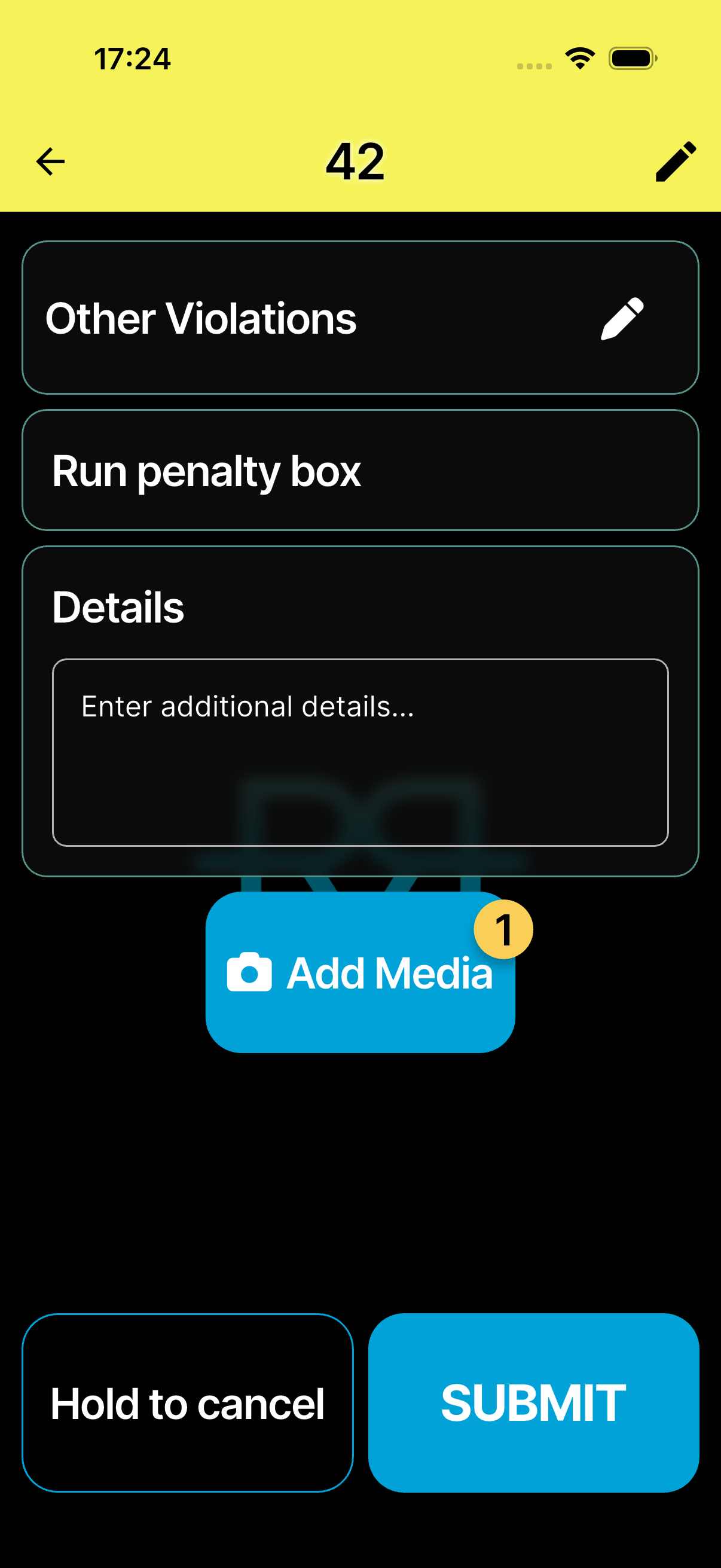
The top of the submit screen sums up the report: the athlete's name and country, the penalty as a coloured pill and, when it goes to a box, the box and its serve time. Tap Change to pick a different penalty, or the pencil at the top right to fix the athlete number.
- Note (optional) — add a note if it helps.
- Evidence — tap Add, then Photos, Camera or Add Video. A penalty holds up to 50 photos and 20 videos. The buttons switch off once it's full, and the app tells you if some of your picks weren't added. A photo that's still uploading shows Pending.
Then tap SUBMIT. The app records your location, the time, and your identity automatically — you don't need to note any of that down.
Back in race mode, a Penalty Submitted bar with a View shortcut opens the review screen. The penalty is immediately visible to other officials with the right permissions.
To discard a half-filled penalty without submitting, press and hold Hold to cancel until the form clears.
If a penalty can't be saved — for example because you don't have permission on that race, or the server refuses a report sent in the background — a Not saved message tells you. Nothing disappears quietly.
Correcting your own report
A race can give the official who reported a penalty a few minutes to fix their own mistake. The technical delegate sets this in the race options (Reporter may correct a penalty (min), see race configuration). While the window is open, and until the penalty box has acted on the penalty (accepted it, started its serve or served it):
- your own rows in the penalty list show a Correct countdown, for example Correct 4:32;
- the penalty's review screen shows a Your report card with Cancel penalty and Change number.
Cancel penalty cancels it for good — report it again if needed. Change number moves the penalty to another athlete. If race control had already approved it, it goes back to Submitted to be approved again. A penalty that was approved the moment you reported it (for example a drafting or bike-box penalty) stays approved.
Nobody else can change a penalty's athlete number.
Penalty statuses
A new penalty starts as Submitted and waits for an approving official to confirm or decline it. Some are approved straight away: drafting penalties, penalties sent to the bike box or to stop-and-go, and penalties reported by an official who can approve penalties. That's all you need to get going — the full lifecycle is here when you need it:
The full status lifecycle
| Status | Meaning |
|---|---|
| Submitted | Just reported. Awaiting review. |
| Approved | Confirmed by an authorised official. |
| Declined | Rejected — the penalty won't stand. |
| Served | The athlete has served the time penalty. |
| Cancelled | Withdrawn after submission. |
| Protest | Under protest by the athlete or team. |
Officials with approval permissions (typically the Head Referee) can change a penalty's status.
Full details
Everything below is optional reading — open a section when you need it.
All penalty types (triathlon example)
Available types depend on your organisation and sport. They're listed in the order the picker shows them, and their names appear in the language you use the app in.
| Code | Name |
|---|---|
| — | Drafting |
| V | Other Violations |
| E | Equipment Outside bin |
| B | Bike Behaviour |
| S | Swim Conduct |
| R | Run Behaviour |
| M | Mount Line Violation |
| L | Littering |
| D | Dismount Line Violation |
| Es | Early Start (always stop-and-go) |
| Bl | Blocking |
| LB | Late Briefing (always stop-and-go) |
| DSQ | Disqualification |
Using a wide screen (iPad in landscape)
On a wide screen, such as an iPad in landscape, the first two steps share one screen. Type the athlete number on the keypad on the left, pick the penalty from the same colour-coded list on the right, then tap Next. The details screen has Previous to go back and SUBMIT. The penalty-box picker works the same as on a phone.
Finding and filtering the penalty list
Tap the Penalties & Incidents tile on the race mode screen and open the Penalties tab. (Prefer everything in one stream? Choose One feed in App Settings → Penalties & Incidents view.) If you can approve penalties, the tile shows how many are waiting for a decision.
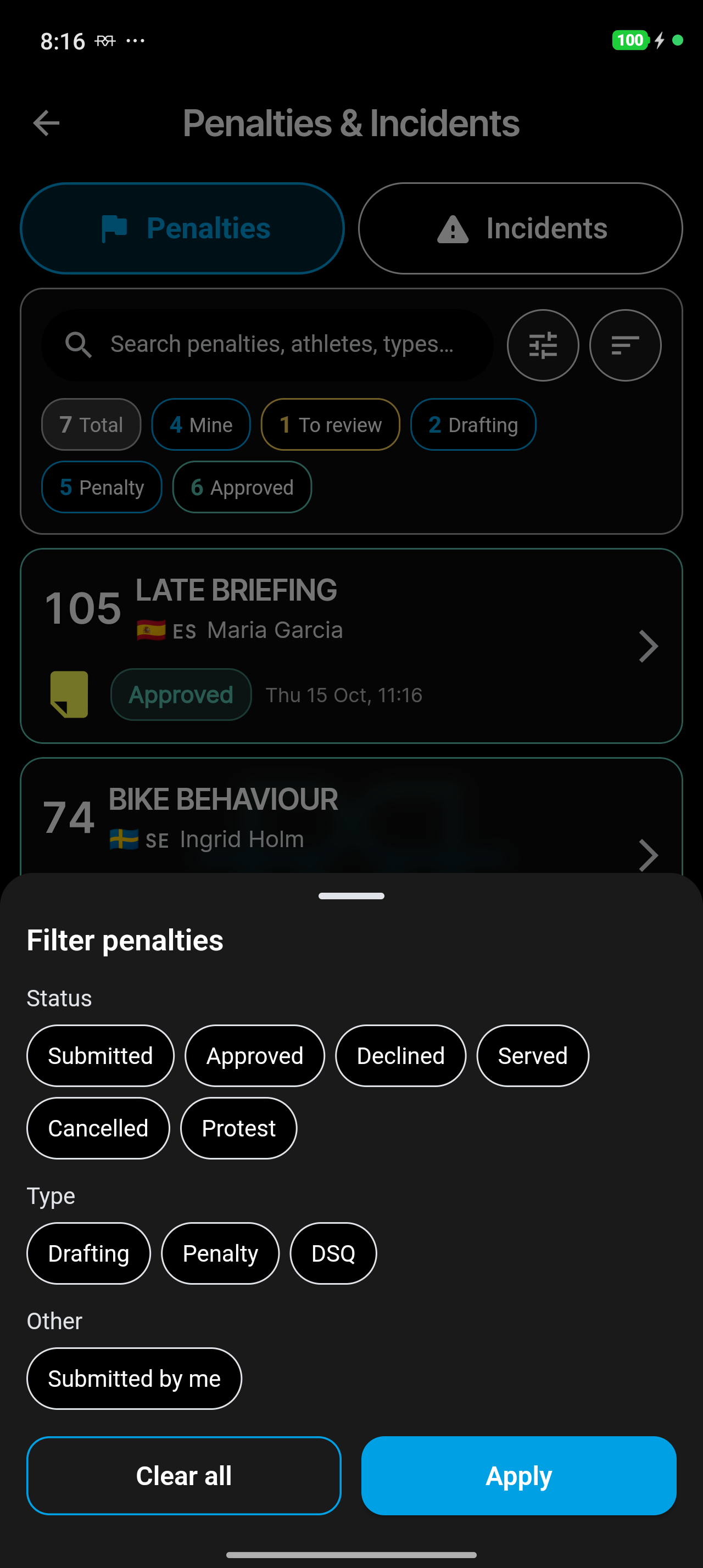
The list shows all penalties in the current race, with count chips at the top — for example 7 Total, 4 Mine, 1 To review, 2 Drafting, 5 Penalty, 6 Approved. A chip only appears when it has something to count. Tap one to filter the list to that slice: Mine shows the penalties you reported, To review the ones submitted or under protest.
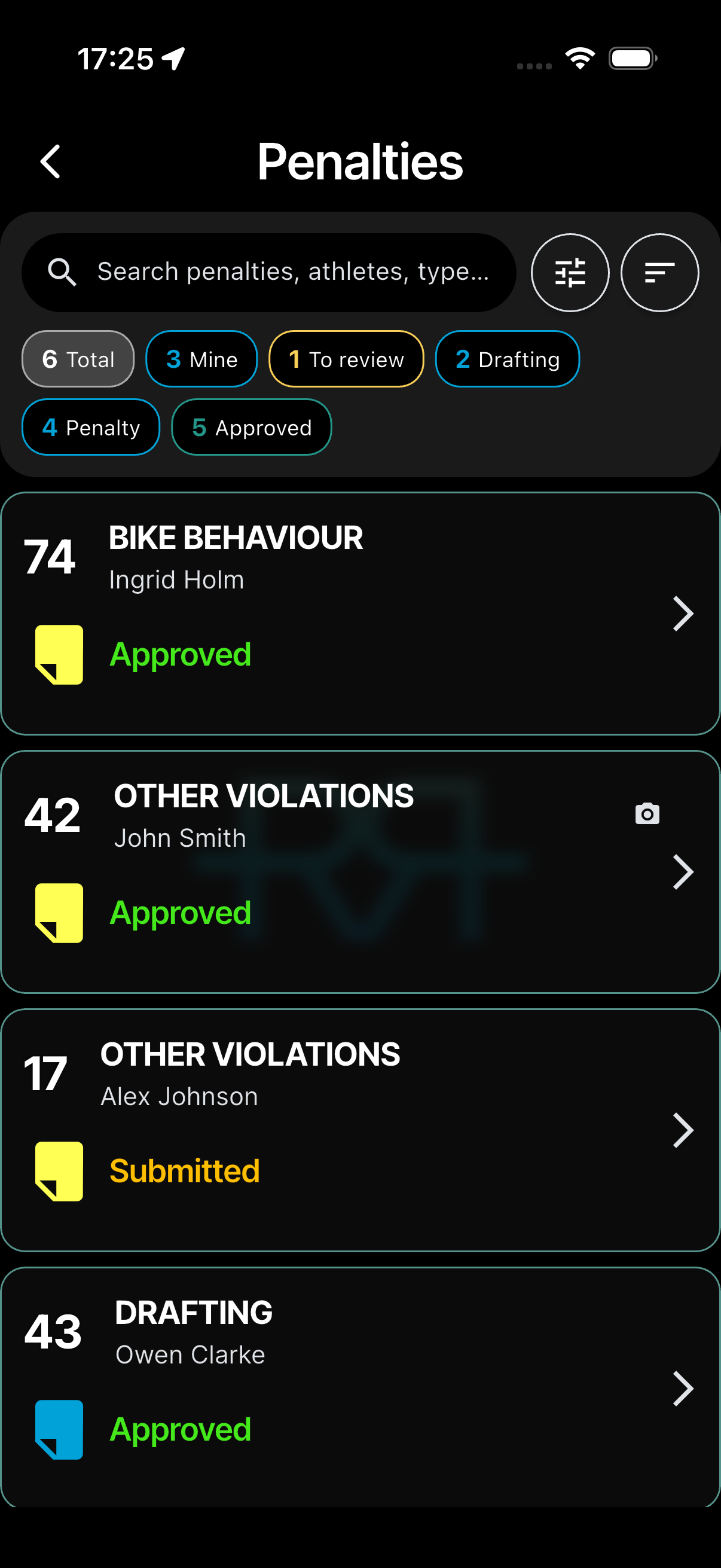
Each row shows the athlete number (with the relay leg), the penalty type, the athlete's country flag and name, the status, and the day and time it was reported. PB ✓ means the penalty box has accepted it (PB — while it waits), and a camera icon means it has photos. A small clock or cloud icon means the report is still being sent; it disappears once it's saved.
The filter button next to the search bar opens Filter penalties: pick statuses, types (Drafting, Penalty, DSQ) or Submitted by me, then tap Apply. Clear all resets it.
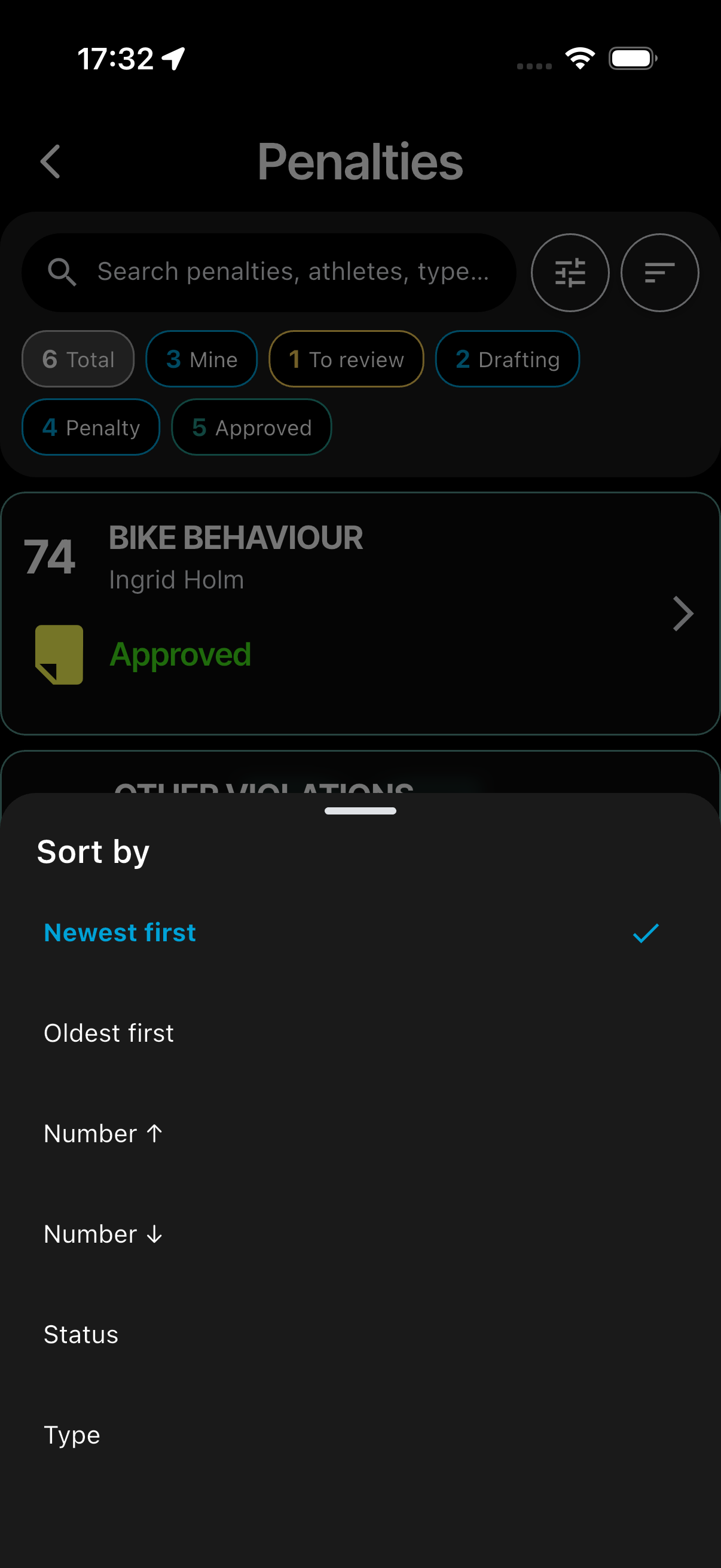
The sort button opens Sort by: Newest first (default), Oldest first, Number ↑, Number ↓, Status, or Type.
You can also search by athlete number, type, or any other text in the search bar. Tap a penalty to open its review screen.
Reviewing a penalty
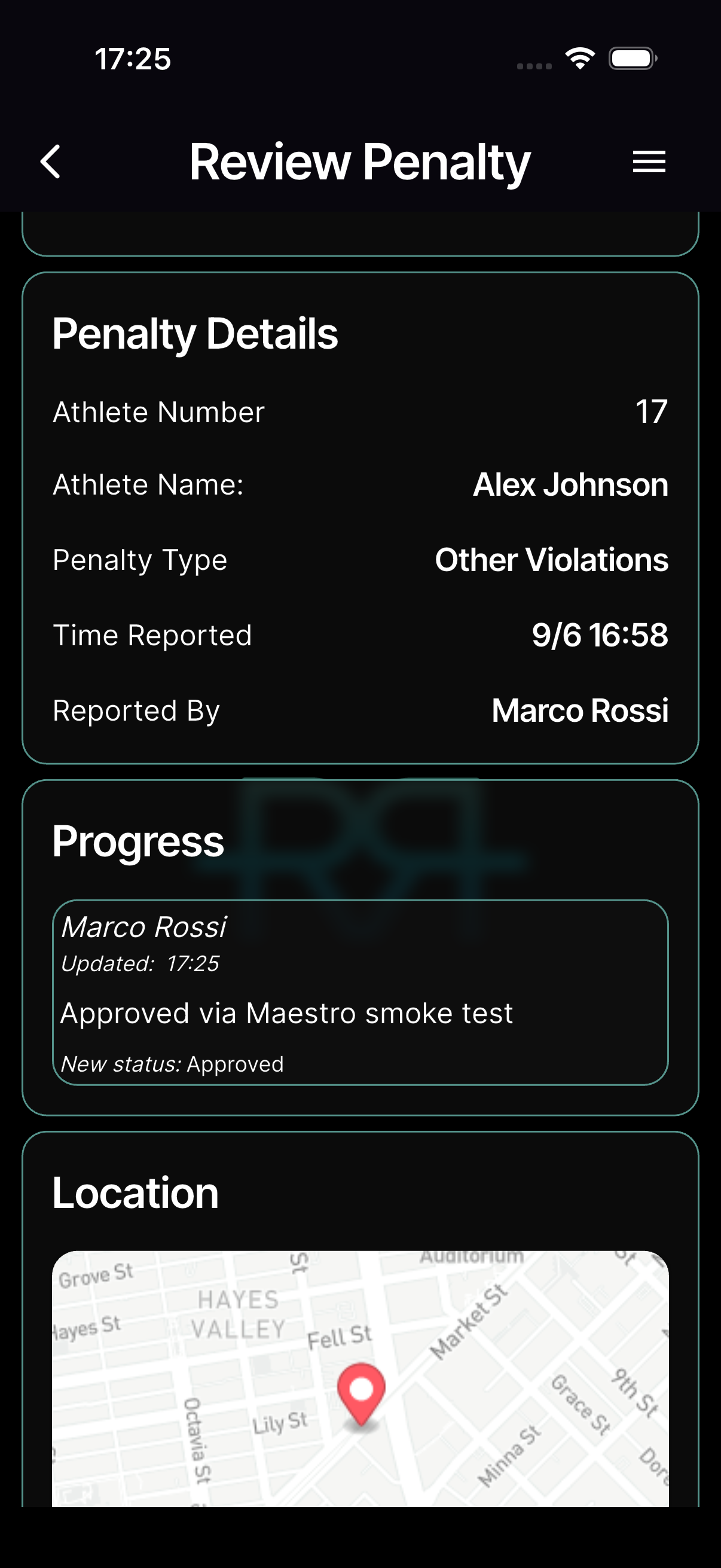
Tap any penalty in the list to open its review screen. The bar at the top names the athlete — number, name and country — with the penalty type as a coloured pill and the status beside it, and when it was reported. Below it:
- Details — the penalty box, whether the box has accepted it, and who reported it. Once the box has served it, a Served row gives the serve times and length, for example Served: 10:42–10:45 · 3:00.
- Other Penalties — the athlete's other approved or served penalties, when there are any.
- Official Notes — the reporter's note.
- Evidence — the location on the map, and the photos and videos. Tap the + tile to add a photo or video straight away, without filling in a full update.
- Progress — the timeline: who did what, and when. Entries that added photos or videos are tagged Media added. Penalty box serves show as Serve started at bike box and Served at bike box · 3:00.
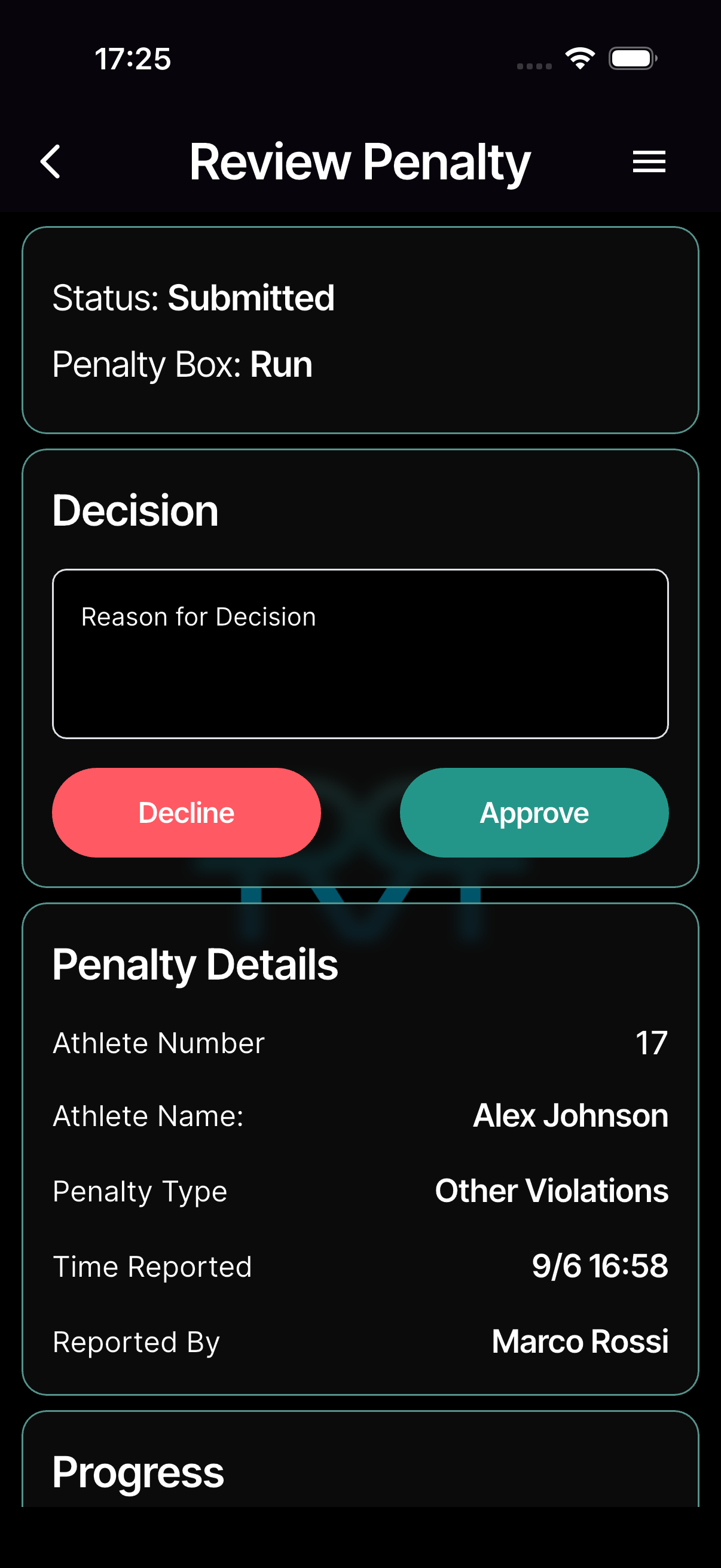
Deciding. For a Submitted penalty, approving officials see a Decision card near the top: an optional Reason for Decision, then Decline or Approve. The app asks you to confirm.
Stop-and-go. An approved stop-and-go penalty shows a serve timer on its review screen, with Served, Start / Stop and reset. Any official who can report penalties on the race can time it and mark it served — not just approvers or the reporter. The timer runs on every device, like a penalty box tile.
The menu. The menu icon at the top right holds Chat (or Create Chat, to start a chat about this penalty, when the event has chat), Add Update and, for officials who may disqualify, Add DSQ.
Add DSQ disqualifies the same athlete. If you can approve penalties and this penalty still stands, the app asks whether to cancel it too: Cancel penalty or Keep penalty. Then the submit screen opens with Disqualification selected. The old penalty is only cancelled when you submit the disqualification — leave without submitting and nothing changes. Its history then reads Replaced by a disqualification. Add DSQ is greyed out on a disqualification and on a cancelled penalty.
Walk-ins. When the penalty box recorded a walk-in serve (see Penalty box), race control matches it with the referee's report on the review screen. You need the right to approve penalties for these:
- A report that may belong to a walk-in shows Possible walk-in, with Merge and Not the same.
- A walk-in without a report has Find a match, which lists the likely reports and why each one fits, and No report expected to close it. When the number is one keystroke off, the app offers Ask referee (a question in the report's chat) instead of a merge — race control never changes an athlete number.
- Unmerge undoes a merge, from either side.
Adding an update
Add Update (in the review screen's menu) opens the Update sheet, where you record a follow-up on a penalty: write a summary, attach photos or videos and, if you're an approving official, change the penalty's status or move it to another penalty box.
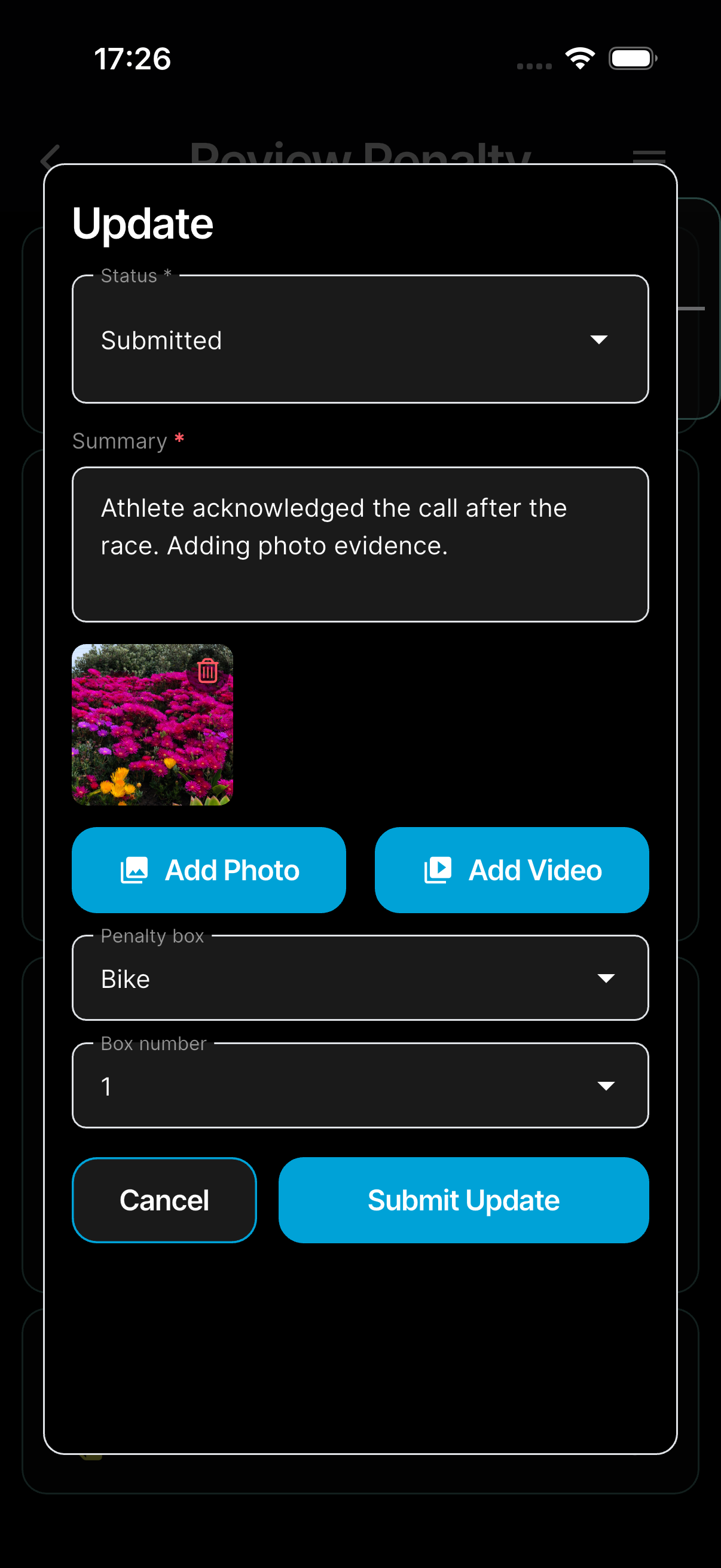
- Status — approving officials only. The field is required (marked with an asterisk). Changing the status to Cancelled needs a written reason: if you leave the summary blank, a hint appears and you can't submit until you explain the change. Other status changes don't need a reason.
- Penalty box — approving officials only, and only when the penalty can move to another box: Bike, Run, Stop & Go, or None where that's offered. On races with more than one bike box, Box number appears below it.
- Summary and media — available to everyone who can add updates. If you're not changing the status, an update just needs a summary or at least one photo or video.
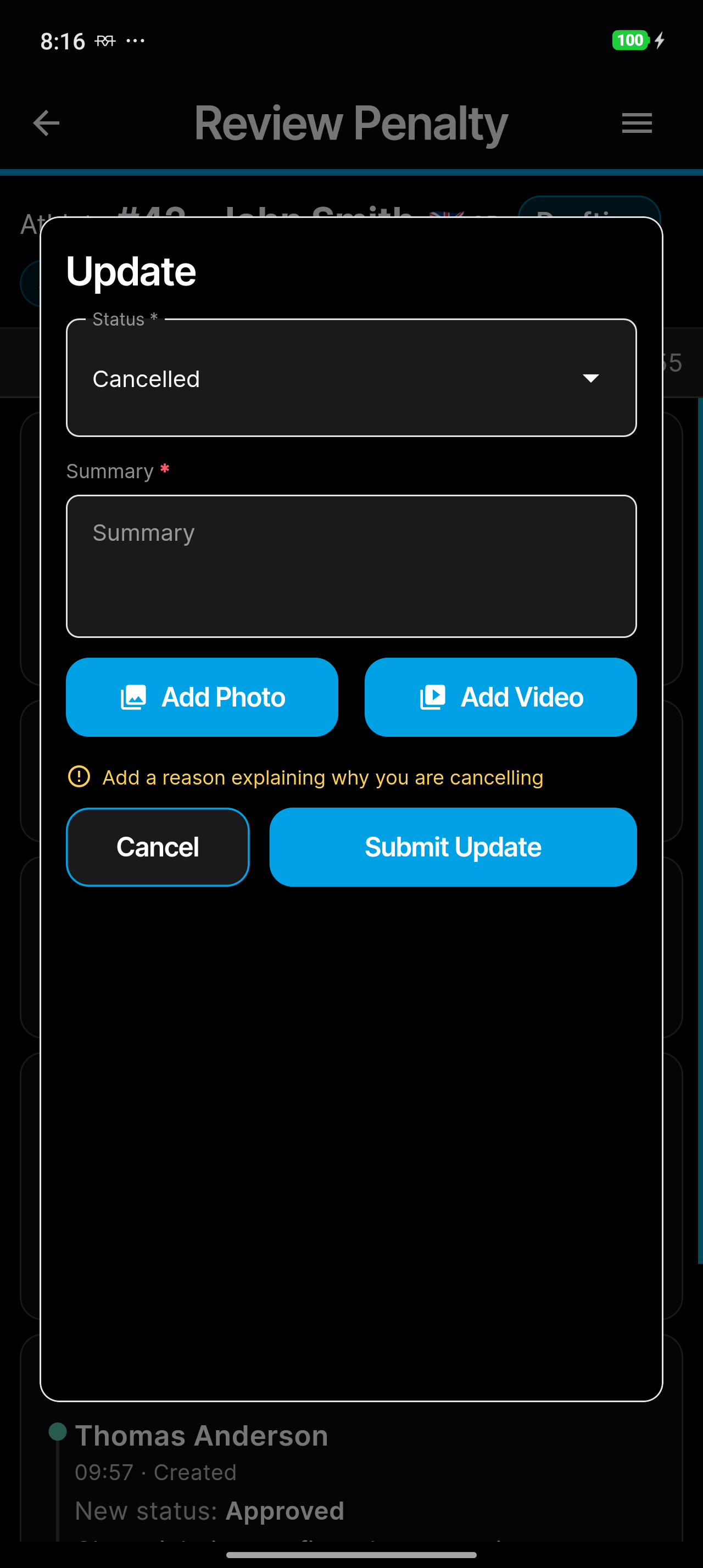
The keyboard never covers Submit Update — tap anywhere outside the text to close it. Add Photo opens over the keyboard, so you don't lose your place. Each update is added to the penalty's timeline.
Notifications
When a penalty is submitted, officials with penalty notifications enabled get a push that links straight to the review screen — see Notifications.