Incidents
Incidents cover non-penalty events — medical emergencies, course issues, mechanical problems, and athlete status changes like DNF and DNS. Most are logged during a race, but you can also record one that isn't tied to any race (see Event-wide incidents below).
Submitting an incident
- From the race mode screen, tap Report Incident.
-
Select the incident type.
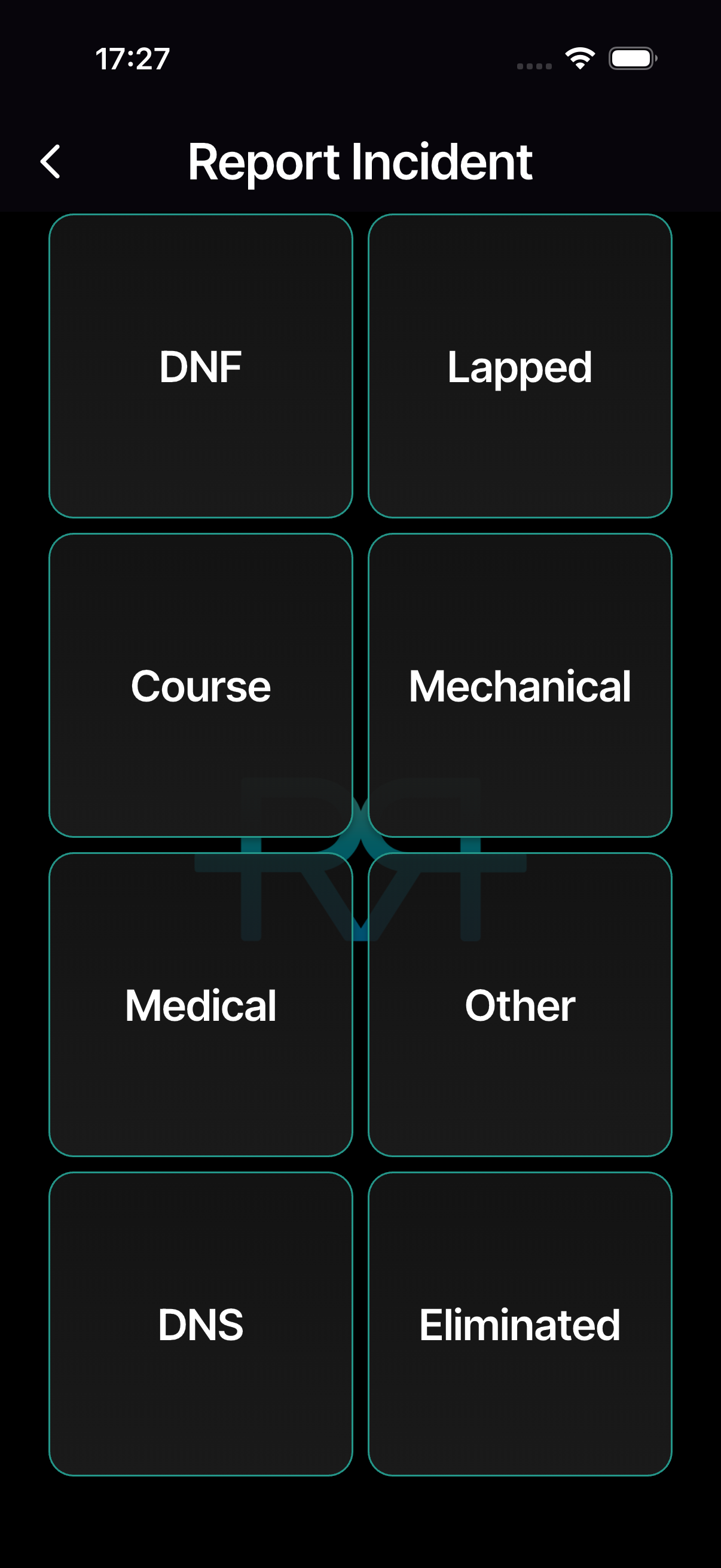
-
Type the athlete number on the keypad and tap the arrow key. Athlete-specific types (like DNF or Mechanical) need a number. For general ones (Course, Medical, Other) you can tap Skip instead.
-
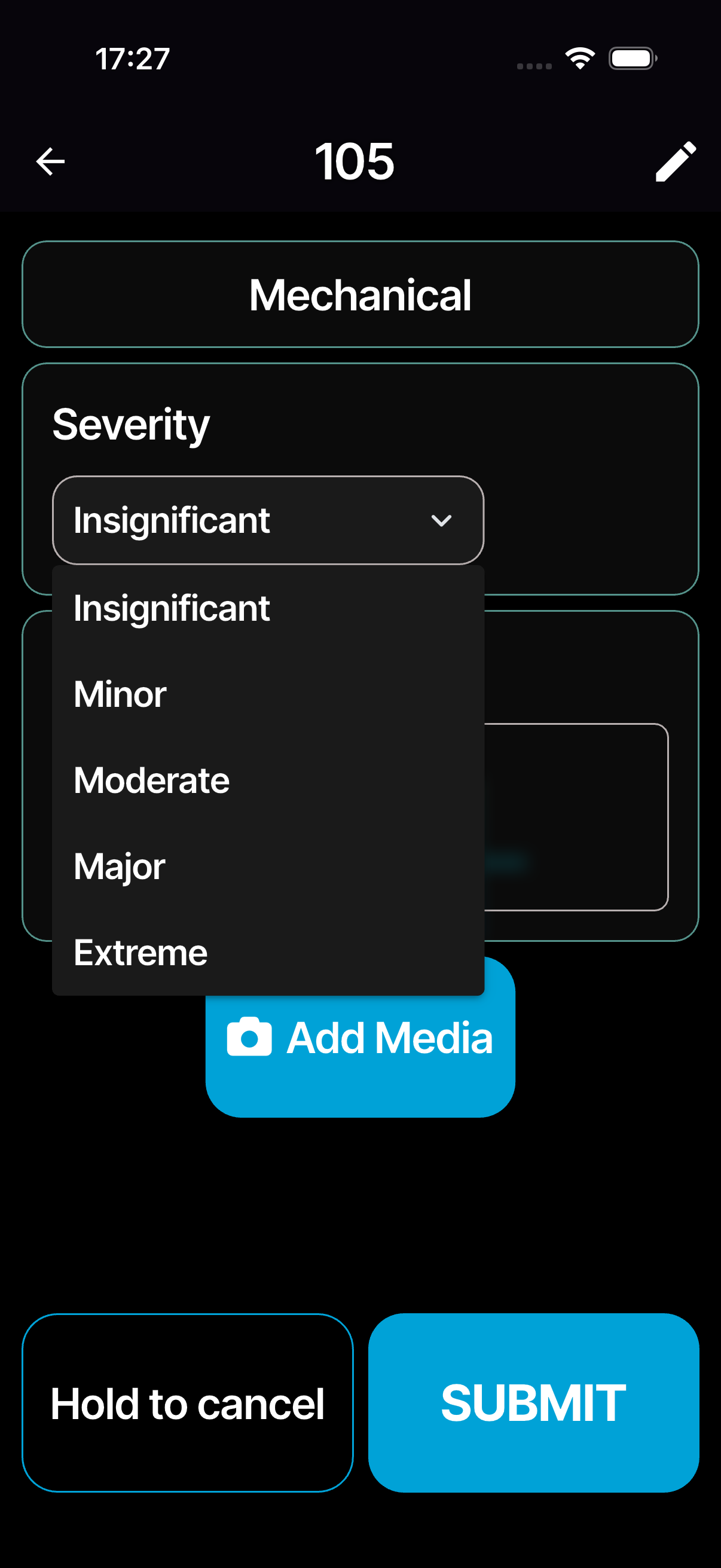
Add details:
- Severity — how serious the incident is.
- Athlete DNF? — for a numbered athlete, a Did not finish switch to mark them as DNF at the same time. It appears only when the incident type doesn't already set a finishing status.
- Note (optional) — what happened.
- Evidence — tap Add for photos and videos, up to 50 photos and 20 videos per incident.
-
Tap SUBMIT. The app records your location and timestamp automatically.
Back in race mode, an Incident Created bar with a View shortcut opens the review screen. To discard a half-filled incident, press and hold Hold to cancel. If an incident can't be saved — for example because you don't have permission on that race — a Not saved message tells you.
What happens next
An incident starts as Open and is moved to In progress, Closed, or Cancelled by whoever handles it. The full status and severity tables are under Full details below.
Event-wide incidents
One list shows every incident and penalty across the whole event — every race, plus incidents that aren't tied to any race. On the phone, open the event and tap the warning-sign icon in the bottom bar; on the web, open the event page's Incidents tab.
- Switch between Incidents and Penalties at the top.
- Filter with the chips: All, Event-wide, or one race. A dot marks a race that's running now.
- Each entry names its race (or Event-wide), shows the athlete's country — a small flag and country code — next to their name, and when it was reported. Incidents a crew member reported carry a Crew tag.
- Tap any entry to open the same review screen as in race mode.
To add an incident here, tap + (Add incident). New incident asks Is this about a specific race? Choose Yes — a race and pick the race, or No — event-wide for something like a course or venue issue. Add the athlete number if there is one (it's optional, and once added it can't be changed), pick the Type, write a Description, and tap Create incident. You can add photos and videos afterwards from the incident's update.
Full details
Everything below is optional reading — open a section when you need it.
All incident types (triathlon example)
The available types depend on your organisation. Each organisation configures its own set of incident types, localised in the appropriate language.
| Type | Athlete-specific | Description |
|---|---|---|
| DNF | ✓ | Athlete did not finish |
| DNS | ✓ | Athlete did not start |
| Lapped | ✓ | Athlete was lapped |
| Eliminated | ✓ | Athlete has been eliminated |
| Course | Course-related issue (not athlete-specific) | |
| Mechanical | ✓ | Mechanical problem with equipment |
| Medical | Medical emergency or concern | |
| Other | Anything else |
Athlete-specific incidents require an athlete number. For the others (Course, Medical, Other) the number is optional.
Statuses and severity levels
| Status | Meaning |
|---|---|
| Open | Just reported. Needs attention. |
| In progress | Being handled. |
| Closed | Resolved. |
| Cancelled | Withdrawn. |
Officials with update permissions can change an incident's status and add updates.
Each incident can be assigned a severity level:
| Level | Label |
|---|---|
| 1 | Insignificant |
| 2 | Minor |
| 3 | Moderate |
| 4 | Major |
| 5 | Extreme |
Severity helps prioritise incidents during a race. Major and Extreme incidents (levels 4–5) count as critical: the incident list shows their severity in red with a warning sign, and the Critical chip counts them.
Finding and filtering the incident list
Tap the Penalties & Incidents tile on the race mode screen and open the Incidents tab. (Prefer everything in one stream? Choose One feed in App Settings → Penalties & Incidents view.)
The list shows all incidents in the current race, with count chips along the top — for example 3 Total, 1 Mine, 1 Critical, 2 Open, 1 Closed, 1 DNF. A chip only appears when it has something to count. Tap one to filter the list to that slice; Mine shows the incidents you reported.
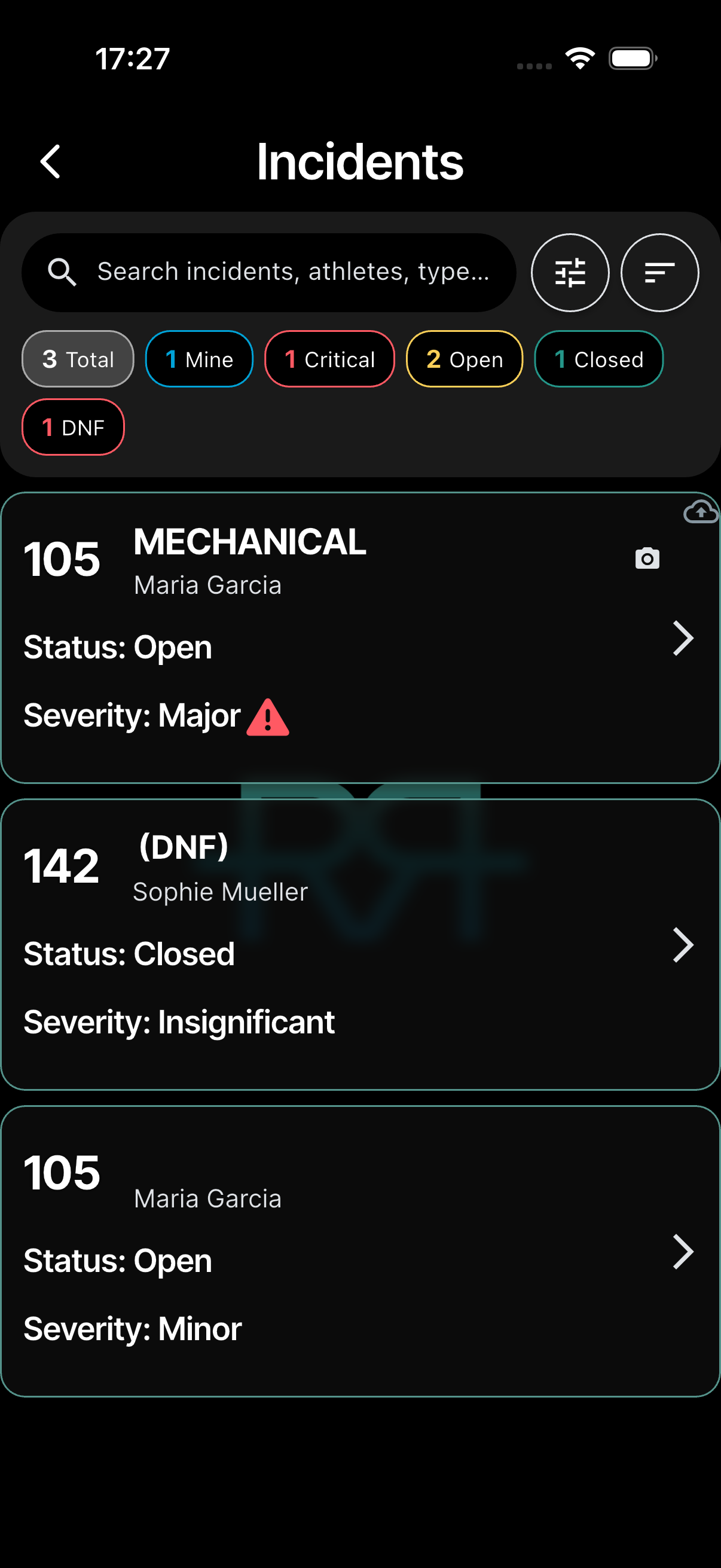
Each row shows the athlete number, the incident type — with (DNF) when the incident marked the athlete as DNF — the athlete's country flag and name, the status and severity, and the day and time it was reported. A camera icon means it has photos.
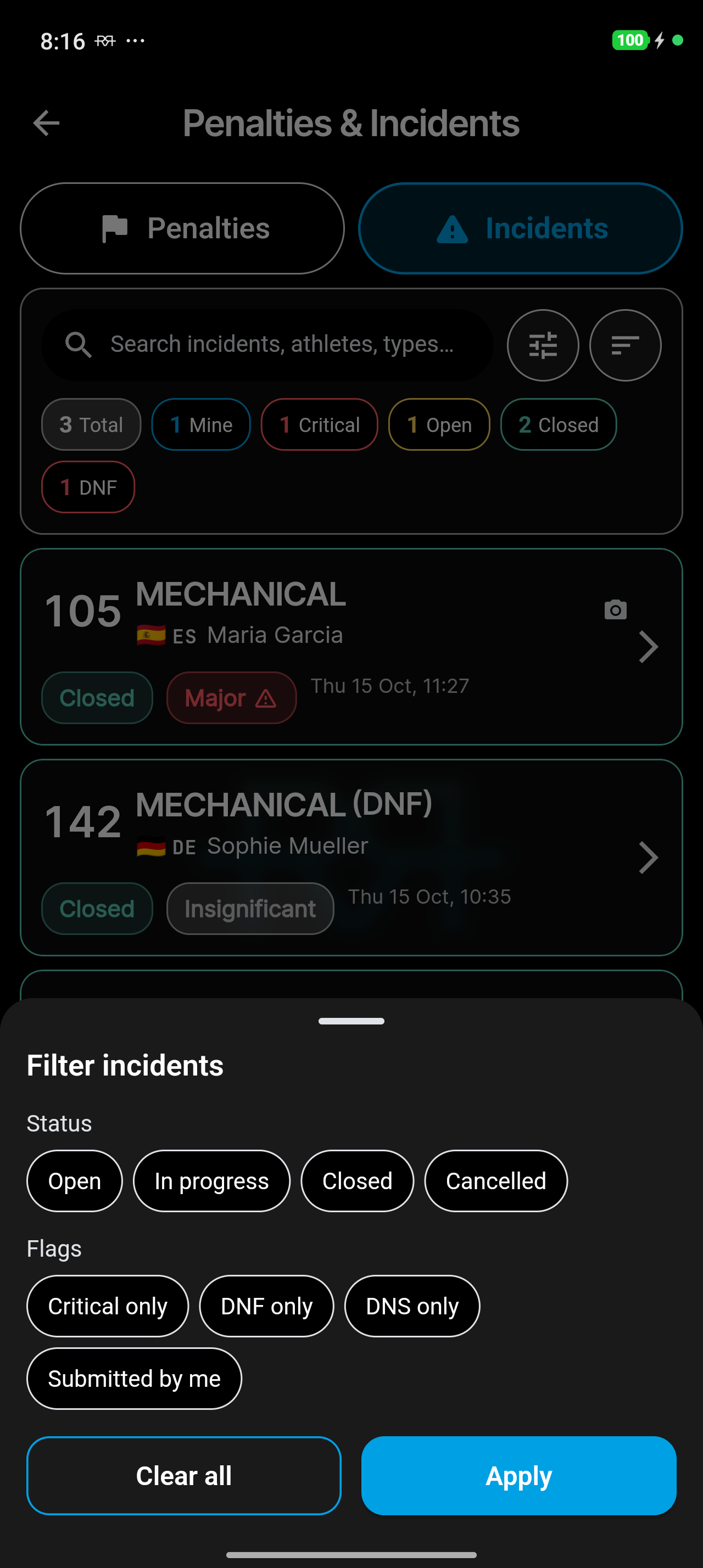
The filter button next to the search bar opens Filter incidents: pick statuses, flags (Critical only, DNF only, DNS only) or Submitted by me, then tap Apply. Clear all resets it.
The sort button opens Sort by: Newest first (default), Oldest first, Number ↑, Number ↓, Severity (high → low), or Status.
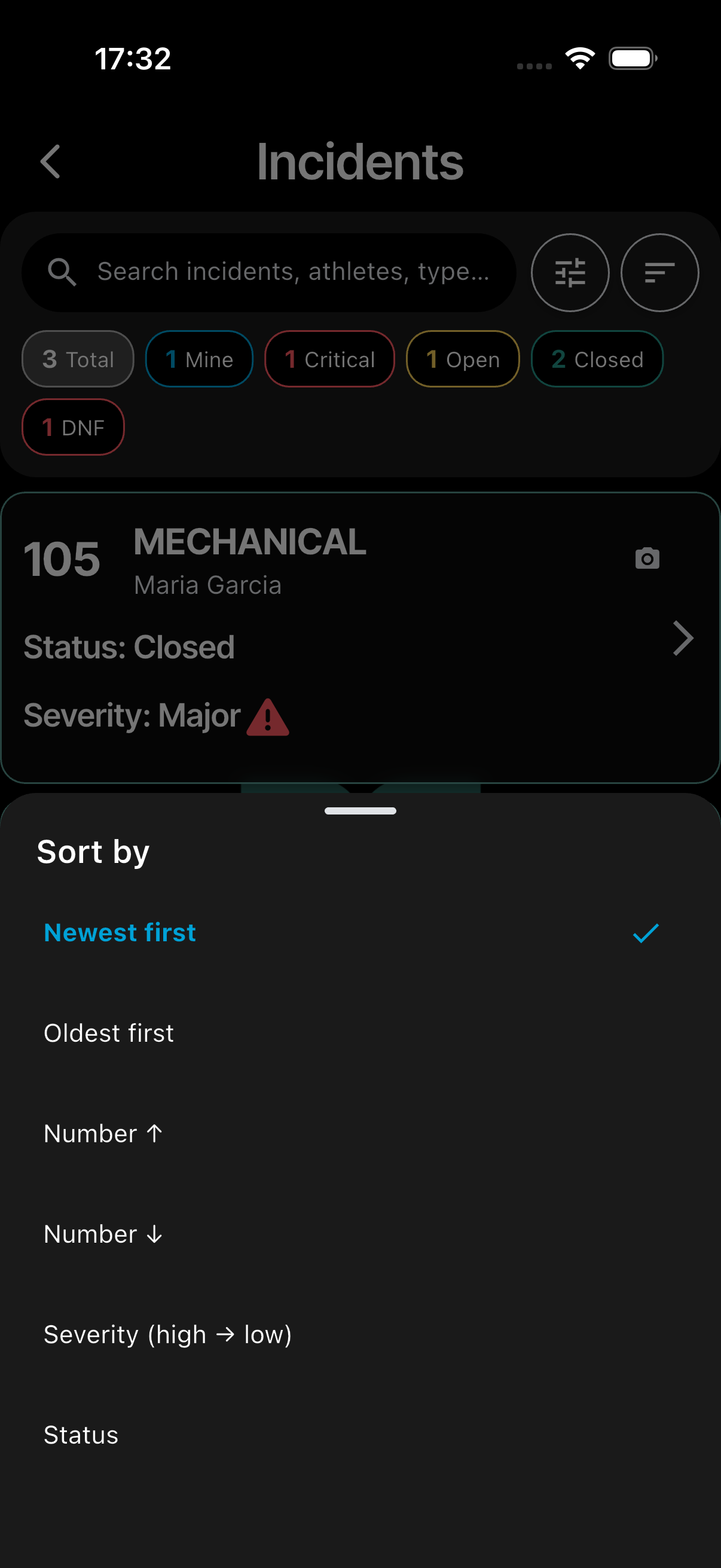
You can also search by athlete number, type, or any other text via the search bar at the top of the list.
Reviewing and adding updates
Reviewing. Tap any incident in the list to open its review screen. The bar at the top names the athlete (if there is one) with their country, the incident type and the status. Below it:
- Severity — the 1–5 scale, with this incident's level highlighted. It's for reading only; change it with Add Update.
- Details — who reported it. For a crew member's report, Via crew names the crew member and crew.
- Evidence — the location on the map, and the photos and videos. Tap the + tile to add a photo or video straight away, without filling in a full update.
- Progress — the timeline: who did what, and when. Entries that added photos or videos are tagged Media added.
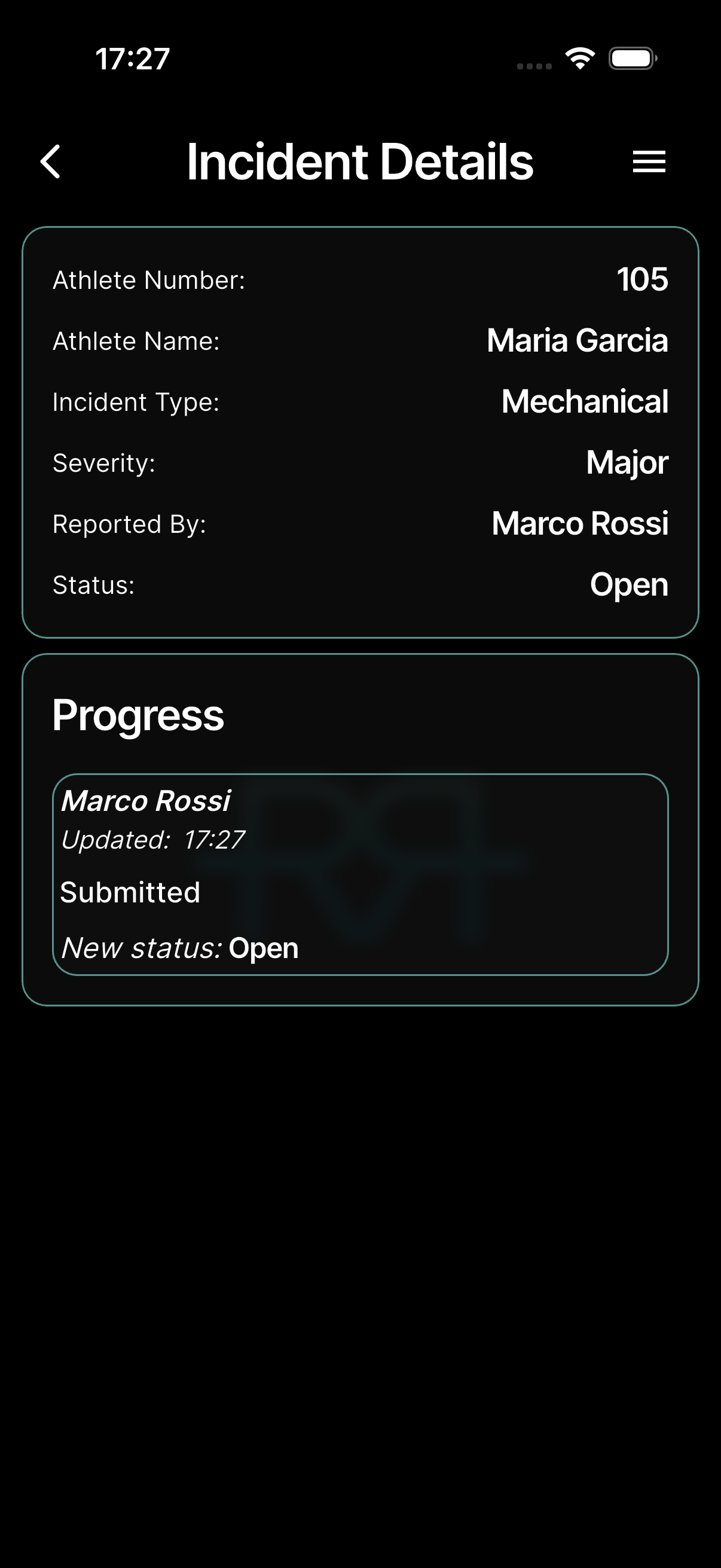
The menu icon at the top right holds Chat (or Create Chat, to start a chat about this incident, when the event has chat) and Add Update.
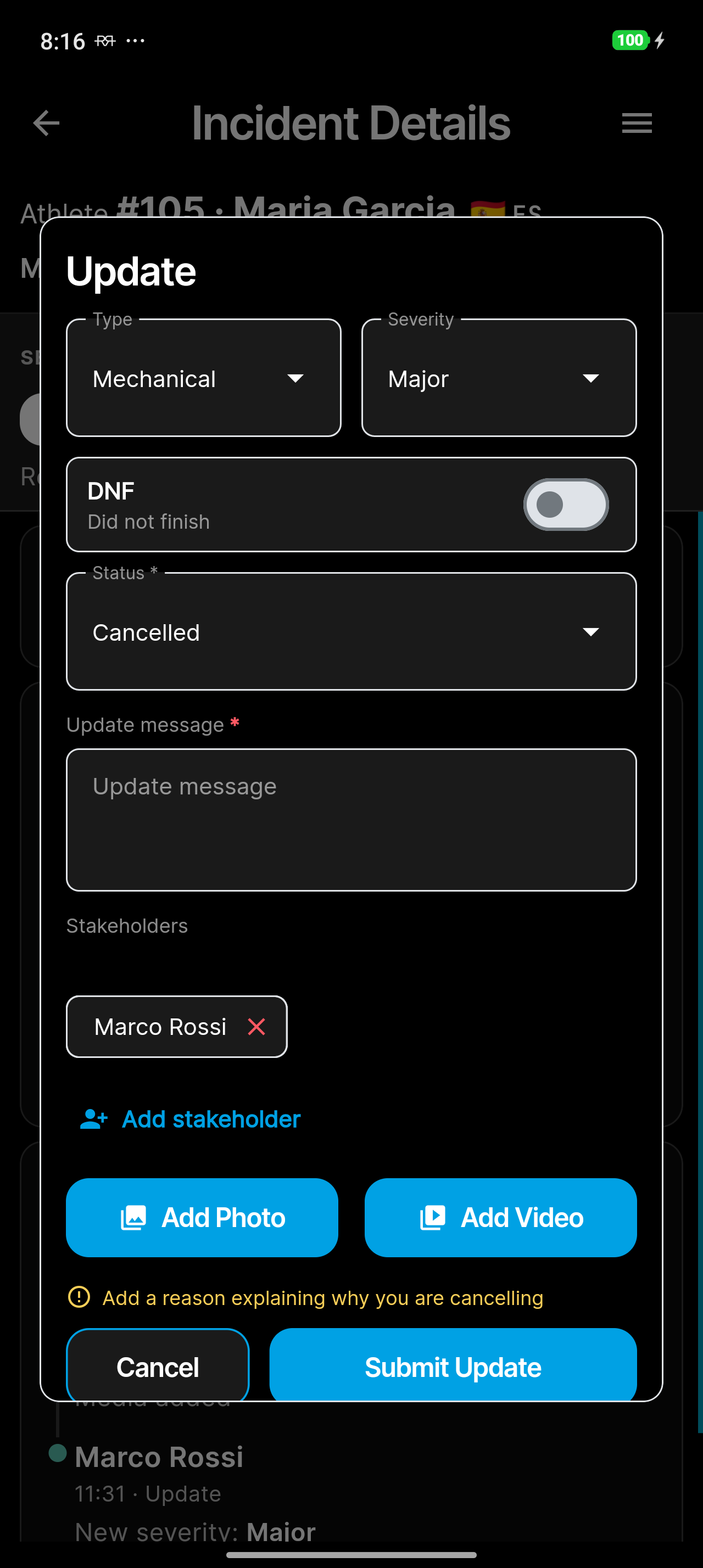
Adding an update. Officials with update permissions can add updates from the review screen's menu with Add Update. The Update sheet lets you change the incident Type and Severity, mark the athlete DNF with the Did not finish switch, set the Status, write an Update message, manage the Stakeholders (Add stakeholder), and attach photos or videos. If an incident about a race has no athlete yet, you can add their number once — it can't be changed later.
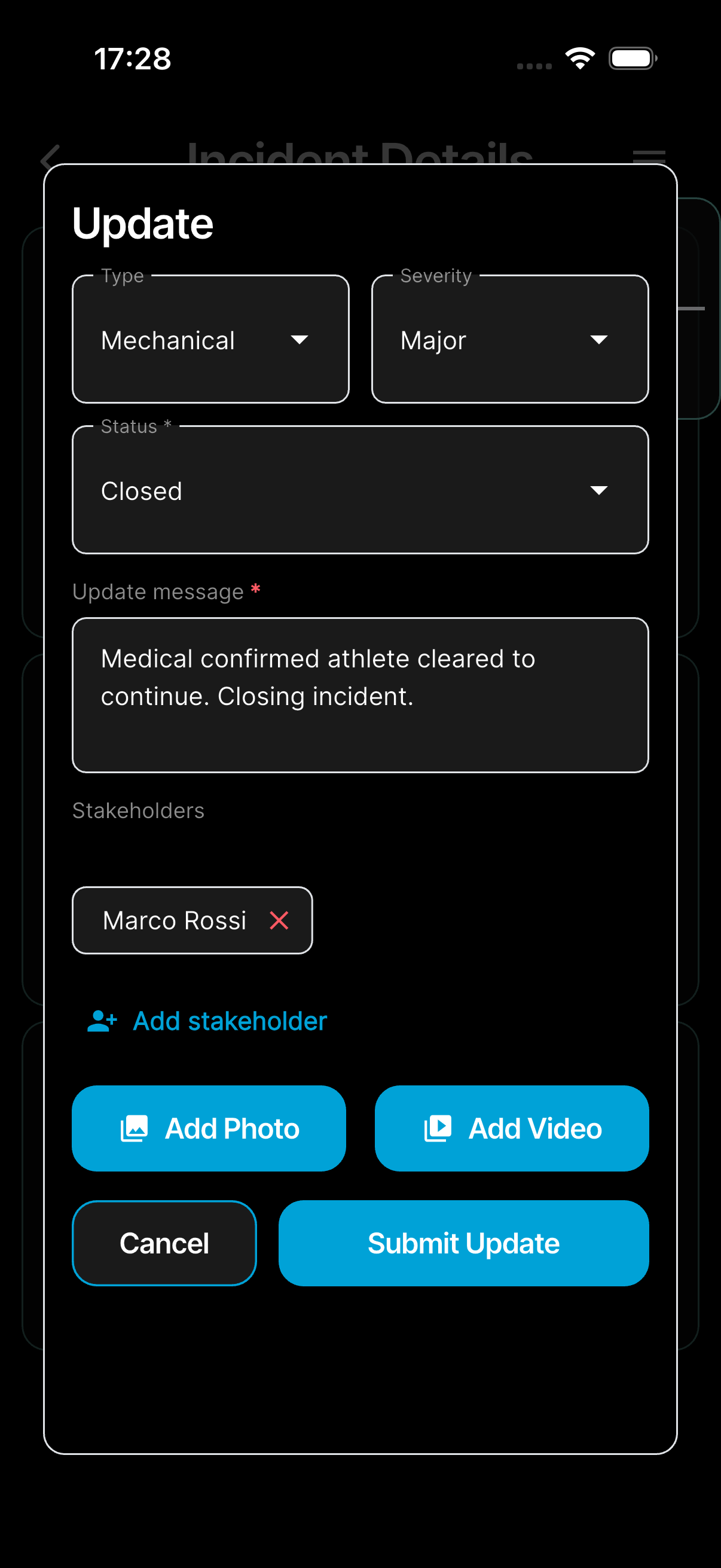
The Status field is required (marked with an asterisk). Changing the status to Cancelled requires a written reason — if you cancel an incident but leave the update message blank, a hint appears and the update can't be submitted until you explain the change. Other status changes don't require a reason. An update with no status change just needs a message or at least one photo or video.
When a crew member's report suggests an athlete status such as DNF, the update sheet shows the suggestion. It only takes effect once a technical official ticks Confirm as technical official.
Each update is recorded with the new status, who made the update, a message describing what changed, and whether media was added. Updates appear in chronological order (oldest first) in the review screen. The keyboard never covers Submit Update — tap anywhere outside the text to close it.
Notifications
Officials with incident notifications enabled receive a push notification when an incident is submitted, linking directly to the review screen — see Notifications.