Garmin watches
Compatible Garmin watches work as a companion to the RaceRanger phone app on both iPhone and Android — submit penalties and incidents and approve penalties from your wrist, with the same workflow as on Apple Watch.
What you need
- A compatible Garmin watch — see Supported models below.
- Garmin Connect installed and signed in on your phone, connected to the watch. RaceRanger talks to the watch through Garmin Connect.
- The RaceRanger watch app installed on the watch, from the Connect IQ Store inside Garmin Connect.
Approving penalties from the watch also needs a role with penalty approval permissions.
Pair your watch (the short version)
- In RaceRanger, open your profile and tap Garmin pairing.
- Turn on Enable Garmin watch link. It's off by default for every user — until it's on, RaceRanger doesn't talk to any watch.
- Tap Pair Garmin and pick your watch in Garmin Connect's device picker. You're returned to RaceRanger automatically.
- When you see the green check — RaceRanger is ready — you're done.
Landed on a different screen? Open "What each pairing screen means" under Full details below.
Submitting a penalty or incident
The watch works while RaceRanger on your phone is in race mode — until then it shows Not in race mode, plus Phone unreachable if it can't reach your phone. Open the RaceRanger watch app and you land on the per-race action picker. The header shows the current race / stage; under it sit the Penalty, Incident, and Approve entries, depending on what your role allows.
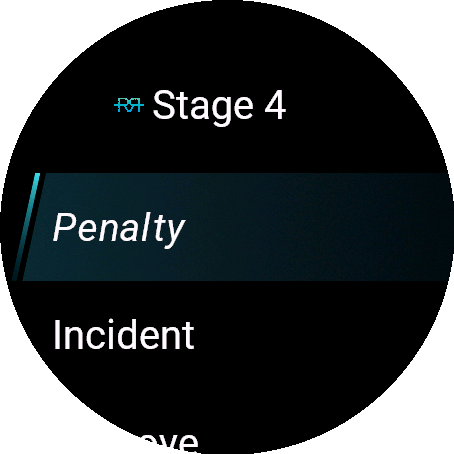
Pick Penalty and the watch advances to the athlete number entry. You set the number one digit at a time: press UP or DOWN to change the highlighted digit and SELECT to move to the next one — SELECT on the last digit confirms the number. On a touchscreen you can also tap above or below a digit to change it; on touch-only models, tap the green OK disc to confirm. A number that isn't in the race shows Not in race.
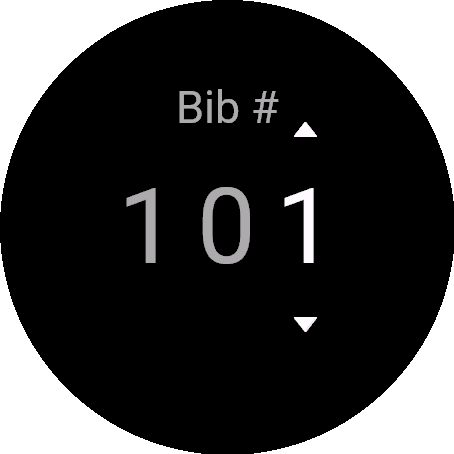
If the number falls into more than one gender category, the watch asks for the gender, and relay teams add an A/B/C/D step — the same as on the Apple Watch.
After confirming the number, the watch shows the reason picker. The penalty types appear in the language you use in the RaceRanger app on your phone; the watch's own labels are in English. On non-drafting races, drafting penalties come first with a blue dot and the other penalty types follow with a yellow dot. Disqualifications aren't available on the watch.
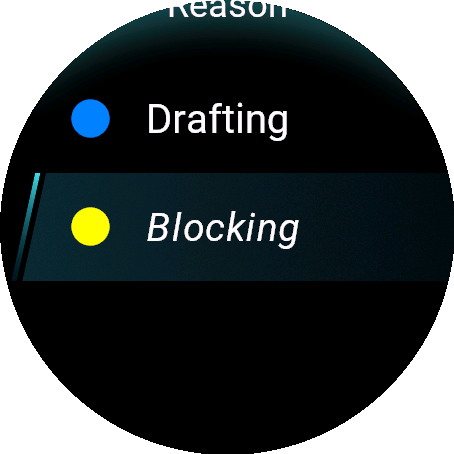
When the penalty type could be served in more than one place — the run box or the bike box, one of several numbered bike boxes, or stop and go — a Penalty box step follows the reason: pick Bike (or Bike 1, Bike 2, and so on), Run, or Stop & Go. For a bike penalty that also fits a leg with no box on this race, None keeps it out of the box. If only one box applies, the watch skips the step and picks it for you. Penalty types that can only be served as a stop and go, such as Late Briefing, never ask.
For an incident, pick Incident — the watch asks for the reason first, then the athlete number. For incident types that don't involve a specific athlete (course obstacles, weather conditions), the number starts at 0 — no athlete — so you can confirm it straight away, or dial in a number if an athlete was involved.
The final screen summarises the submission: kind (PENALTY / INCIDENT), athlete number, reason, and a Tap to submit OK confirmation. On touch-enabled Garmin models, tap the green OK disc to send it; on button-only models, press SELECT.
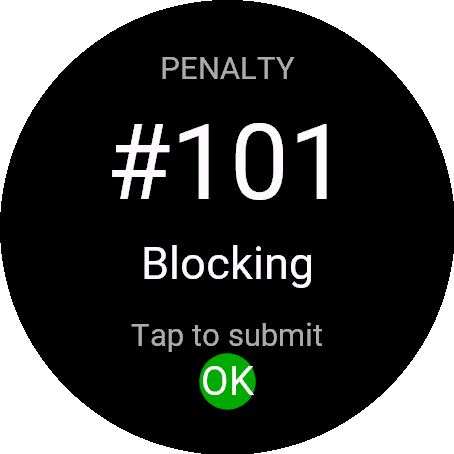
The submission travels through Garmin Connect to your phone and is recorded exactly the same way a phone-side submission would be. If your phone doesn't confirm in time, the watch sends it again a couple of times before it shows an error — your phone still files it only once. On a merged race, the penalty is filed on the race the athlete's number belongs to.
Approvals
Approve shows how many penalties are waiting — for example Approve (2) — and lists them by athlete number and reason. Pick one to see who reported it, then tap the green OK disc (or press SELECT on button-only models) to approve it. When there are none, you see a Nothing to approve screen.
Supported models
Forerunner 165 (and 165 Music), 245, 255 (and 255S), 265, 570, 745, 945, 955, 965, and 970; fēnix 6 and 6 Pro, fēnix 7 and 7 Pro, and fēnix 8; epix Gen 2; Venu 2 and 2S, Venu 3 and 3S, Venu 4, and Venu X1; vívoactive 4 and 4S, 5, and 6.
The RaceRanger watch app is offered only for these models — if your watch isn't listed, the Connect IQ Store won't show it.
What's not available on Garmin
- Voice submissions
- Watch face complications
- Disqualifications
Full details
What each pairing screen means
The Garmin pairing dialog walks through five states depending on what's currently happening:
Garmin watch link is off. The dialog opens with the Enable Garmin watch link toggle off. Nothing else is actionable until you turn it on — only a Done button to close. Flipping the toggle starts the watch link (and, on Android, the background connection that keeps it alive); flipping it back turns everything off again. The setting is saved on your phone, so it stays on when you sign out and back in; on a new phone, turn it on again.
Pair your Garmin (unpaired). After enabling, the dialog reads Pair your Garmin with a Pair Garmin button. Tapping it switches you to Garmin Connect's device picker — pick the watch you want RaceRanger to talk to, and you're brought back to RaceRanger automatically.
Waiting for Garmin Connect… While Garmin Connect's picker is in the foreground, RaceRanger shows a spinner with Waiting for Garmin Connect… and a Cancel button. Tap Cancel if Garmin Connect doesn't come back (rare on real hardware). Otherwise the dialog moves on automatically once pairing completes.
Watch app not installed (Android only). If the watch is paired but the RaceRanger watch app isn't installed, the dialog reads Watch app not installed and the primary action becomes Install on watch. Tapping it opens Garmin Connect on the Connect IQ Store listing for RaceRanger. Install it, return to RaceRanger, and the dialog flips to "ready" on its own.
RaceRanger is ready (paired + connected). Green check mark, RaceRanger is ready, and a line showing your device's friendly name (e.g. Forerunner 965), the last six characters of its device ID, and a "connected" / "last seen X ago" timestamp. The primary button becomes Manage devices — it re-opens Garmin Connect's picker so you can pair another watch or remove this one from RaceRanger's allowed devices.
Garmin paired, out of range. Amber warning with the same device line as above. The watch is paired but its Bluetooth link is asleep — wake the watch (any button press) or open Garmin Connect, and the dialog flips back to RaceRanger is ready automatically.
Troubleshooting the connection
- On iPhone, the app can't tell whether the watch app is installed — you'll see Pair Garmin even if it isn't installed yet. If pairing succeeds but the watch screen stays blank, install the RaceRanger watch app from the Connect IQ Store on the watch itself and the link will come up.
- On Android, the pairing dialog detects a missing watch app and offers Install on watch, which takes you straight to the Connect IQ Store listing.
- "Garmin paired, out of range" — wake the watch with any button press, or open Garmin Connect.
- A persistent "RaceRanger watch link active" notification on Android appears while you're in race mode. That's normal — it's how Android lets RaceRanger keep the watch connection alive on phones that otherwise close background apps within seconds (common on Xiaomi, OnePlus, and Huawei). It clears automatically when you leave race mode. iPhone doesn't need this — iOS keeps the connection alive on its own.