Signing in
Creating an account
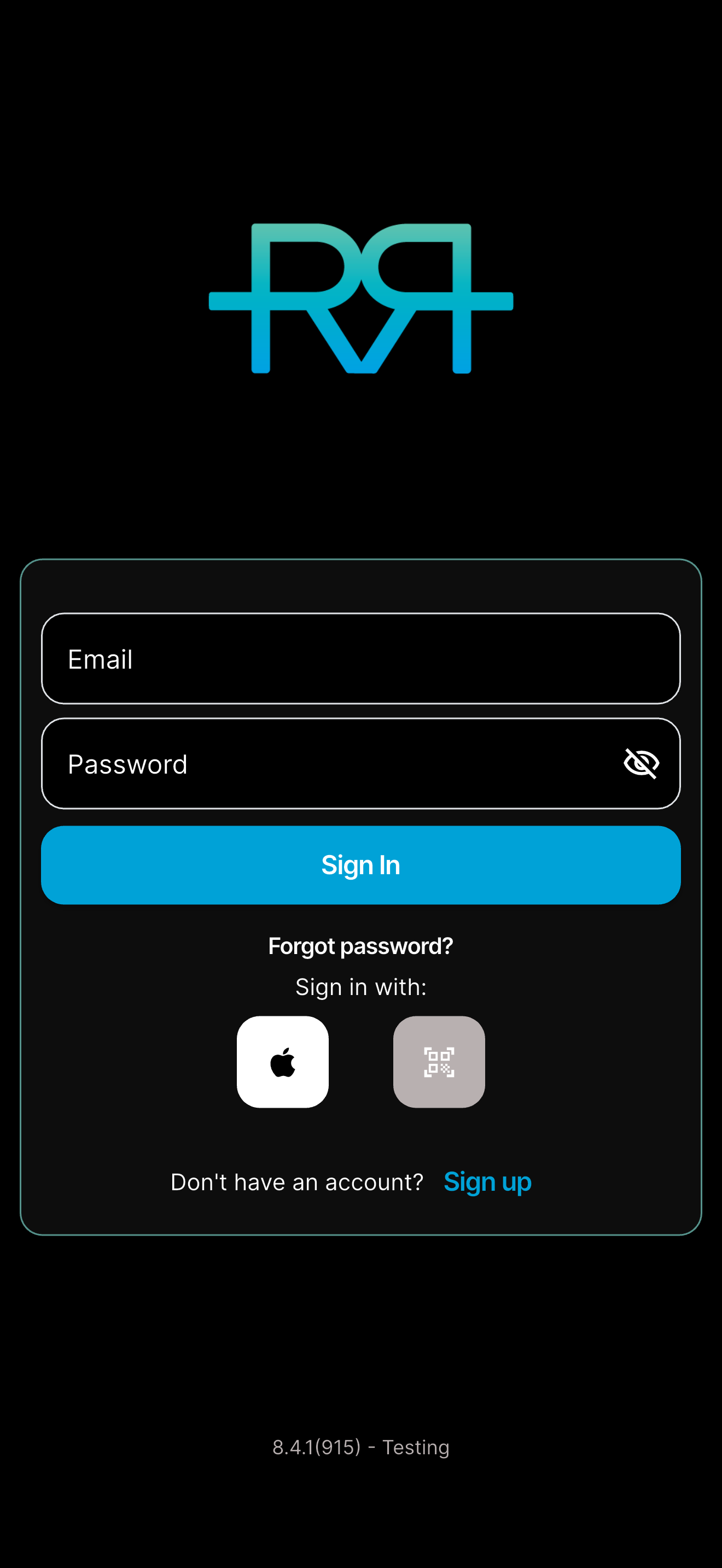
Open the RaceRanger app and tap Sign up at the bottom of the sign-in screen. Enter your email and a password (twice), then tap Create Account. The form lists the password rules: at least 10 characters, with upper- and lowercase letters, numbers, and special characters.
Then verify your email address with the link sent to your inbox. Until you do, the app shows Email Not Verified — tap Resend Verification Email if the email hasn't arrived, and Refresh Status once you've opened the link.
You can also use a button under Sign in with: on the sign-in screen. Your account is created the first time you sign in this way:
- Google — use your existing Google account.
- Apple — use your Apple ID (iPhone and iPad only).
Creating an account with an email and password works in the mobile app only. On the web, sign in with an existing account or with Google.
Setting up your profile
After you create your account, the app opens Create Profile. Enter your first and last name and tap Save & Continue. You can also add a profile photo (Change Photo), a phone number, and a short description. Your name and photo are visible to other officials in your events, so use your real name.
The phone number is optional. People in your events and organisations can call you from your profile card. To change your details later, open Settings from the app menu and tap Edit Profile.
RaceRanger is available in English, Czech, French, Spanish, and German. The app follows your phone's language; to choose another one, open Settings and pick it under App Settings. Notifications and emails come in the language you use the app in.
Your first look at the app
Every new account gets its own private test event for its first week. It appears in your Active Events list and has one race, Demo Mode, where you can try race mode, report penalties and incidents, and tap through the screens before your first real event. You're the only person in the test event, so nothing you do there is visible to anyone else. See Practice mode.
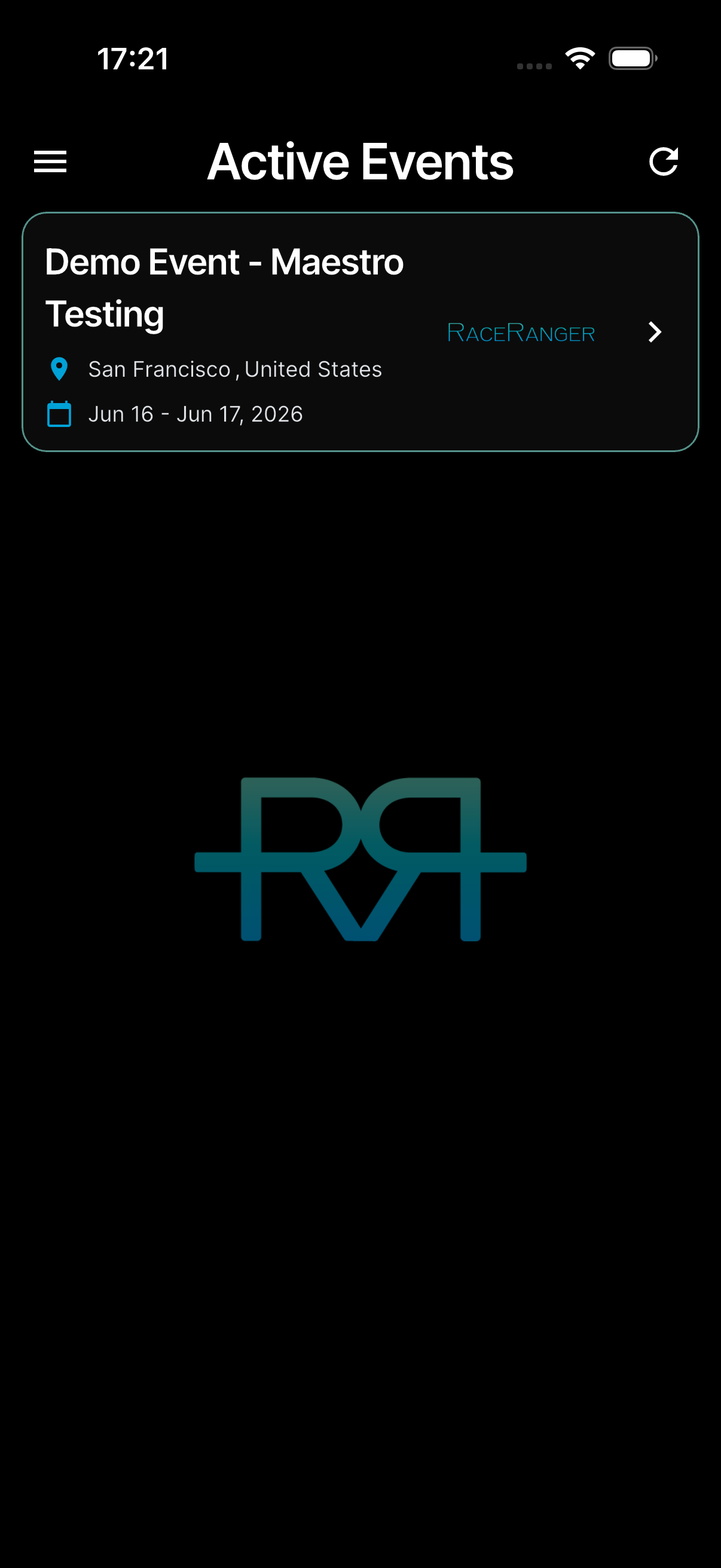
After the week is up, the test event is removed. From then on, you join events with a QR code or an email invitation — see Joining an event.
Location access
RaceRanger asks for location access in race mode, not when you sign in. When you enter race mode on a race that tracks officials in your role, and the app can't yet use your location all the time, it explains why under Location tracking is on for this race and helps you choose Always (on Android, Allow all the time).
See Location tracking for what is and isn't shared.
Forgot your password?
On the sign-in screen, tap Forgot password?, enter your email, and tap Send Reset Link. You'll receive a link to set a new password. This only applies to email and password accounts — Google and Apple sign-in are managed through those providers.
Signing in on a shared device
A shared tablet can sign in without typing a password: tap the QR button under Sign in with: and approve the code from your own phone. See QR code sign-in on shared devices.
Signing out
In the app, open the menu at the top left, tap Settings, then Log Out. On the web, choose Logout from the menu in the top bar.
Deleting your account
You can delete your account permanently. Open Settings, tap Request Account Deletion, and confirm with DELETE. You can't delete your account while one of your events is taking place; try again once it's over.
Once you confirm, the app shows Account deletion planned. Your account is locked straight away and deleted 14 days later; you get an email with the date. If you change your mind, sign in again before then and tap Keep my account.