Managing officials
You add people to your event, give each one an event role, and — on races that use TO assignments — choose what each technical official does on each race. You can do this on the web, on the event's Users tab, or in the app, on the event's Users tab (the people icon at the bottom).
Adding people to an event
There are three ways in:
- Add someone from your organisation. On the web, open the menu button at the bottom right of the event page and choose Add user. In the app, open the Users tab and tap + at the top right, then the Add user tab. Search by name or email — the search covers your organisation's members and leaves out people already on the event. Pick the person, pick their role, and confirm with Add (web) or Add user (app). They're approved straight away and get a "You were added to event" notification.
- Invite someone by email. If nobody in your organisation matches, type their full email address and choose Invite by email, then pick their role. If they already have a RaceRanger account, they're added straight away. Otherwise they get an email with a link to create an account and join; the link works for 14 days.
- Share the event's QR code or link. People who scan it ask to join and wait for your approval — see Sharing event access.
In the app, the person you pick moves up as the selected person and drops out of the results below, so nobody shows twice.
If the event already has as many people as its size allows, RaceRanger tells you the maximum is reached; ask your organisation admin to change the event size.
Invitations on the web
On the web Users tab, people you've invited by email who haven't accepted yet are listed under Invited, with who invited them and when the invitation expires. From their card you can:
- Resend invitation — sends the email again and restarts the 14 days.
- Revoke invitation — the link in the email stops working.
When an invited person accepts with the address you invited, they join the event straight away. If RaceRanger can't confirm it's them — for example, they sign up with a different email address — they wait for your approval like anyone who joins with the QR code.
Approving people
People who join with the event's QR code or link wait for approval. Everyone who can edit the event gets a Membership approval needed notification.
- Web — they're listed under To be approved at the top of the Users tab. Click the green check (Approve), pick their Role, and click Approve.
- App — they're in the For Approval group at the top of the Users tab. Tap the check, pick their Event role, and tap Approve.
They get a "You were approved" notification, and the event appears in their events list.
Changing a role or removing someone
- Web — click the pencil on the person's card (Edit roles for …), pick a new Role, and click Save. To remove someone, move the pointer over their card, click the bin, and confirm with Remove.
- App — tap the pencil on the person's row to open Edit user, pick a new Event role, and tap Save — or tap Remove and confirm.
Someone you remove loses access to the event: they stop getting its notifications and can no longer open its race control.
You can't edit your own entry unless you're an organisation admin — ask another delegate or your organisation admin.
Changes reach the official straight away: the next time they open the app they see their updated role, TO assignments, and chats.
Custom permissions for one person
On the web, the role dialog also has Customize permissions for this event. Use it as a last resort to give or take away a single permission for this person in this event only — the role itself is unchanged. For example, Can disqualify (DSQ) is a permission of its own, separate from approving penalties.
Managing the team from the phone
Technical delegates and organisation admins can manage the event team from the app — no need to open the web to fix a role or add someone at the last minute.
The Users tab lists everyone on the event, grouped by their event role — for example Local Organizing Committee, Medical (CMO), Organisation admin, Technical Delegate, and Technical Official. Technical officials show their TO roles under their name. People waiting for approval are in the For Approval group at the top.
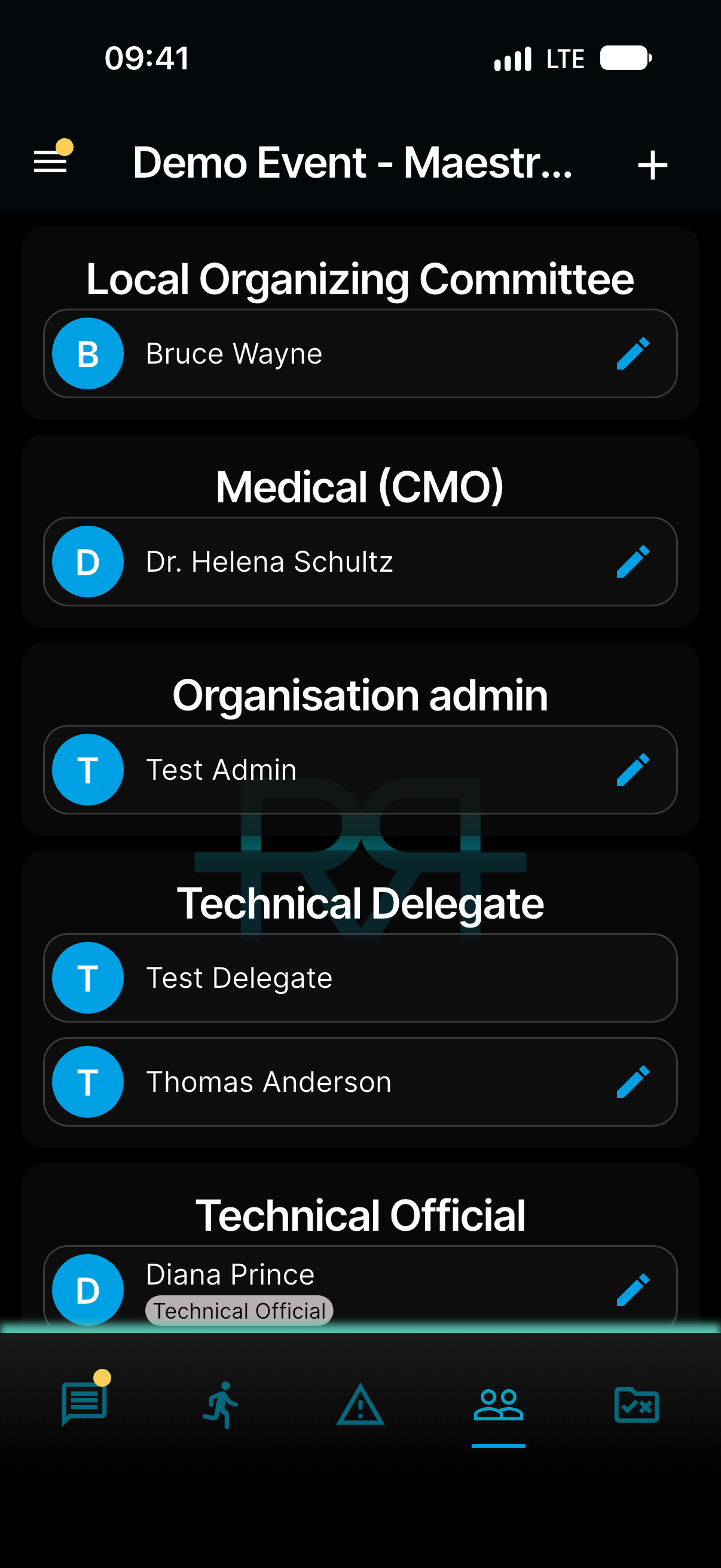
Edit user dialog
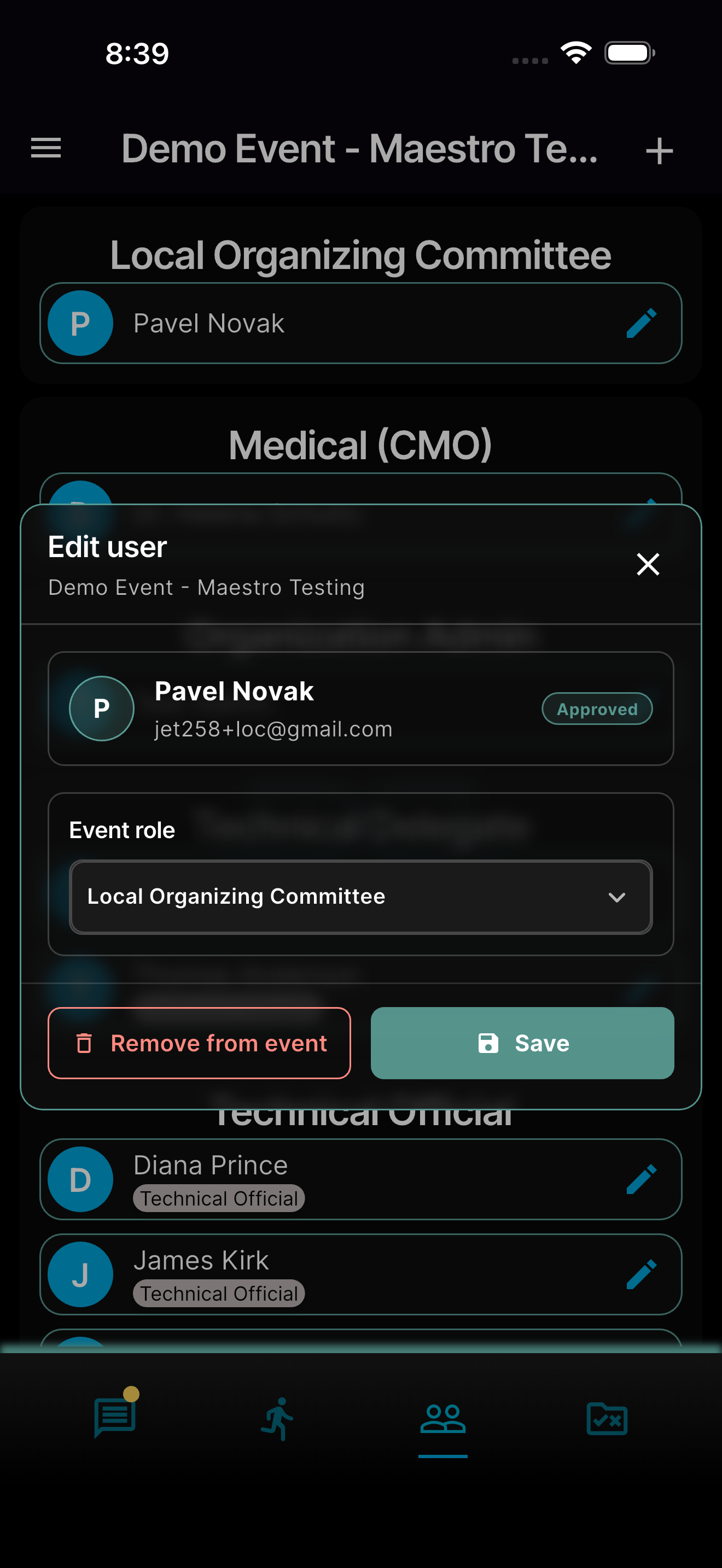
Tapping the pencil opens a focused dialog with:
- A card with the person's name, email, and status — Approved or Pending.
- Event role — the person's role for the whole event, picked from your organisation's roles (Local Organizing Committee, Media, Medical (CMO), Organisation admin, Team Leader, Technical Delegate, Technical Official, and so on).
- TO assignments — for technical officials only: one Pick roles… list for each race that uses TO assignments. See TO assignments.
- Remove — takes the person off the event, after a confirmation.
- Save — or Approve while the person is still waiting for approval.
Close the dialog with the X in its top-right corner; tapping outside it doesn't close it. Nothing changes until you tap Save or Approve.
Viewing a person's profile
To see who someone is at a glance, open their profile card:
- Web — hover over a person in the event officials list to preview their card, or click them to open it.
- App — tap a person in a user list.
The card shows their photo, name, when they joined, a short bio, and how many events they've taken part in — and their phone number with a Call button, if they've added one. The event count is always visible. The list of a person's recent events is shown to that person, to organisation admins for their own organisation's events, and to the RaceRanger team — everyone else sees the count only.
TO assignments
If your organisation uses TO assignments, you can give technical officials roles on each race that has TO assignments switched on (race editor → Options) — for example Chief Bike, Assistant Swim, or Chief Penalty Box. An official can hold several roles on a race. Their roles decide what they can see and do on that race. See Users and permissions for the roles and their permissions.
Two roles are special, and each is held on its own:
- Official (default) — the standard technical-official rights. When someone becomes an approved technical official, they get it on every race where they don't have a role yet, and a race you add later gives it to every technical official. Your organisation admin decides what it allows, in the roles editor.
- Not in Race — the official doesn't work this race: they can't report on it, and they're left out of race control's Team tab and the ready check.
Ticking either of them unticks the official's other roles on that race, and ticking another role unticks them.
Assigning TO assignments from the web
On the web, each race card on the Races tab has a people icon (Edit TO assignments) when TO assignments are switched on for the race. It opens the race's Race officials editor, which lists every technical official on the event with a Pick roles… list for this race. Type in Filter by name or role… to find someone.
Your changes wait until you apply them:
- Each official you change is marked Changed, and the footer counts them — for example "2 official(s) changed, not applied yet".
- Click Apply to save them, or Discard to drop them. With nothing to apply, the button reads Done.
- If you close the editor with changes not applied, it asks first (Discard unapplied changes?) — choose Keep editing or Discard.
- If someone else changed this race's roles while you were editing, your changes aren't saved: "Not saved: someone else changed these roles meanwhile. The list now shows theirs." Check their changes and edit again.
The Race officials editor in detail
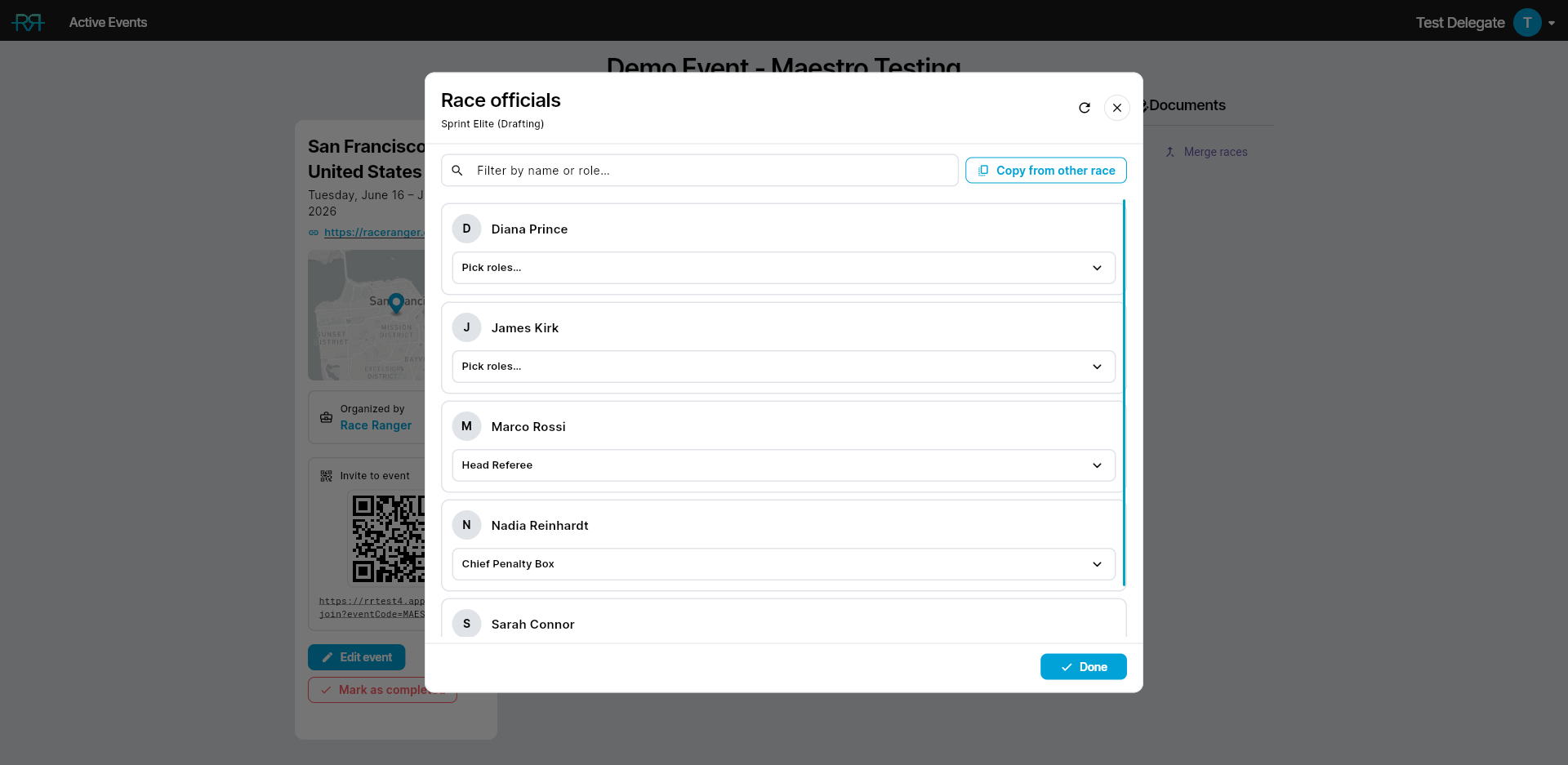
Each official's Pick roles… list holds the TO roles defined for your organisation (Chief Bike, Assistant Swim, Chief Penalty Box, etc.). Only approved people with a technical-official event role are listed; approve people on the Users tab first.
The sliders icon next to an official's roles opens Permissions — this official, this race: overrides that apply only to this official on this race. The role itself is unchanged.
Use Copy from other race to copy the TO assignments of another race in the same event — useful when you've laid out the Sprint Elite assignments and want the same team on the Age Group race. Pick the Source race, click Copy assignments, and confirm. This replaces the race's current TO assignments and can't be undone. Apply or discard your own changes first.
Assigning TO assignments in the app
In the app, open the official's Edit user dialog. The TO assignments block has a Pick roles… list for each race that uses TO assignments. Your picks are only saved when you tap Save — until then the dialog shows how many races you've changed, and closing it drops them. If someone else changed the official's roles on a race in the meantime, that race keeps their change, and the app tells you which races weren't saved.
Sharing event access
Every event has a QR code and link that let people ask to join:
- Web — the Invite to event card on the left of the event page shows the QR code and link.
- App — on the Users tab, tap + and open the Invite tab to Copy the link, Share link, or Share image.
Print the QR code for display at the venue, send it by email or messaging, or show it during the officials' briefing. People who join this way wait for your approval — see Approving people.
If the code reaches the wrong people, open Edit event → Extras and Re-generate the invite code. The old QR code and link stop working.
Chat channels
Each event gets chats for its roles automatically — for example Technical Team for technical officials and delegates, LOC Chat for the local organising committee, and Media for media. Which roles join which chat is set by your organisation's roles, and people join and leave the chats as their roles change. When the event's size allows chats of your own, add one from the menu button on the event page (Add chat).
Briefing the team
Before race day, use the event's attached documents to brief your team:
- Attach the officials' briefing document as a PDF.
- Ensure all officials have joined the event and can see their assignments.
- Run a practice session in practice mode if needed.