Notifications
RaceRanger sends push notifications to keep officials informed during events. Notifications appear on your device even when the app is in the background, and they come in your app language.
Notification types
| Type | When it's sent | Who receives it |
|---|---|---|
| Penalty | A penalty is submitted, or its status changes (approved, declined, served, cancelled, protest) | Officials with penalty notifications enabled |
| Incident | An incident is reported or updated — a new status or severity, or a DNF | Officials with incident notifications enabled |
| Chat | A new message, a reply or mention, or a reaction to your message | Members of the chat (see Chat for muting) |
| Race status | Race mode is activated, deactivated, or switched to another race | Officials with penalty notifications for the race |
| Race starting soon | About 90 minutes before the start — race mode switches on by itself an hour before | Officials who can start and stop the race |
| Race still active | Race mode has been on for 3+ hours with no penalty or incident in the last hour (at most once an hour) | Officials who can start and stop the race |
| Ready check | A ready check starts, or is sent again | The officials asked |
| Assignment | You're added to an event or approved | The assigned official |
| Weather | Conditions are logged, or an automatic weather update arrives | Officials with environment notifications enabled |
| Event feedback | An event you took part in is marked as over and the organisation collects feedback | Everyone who took part |
| Media handover | A tablet asks your phone to take a photo or video for a report | The official asked |
What's in a notification
Each notification includes a title (e.g. "New Penalty Submitted" or "Race Mode Activated") and a summary message with the key details. Tapping it takes you straight to the relevant screen — the penalty or incident review, the chat channel, or race mode. Both the push message and the entry in the in-app notifications list appear in your app language.
Tip
When race mode is activated, the notification takes you straight into race mode. Make sure you're in race mode during an active race — it ensures your location is tracked (if enabled) and you can react quickly to penalties and incidents.
Controlling notifications
Notification preferences are tied to your role and TO assignments:
- Penalty notifications — enabled for roles like Head Referee, Chief Race Official, and Penalty Box officials.
- Incident notifications — enabled for roles that need to respond to incidents.
- Environment notifications — enabled for roles that monitor weather and course conditions.
- Chat notifications — can be muted per channel.
You can't override role-based notification settings, but you can mute individual chat channels in the mobile app. A muted channel still tells you about replies to your messages, mentions of you, and messages marked important.
In-app notifications
The notifications screen shows a history of the notifications you've received. Open it from the event page's menu, or in race mode from the Tools folder, where it shows the current race's notifications. Chat messages aren't listed here — the chat list shows them with unread dots.
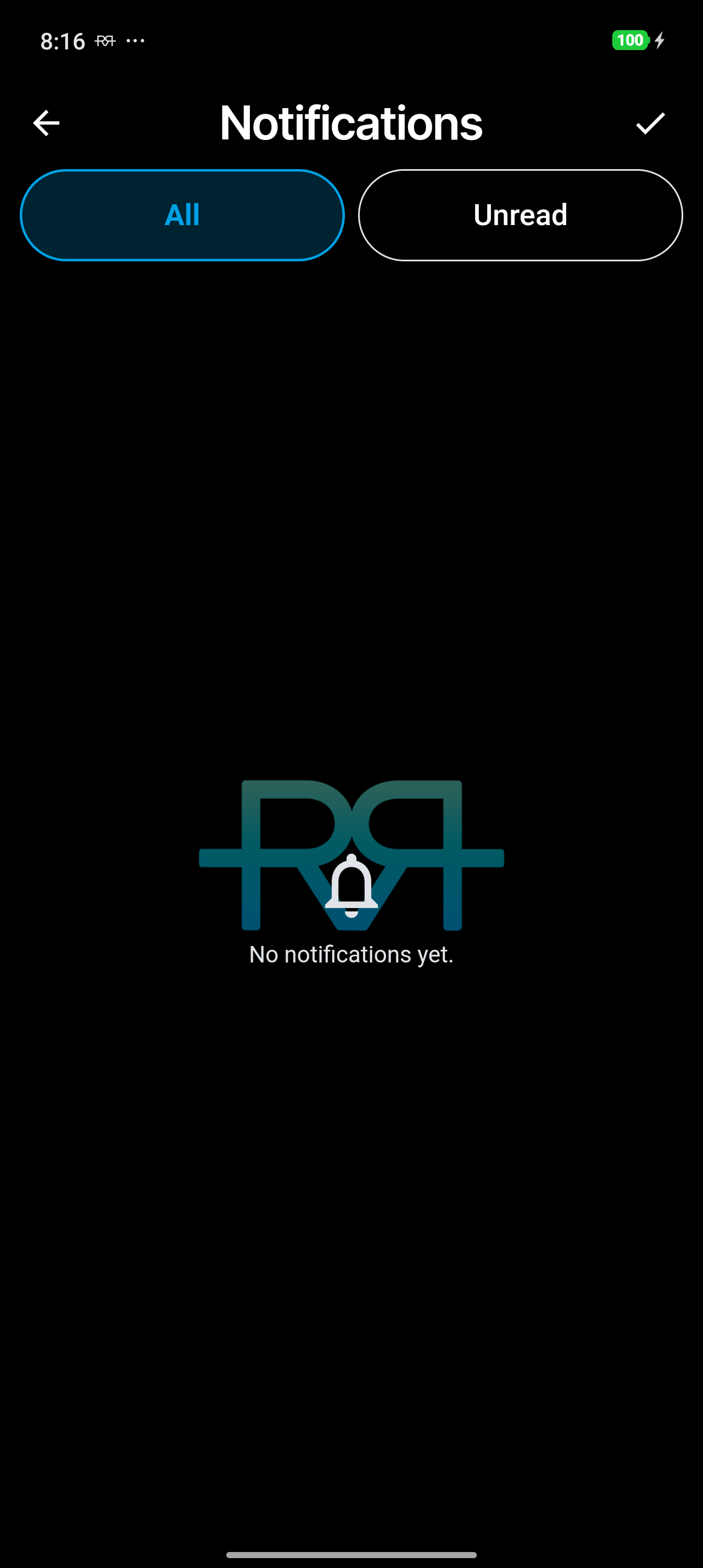
Use the All / Unread filter at the top to switch between everything and only the items you haven't read yet; the Unread tab shows a live count. Entries are grouped by day — Today, Yesterday, and Earlier.
Each entry shows:
- The notification type (penalty, incident, race status, etc.).
- Who triggered it.
- When it was sent.
- Whether you've read it — unread entries are highlighted.
Swipe an unread entry to the right to mark it read. Tap a penalty or incident entry to open its review; it's marked read automatically, and tapping any other entry marks it read. To clear everything at once, tap the tick at the top right (Mark all as read) and confirm.
Shared devices
On shared tablets, notifications are filtered to the active event. If a tablet is configured for a specific event, it only receives notifications relevant to that event — not notifications from other events the signed-in user might be assigned to. Dedicated devices receive no push notifications at all.