Quick incident
The abbreviated steps to report an incident during a race. For the long form (types, severities, follow-up updates), see Incidents.
The five-tap version
From Race Mode Active:
- Report Incident tile.
- Pick the type (your organisation's list may differ):
- DNF / DNS / Lapped / Eliminated / Mechanical — athlete-specific, so the next screen asks for an athlete number.
- Course / Medical / Other — general, no athlete number required.
- Athlete-specific only: type the number on the keypad → the green arrow key.
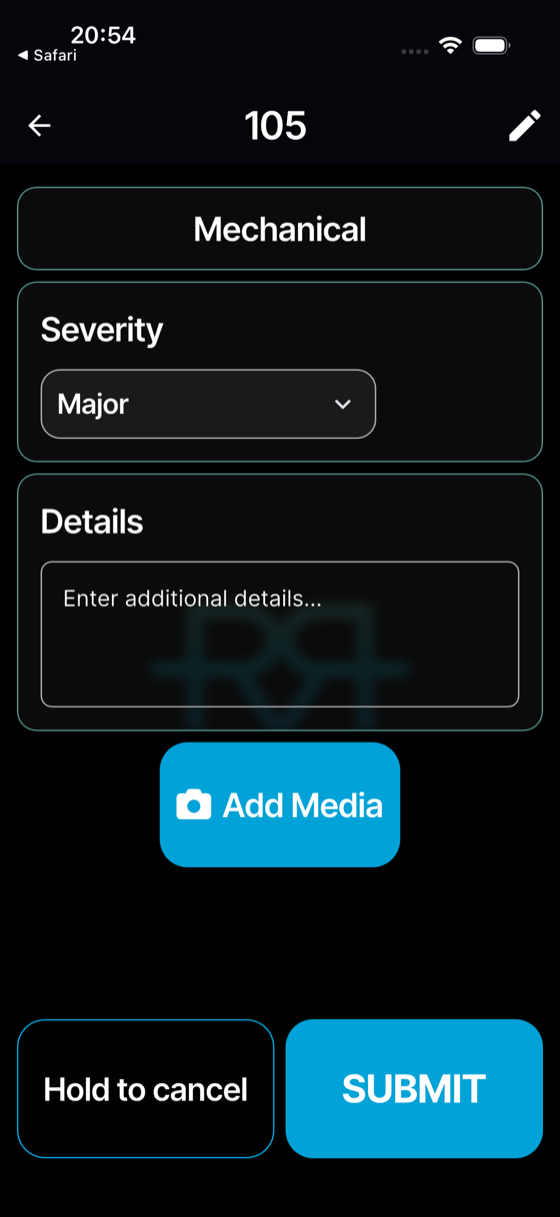
- Pick the Severity from the dropdown (it starts at Insignificant):
- Insignificant — informational, no action needed.
- Minor — track but don't escalate.
- Moderate — worth attention, not urgent.
- Major — needs attention from race control.
- Extreme — immediate response (medical, safety).
- (Optional) add a note and photos or videos → SUBMIT.
For an athlete-specific type such as Mechanical, the form also asks Athlete DNF? — switch on Did not finish to mark the athlete as a DNF in the same step.
Tap through the whole flow:
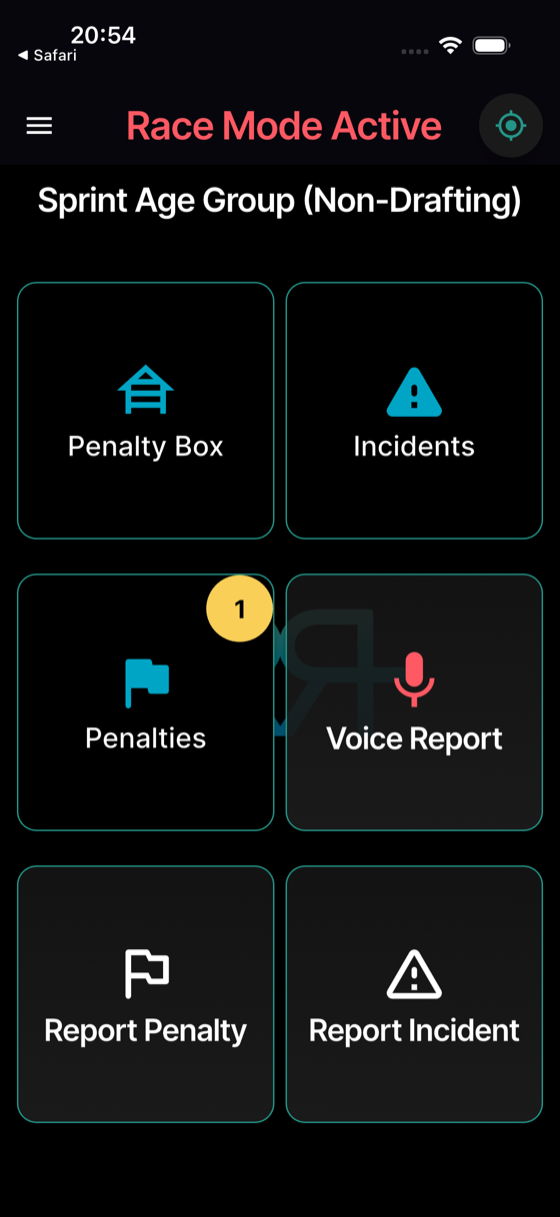
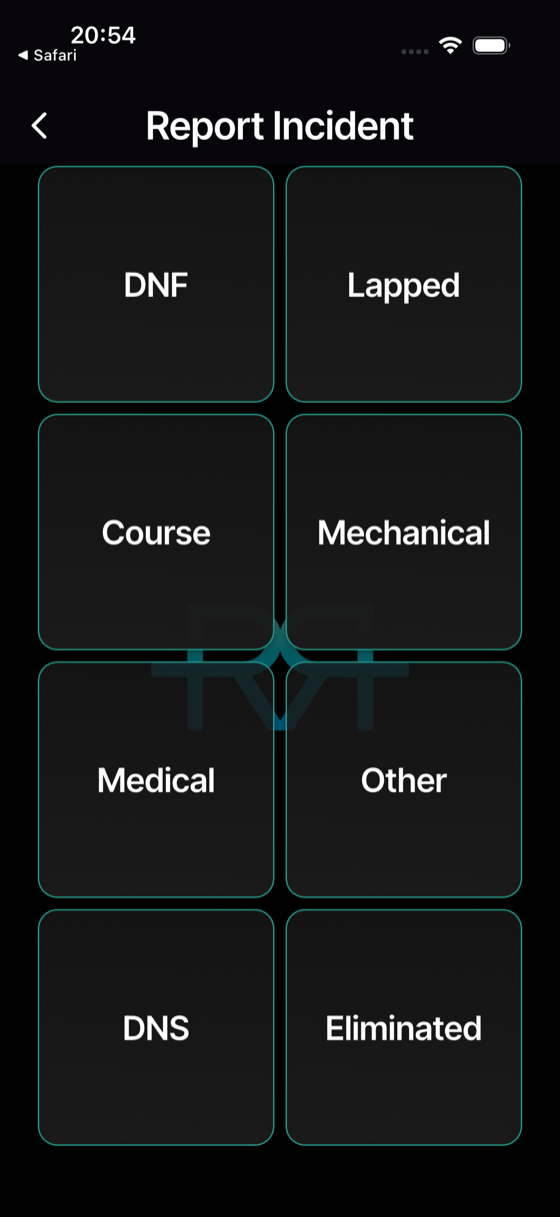
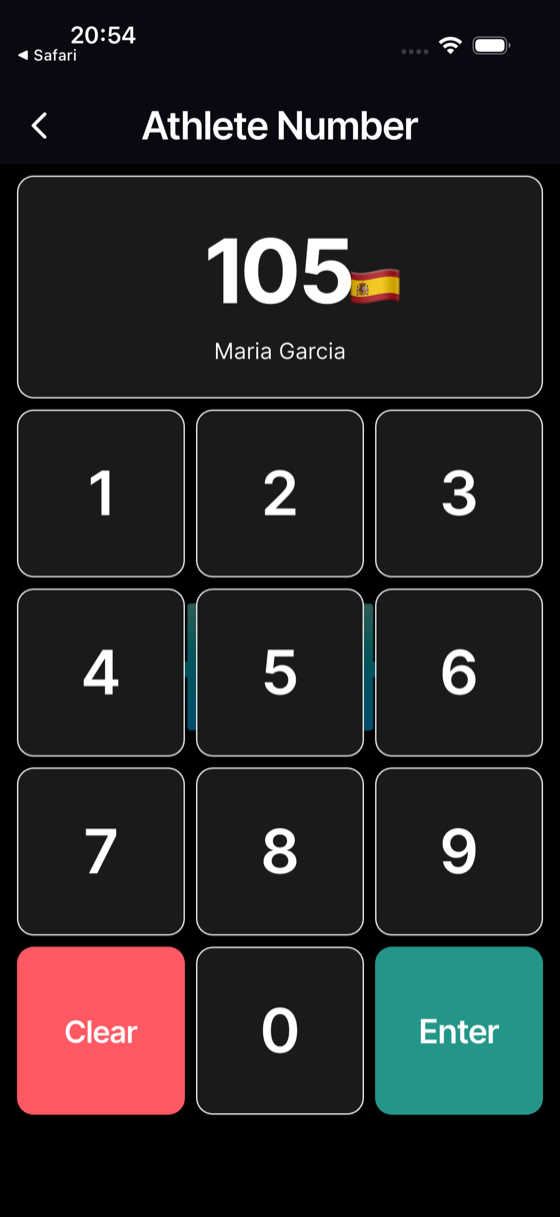
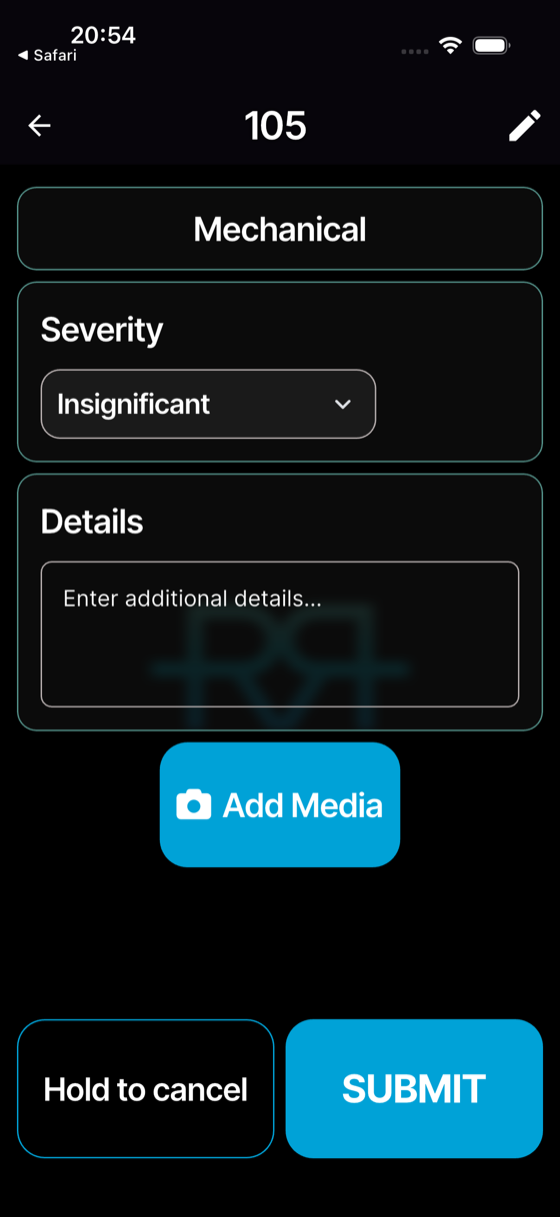
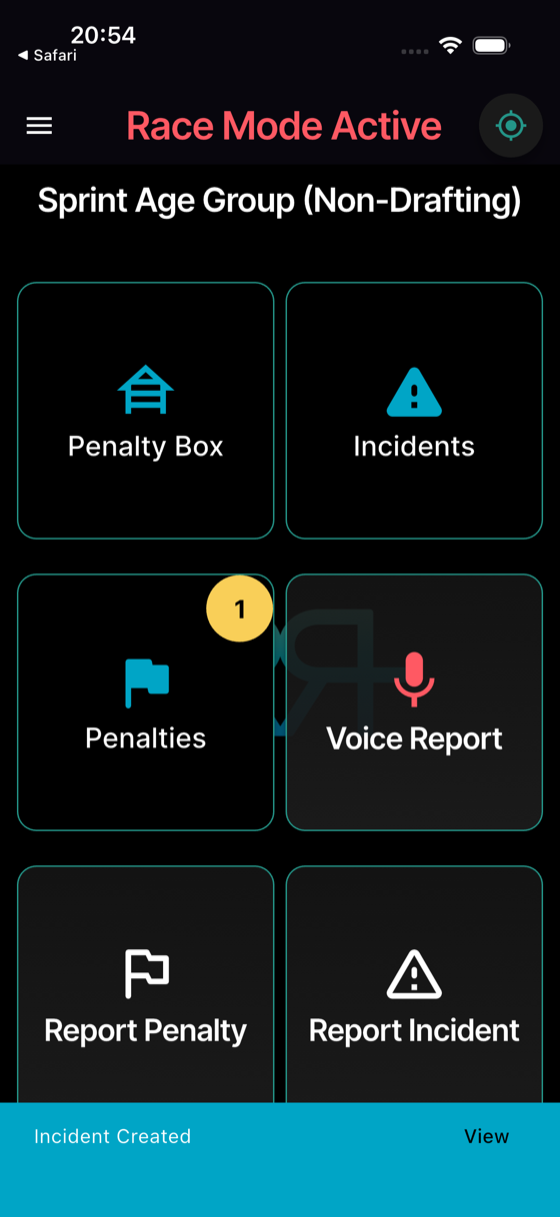
Incident Created appears for a few seconds, with a View shortcut. The incident is saved on your phone straight away and sent as soon as you have a connection; photos upload in the background.
To log an incident that isn't tied to a race, use the event's Penalties & incidents tab instead: tap + and answer No — event-wide.
What the app records automatically
- Your location at submission, when your phone has one.
- The exact timestamp.
- Your identity.
- The race and event the incident belongs to.
When to use which severity
| If… | Severity |
|---|---|
| You want a written record (timing query, course note) | Insignificant |
| Something to monitor but no action needed | Minor |
| Needs handling, but not right now | Moderate |
| Race control should know about this now | Major |
| A medical or safety emergency that needs an immediate response | Extreme |
When in doubt, pick the higher severity — it's easier to downgrade an escalated incident than to recover from one that wasn't flagged in time.
Follow-up
After submission the status is Open. Officials who can update incidents can add an update (a note, photos, or videos), change the status to In progress, Closed, or Cancelled, and add Stakeholders — the officials who should follow it. See the Incidents guide for the full lifecycle.