Quick start
For brand-new officials. Get from "I have the app installed" to "I'm ready for the race briefing" in about five minutes.
The longer guides (Signing in, Joining an event, Practice mode, Penalties, Incidents) cover edge cases. Read this one first to see the whole loop end-to-end.
1. Sign in
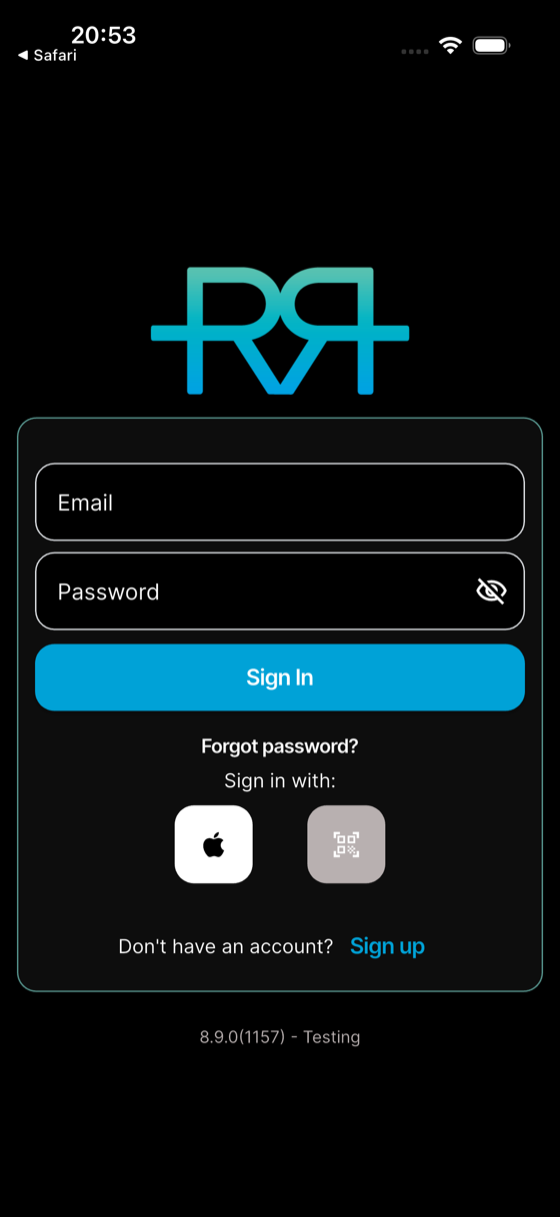
Open RaceRanger → enter your email and password → Sign In. You can also sign in with Google, or with Apple on an iPhone or iPad.
If you don't have an account yet, tap Sign up on the sign-in screen and create one. If your organiser has sent you an invitation email, open its link and follow the steps — see Joining an event.
2. Pick the event
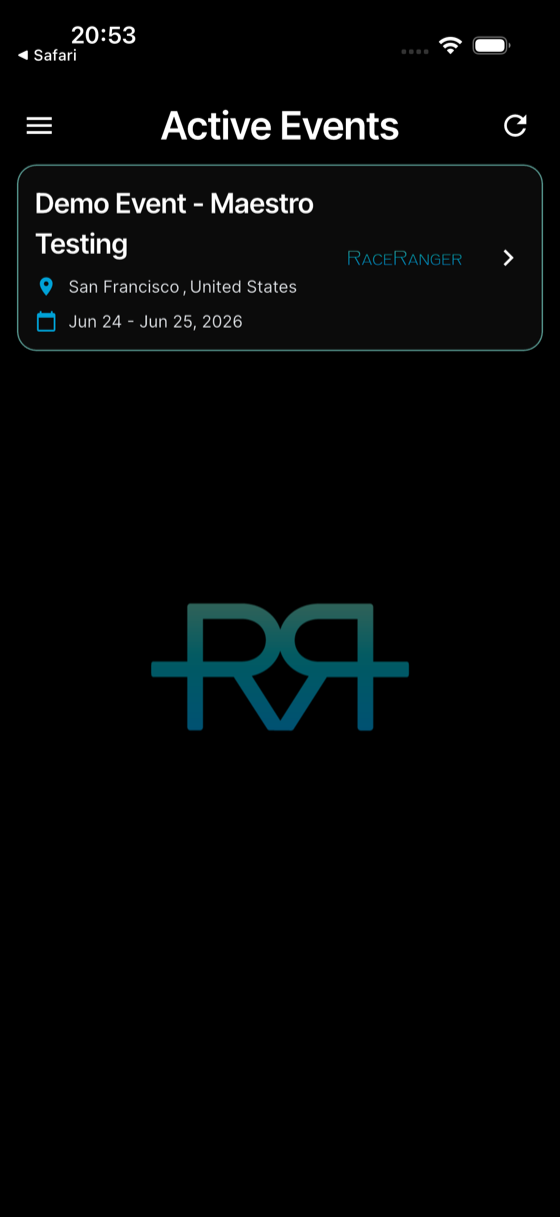
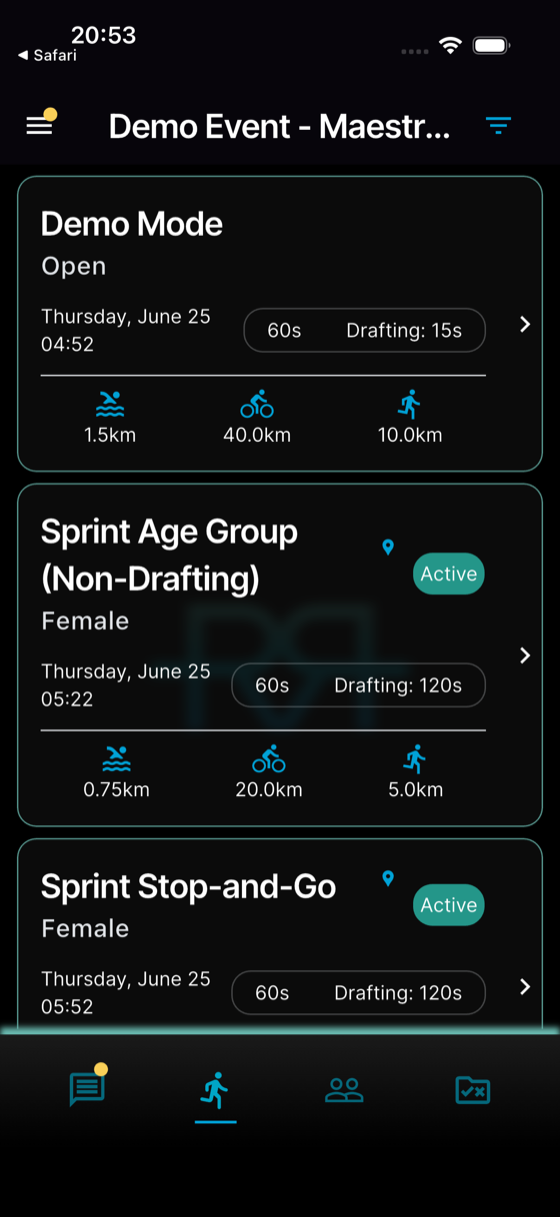
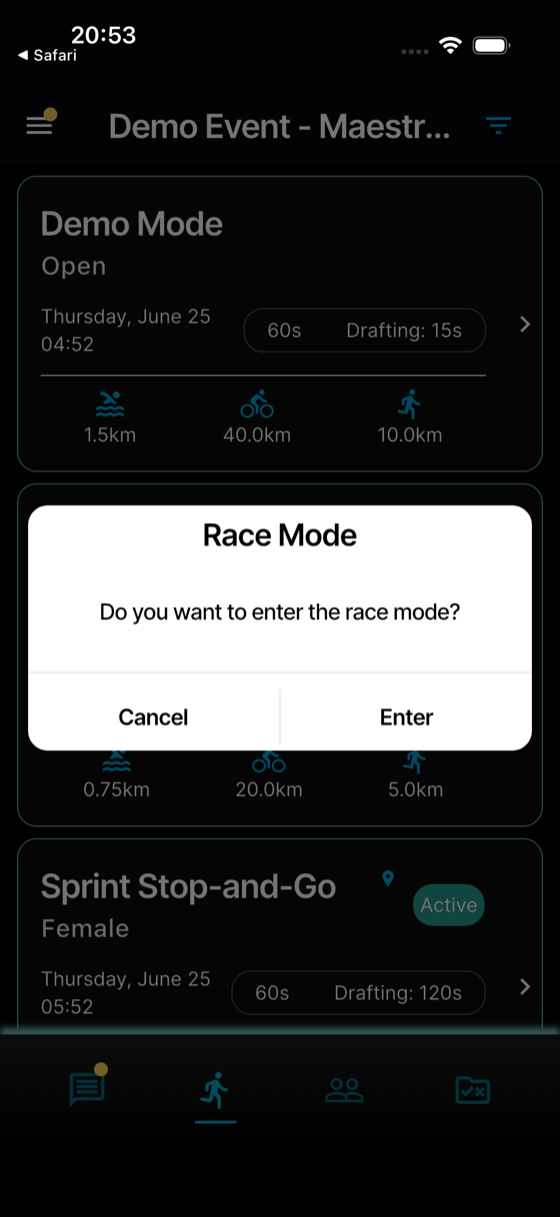
Active Events lists every event you're in. Tap today's event. You'll land in the event workspace: the race list, with the bottom bar for Chat, Races, Penalties & incidents, Users, and Documents.
3. Open the race in race mode
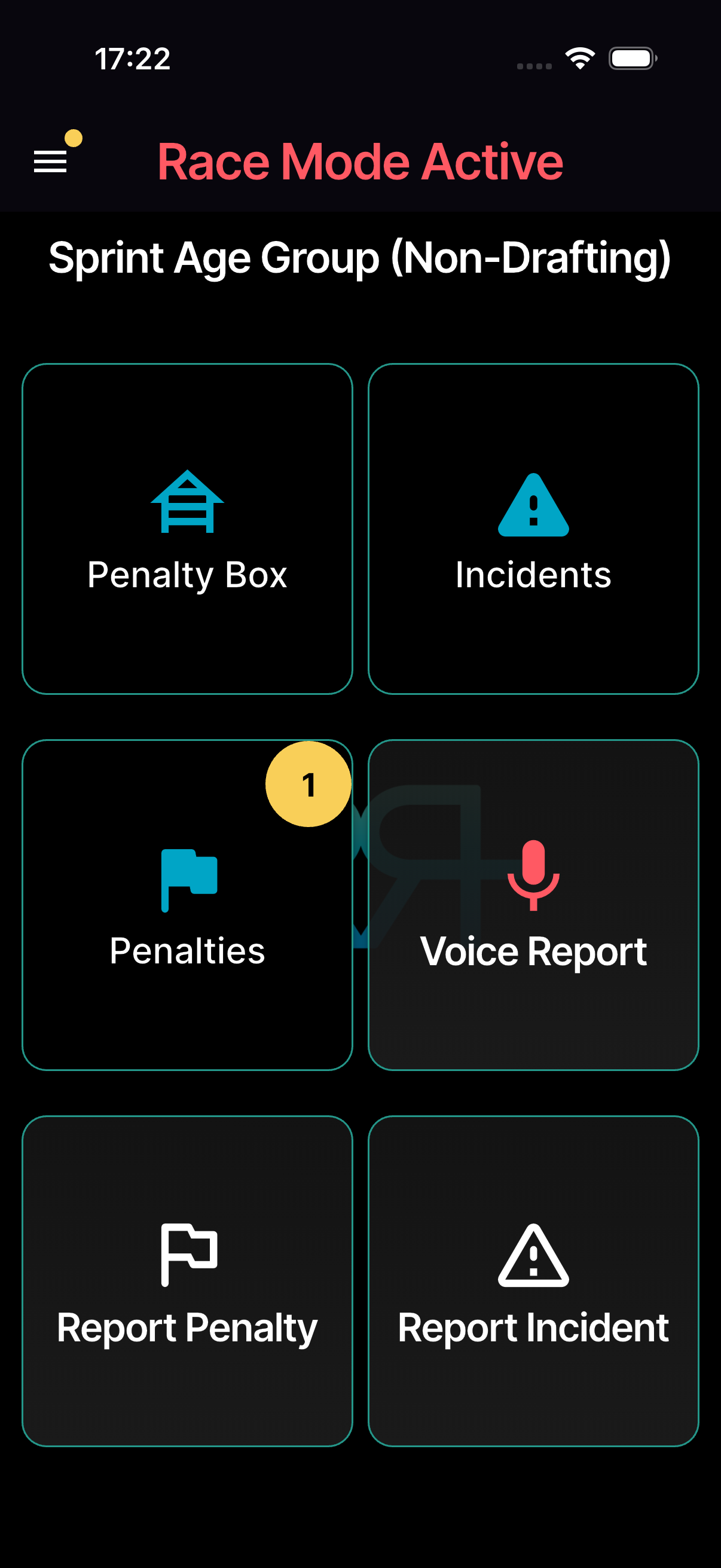
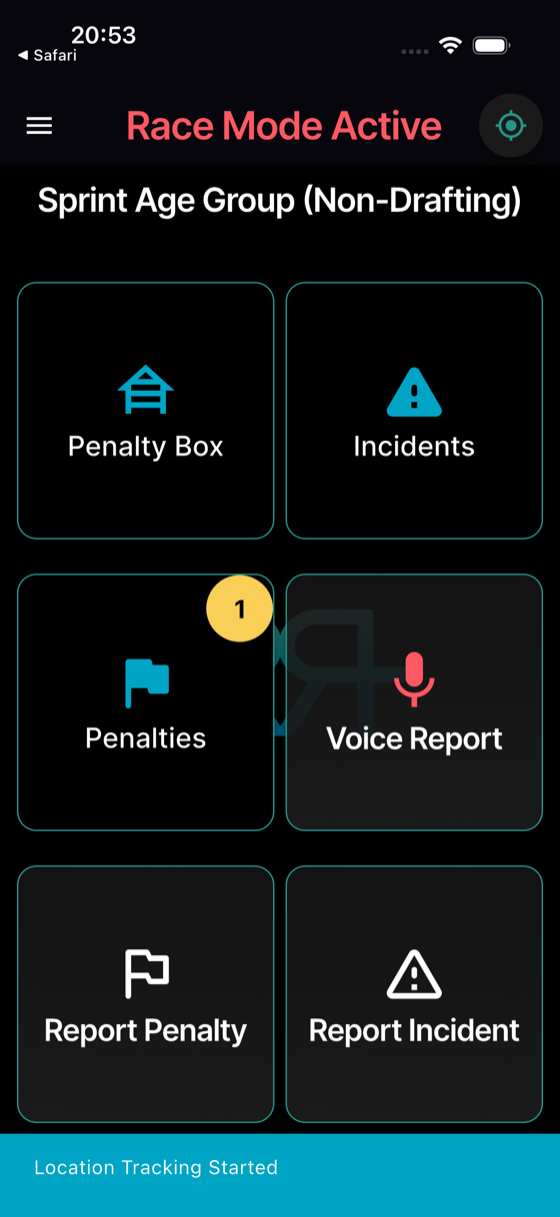
Tap the race you'll be officiating, then Enter to start race mode. You can enter a race once it's Active — race mode usually switches on by itself an hour before the start. The red header reads Race Mode Active, and the race-mode tiles appear:
- Penalty Box — athletes serving time penalties, with their timers.
- Tools — the small icons next to it: Chat, Notifications, Ready Check, Start List, Documents, Environment, Race Map, Race Log, and more.
- Penalties & Incidents — every penalty and incident in the race.
- Voice Report (large events) — hands-free reporting.
- Report Penalty — start a new penalty submission.
- Report Incident — start a new incident submission.
Which tiles and tools you see depends on your role. That's the home screen for everything you'll do during the race.
Tap through sign-in to race mode:
The penalty box
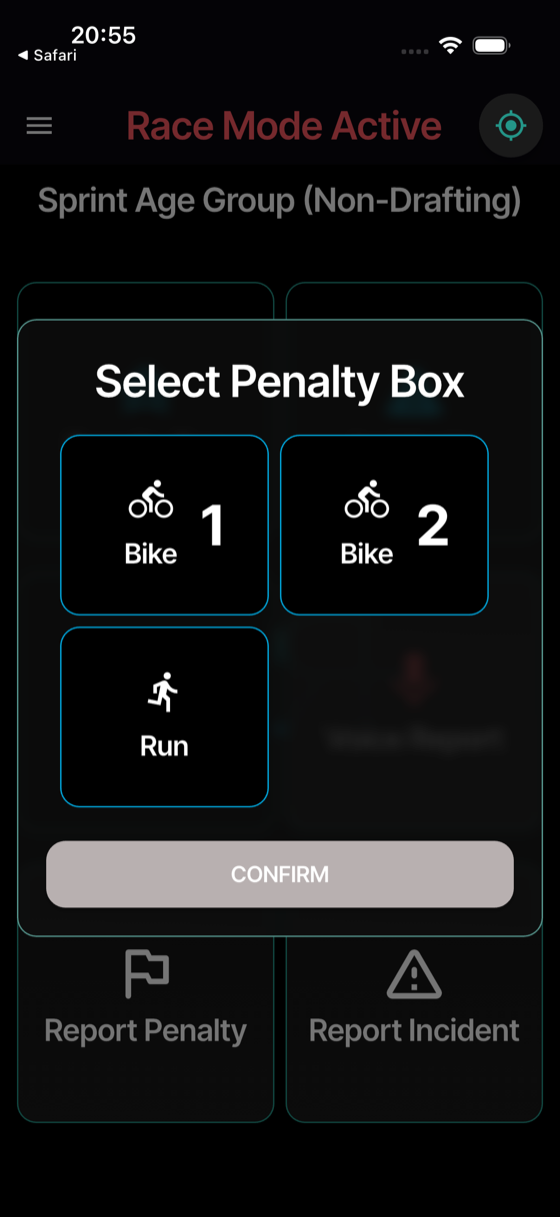
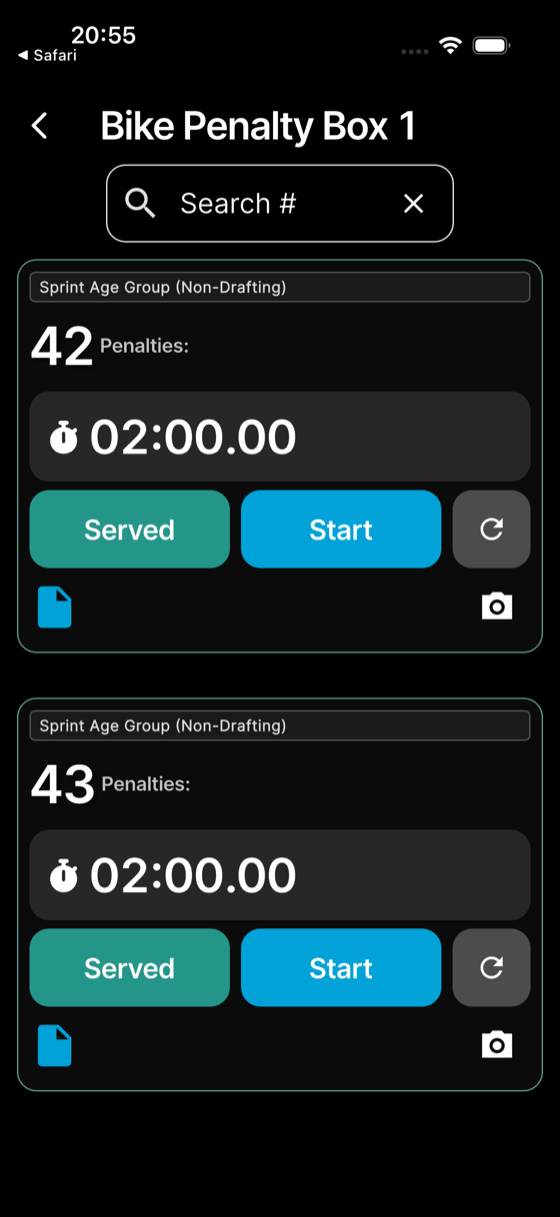
The Penalty Box tile shows every athlete waiting to serve a time penalty, each with a countdown. Tap Start when an athlete arrives to run their timer; it counts down to zero. Stop pauses it. Tap Served when the athlete has served, then Yes — or Yes, with photo to attach a photo.
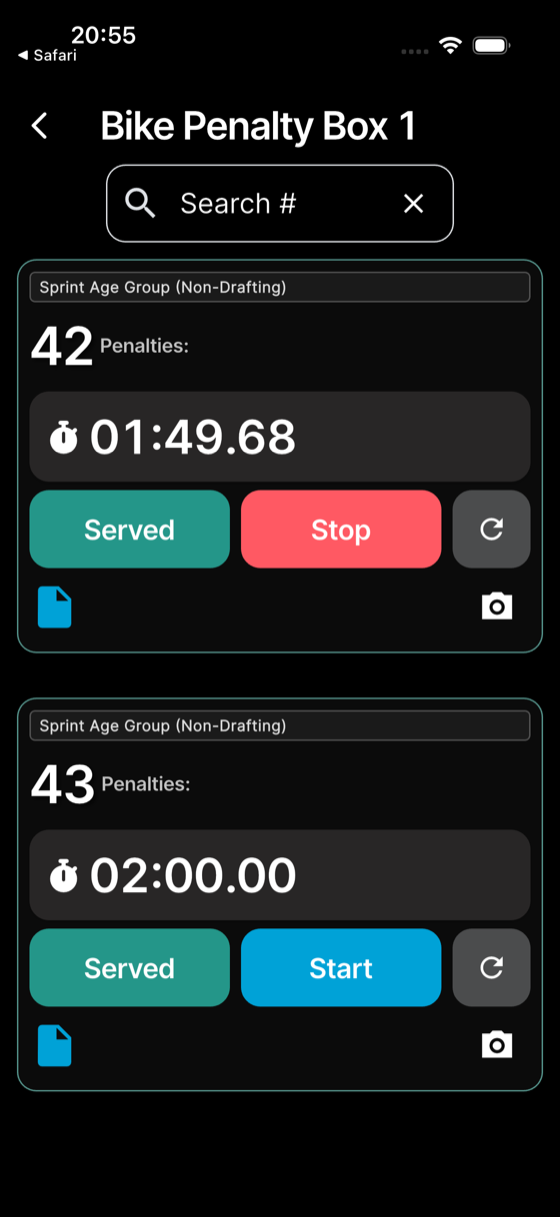
4. Practice before the race starts
Use demo mode to run through the penalty and incident submission flows without affecting real data. Every event has a Demo Mode race; entries there are practice data and never appear in reports or notifications.
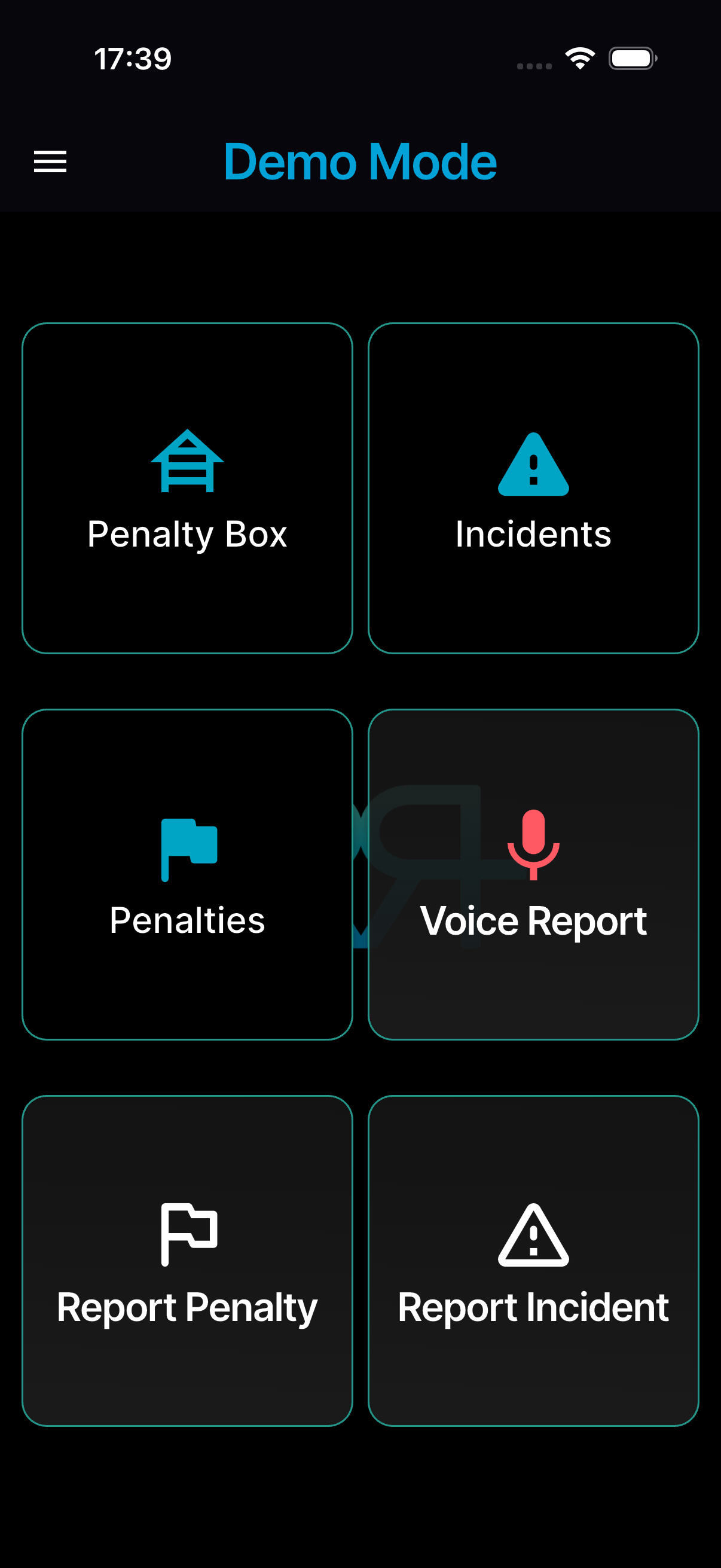
When no real race in the event is Active (normal before the first race and between races), demo mode gives you the full experience — submission, review, approval, follow-up. While a real race is Active, a yellow warning in Demo Mode covers Penalties & Incidents and Voice Report and reminds you to switch to the live race.
5. Cheat sheets
When the race actually starts, refer to:
- Quick penalty — the abbreviated steps to report a penalty.
- Quick incident — the abbreviated steps to report an incident.
Keep them open in another tab on your phone or print them out for the briefing.