Practice mode
Practice mode (also called demo mode) lets you explore RaceRanger without affecting live event data. It's useful for training new officials or familiarising yourself with the app before race day.
How it works
Every event has a practice race called Demo Mode. Anything you do there — penalties, incidents, approvals — is practice data: it never reaches race reports, notifications, or connected results systems.
The demo race uses the same screens as a live race: the penalty and incident forms, Penalties & Incidents, and the penalty box all work the same way. In the demo race every official can use every tile, whatever their role — including approving penalties and disqualifying — so you can practise the whole loop. The demo race is shared: everyone practising in the event sees the same practice entries.
Who sets it up
Nobody needs to. RaceRanger adds the Demo Mode race to every event automatically: an Olympic-distance, non-drafting triathlon with a penalty box and two bike boxes, which accepts any bib number from 1 to 999. Technical delegates can change its distances, drafting, penalty boxes, and penalty times in the race settings, so practice looks like the real races. Its name can't be changed.
When to use it
- Before your first event — get comfortable with the penalty and incident submission flow. Your private test event has a Demo Mode race too.
- During officials' briefings — walk through the app with your team so everyone knows where things are.
- Testing new features — after an app update, try the new features in demo mode before using them live.
Starting a practice session
Open the event and tap Demo Mode in the race list. It opens straight away, without asking you to confirm. The race mode screen shows a blue Demo Mode header instead of the red Race Mode Active you see in a live race. The demo race has no tools folder.
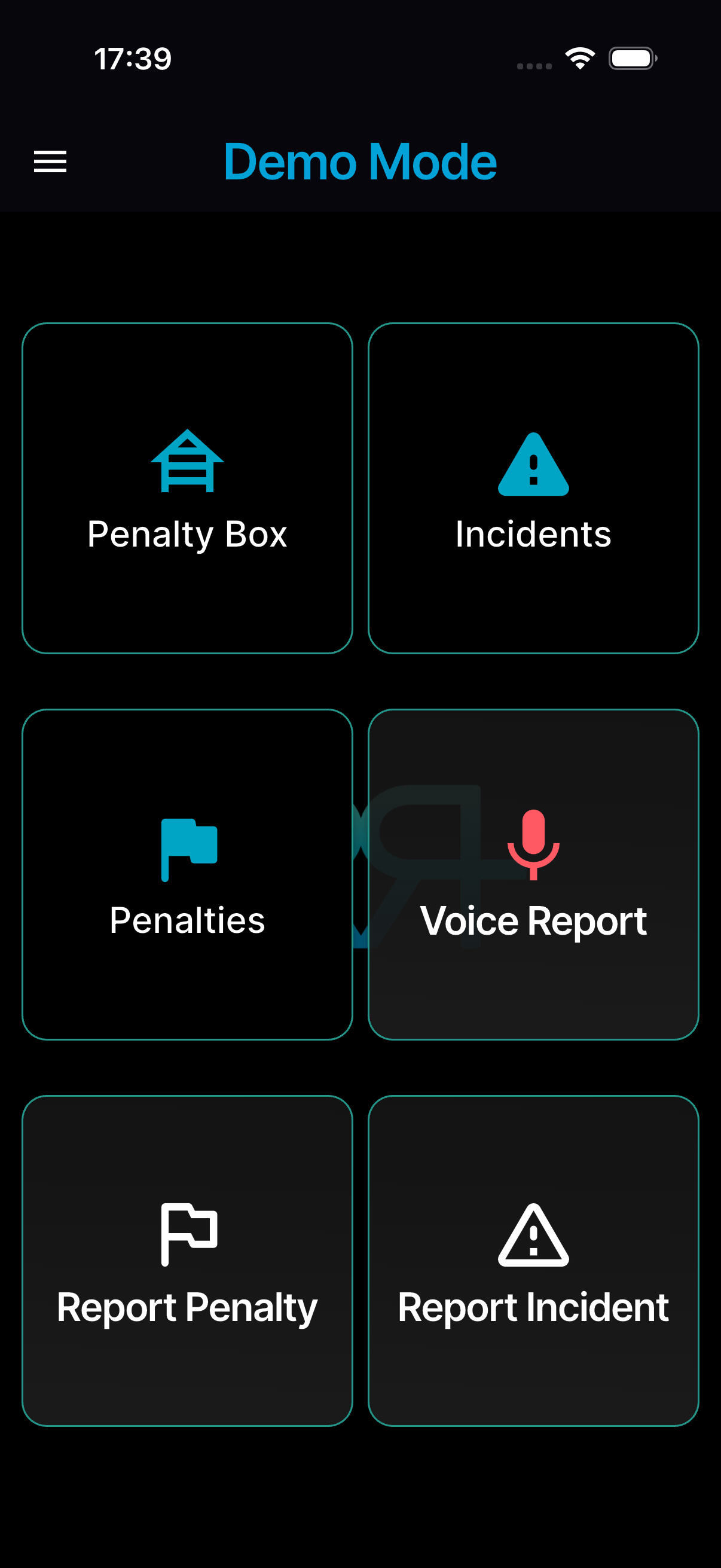
To leave, open the menu at the top left, tap Press to exit, then Leave.
Practice while a live race is running
If another race in the same event is Active while you're in Demo Mode, a yellow warning appears across the middle of the screen:
DEMO — live: \<race name> — Switch race before adding penalties
The warning covers the Penalties & Incidents and Voice Report tiles. Leave Demo Mode and open the live race before you report anything real.
Testing the full workflow in demo mode
To walk a team through the entire officiating loop — report, review, approve, follow-up — practise while no real race in the event is Active, so the warning stays away. A race usually switches to Active by itself an hour before its start. Between races, an official with the permission can switch race mode off from the tools folder (Danger zone → Deactivate race mode) — see Running an event.
Recommended walkthrough:
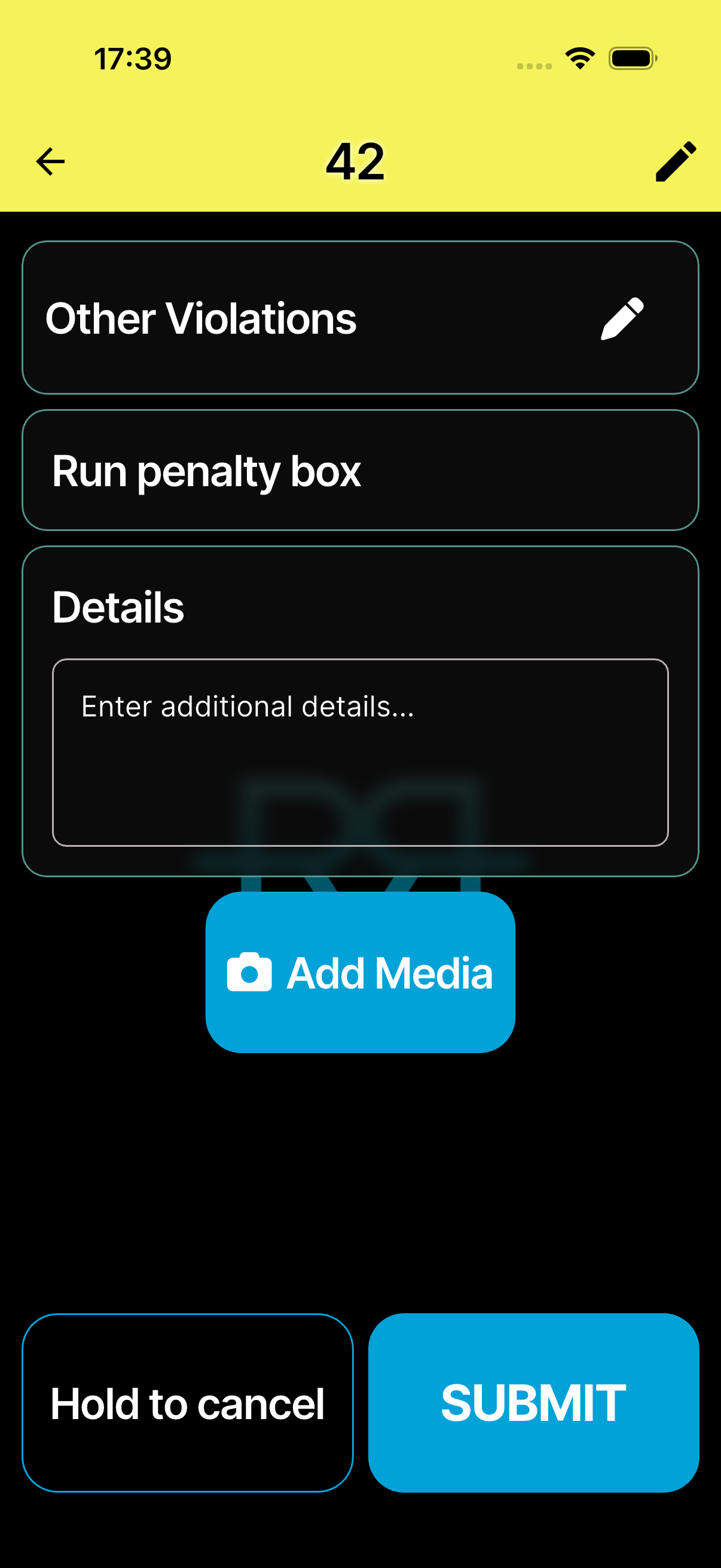
- Report a penalty. Tap Report Penalty, enter any athlete number, tap a penalty in the list (for example Other Violations), and pick a penalty box if the app asks. Add a photo under Evidence if you like, then tap SUBMIT.
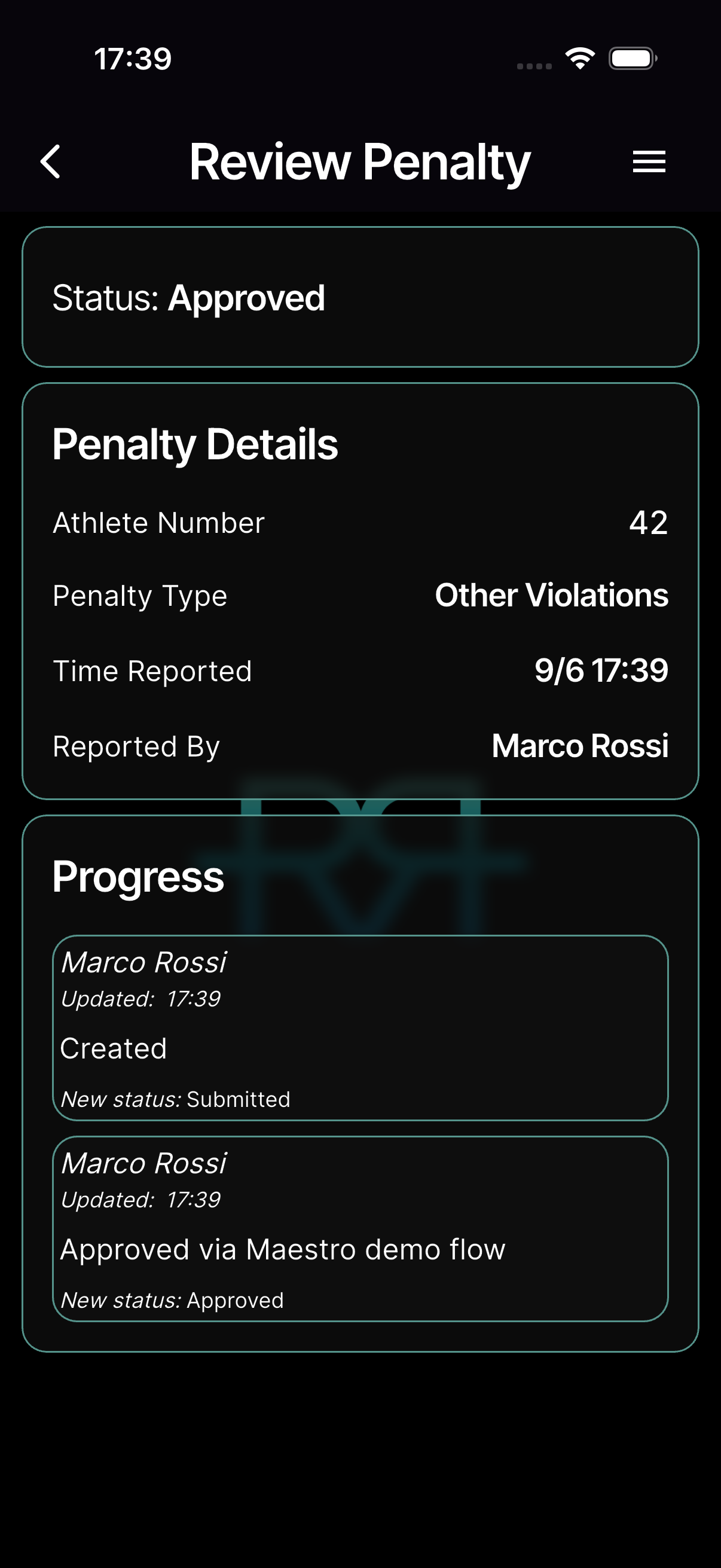
- Approve the penalty. Tap Penalties & Incidents, open the new penalty (status Submitted), type a Reason for Decision, tap Approve, and confirm with Approve in the Are you sure? dialog. The status changes to Approved and your reason appears under Progress.
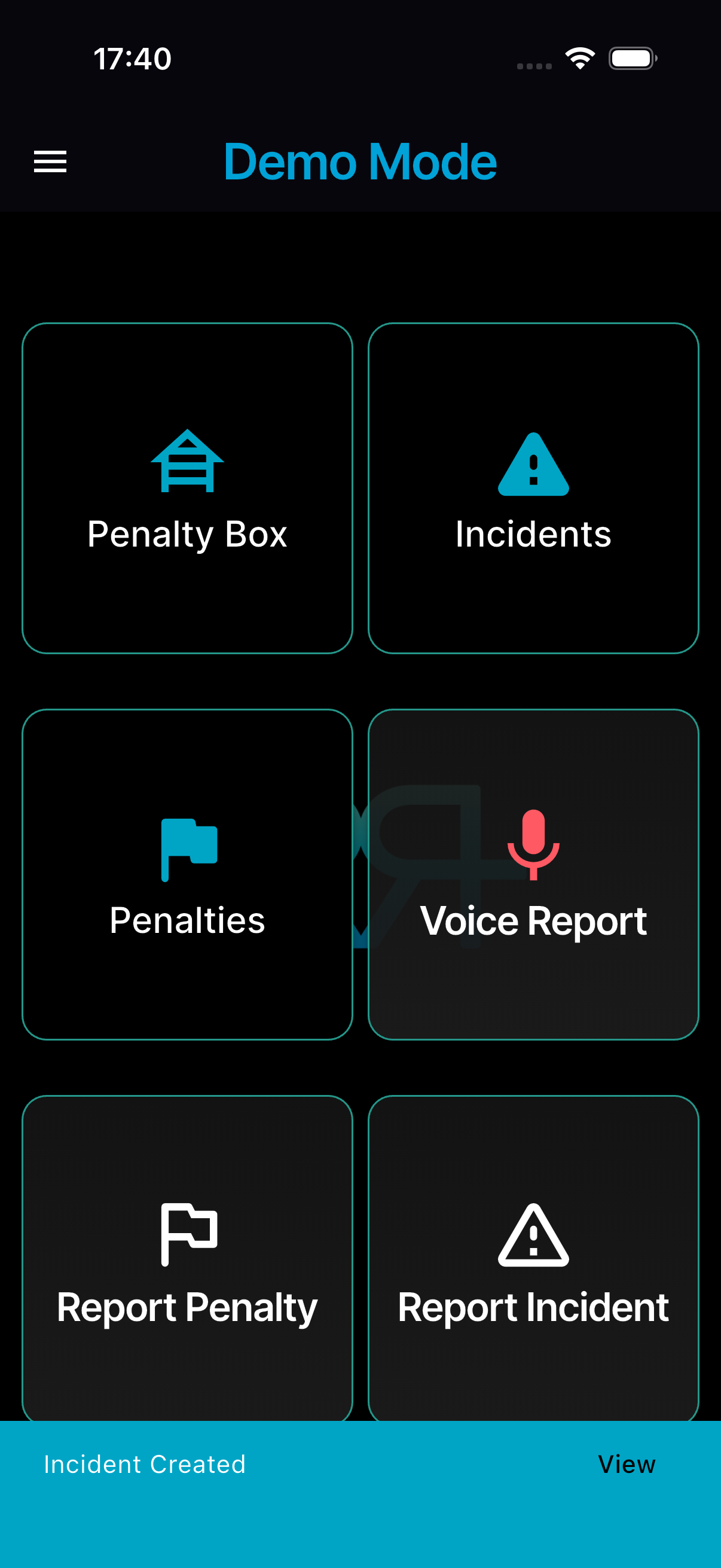
- Report an incident. Tap Report Incident, pick a type (e.g. Mechanical), enter an athlete number, choose a severity, and tap SUBMIT. Tap View on the confirmation to open it.
Practice entries are marked as practice data and kept out of reports, so it's safe to leave them in place.