Member management
Your organisation's members
Organisation members are the pool of people who can be assigned to events. On the web, choose Organizations in the top bar and open the Users tab. It lists your Admins, your Members and the Pending people waiting for approval. When the list is long, type a name or email in the search box to filter it.
Organisation admins can modify events and manage other members. Regular members can be assigned to events but can't change organisation settings.
Inviting members to your organisation
- On the Users tab, choose + User.
- Type the person's full email address and choose Invite.
If the address already has a RaceRanger account, the person is added straight away, with no email and no approval needed. Anyone else gets an email invitation. They follow the link, set up an account and add their name, and then appear under Pending, ready for you to approve. Invitation links stay valid for 14 days and can be used once.
Approving, promoting and removing members
- Approve member on a Pending row makes the person a member. Remove from organization turns them away.
- For admins and members, each row's Manage user menu offers Promote to admin, Demote to member and Remove from organization.
People who join through one of your events, rather than an organisation invitation, show up in your organisation's Pending list while that event runs. They leave the list once all their events are over, and come back if an event is reopened. An event counts as over when it's marked as completed. RaceRanger also clears the list for events that ended more than a week ago but were never marked as completed, unless an event is kept open on purpose.
Inviting officials to an event
Once an event exists, you can assign people to it from the web admin:
- Open the event from the events list.
- Switch to the Users tab.
- Click the menu button (☰) at the bottom right and choose Add user.
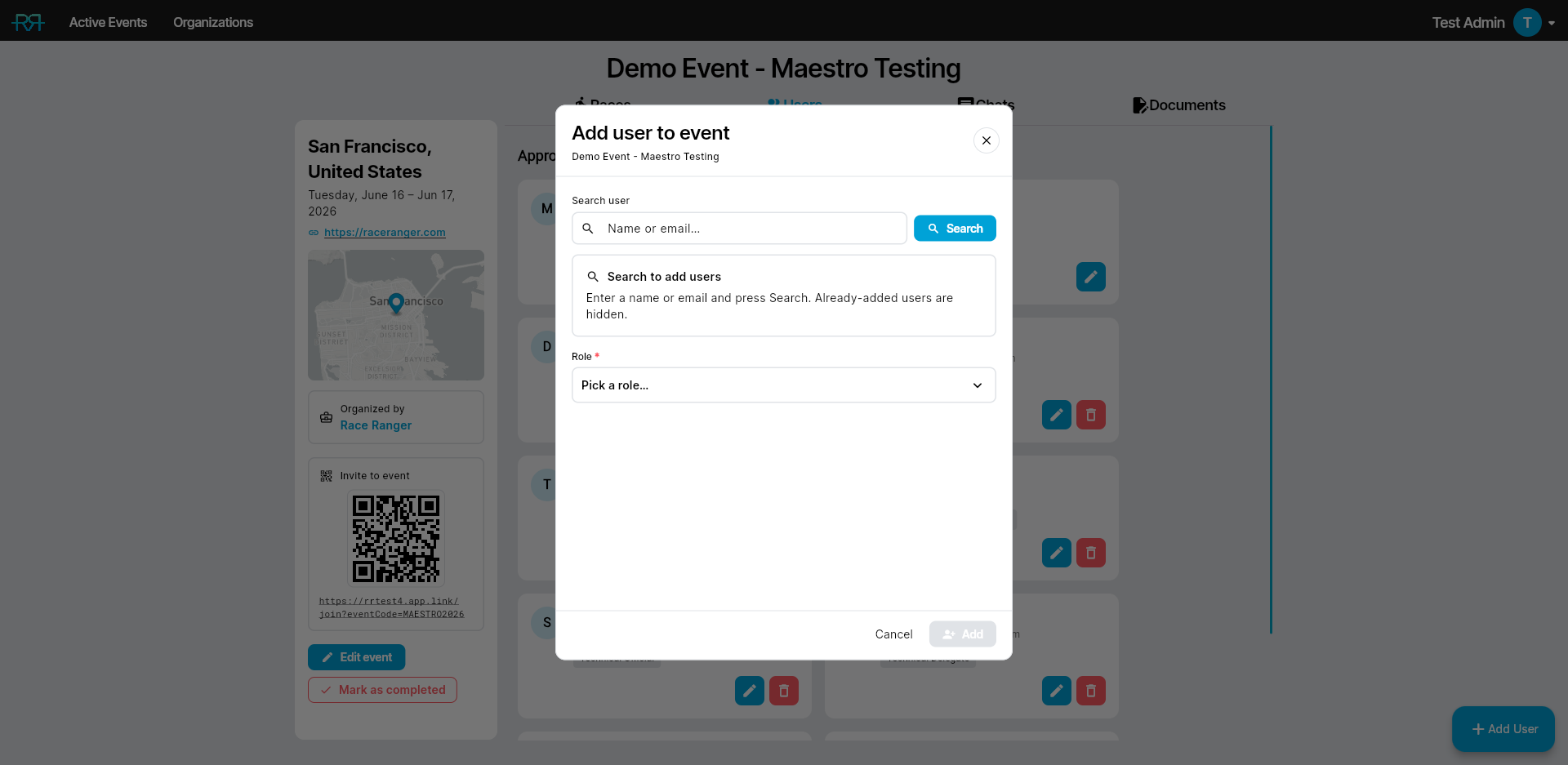
The Add user to event dialog lists your organisation's members: type a name or email to filter them. People already on the event are hidden. Pick a role from the Role dropdown and confirm with Add. New assignments are approved straight away. Users who were previously removed from the event are un-deleted by name rather than re-created, so their settings (notifications, last-read positions, etc.) come back with them.
To bring in someone from outside your organisation, type their full email address and choose Invite by email. If they already have a RaceRanger account, they're added straight away. Otherwise they get an email invitation and show in the list as Invited. If the app can confirm they signed in with the address you invited, they get access straight away with the role you picked. Otherwise — for example with Apple's Hide My Email — they wait in To be approved until you approve them.
People can also ask to join by scanning the event's Invite to event QR code, shown on the event page. They wait in To be approved too.
To add and invite people from the phone, see Managing officials.
If your organisation has TO assignments enabled, race-level assignments are managed separately from the per-race Race officials dialog — see the delegate guide on Managing officials.
Editing or approving a user
The event Users tab groups everyone into To be approved, Approved and Invited. Each card shows the person's name, profile photo (when they have one), phone number (when they've added one) and current role.
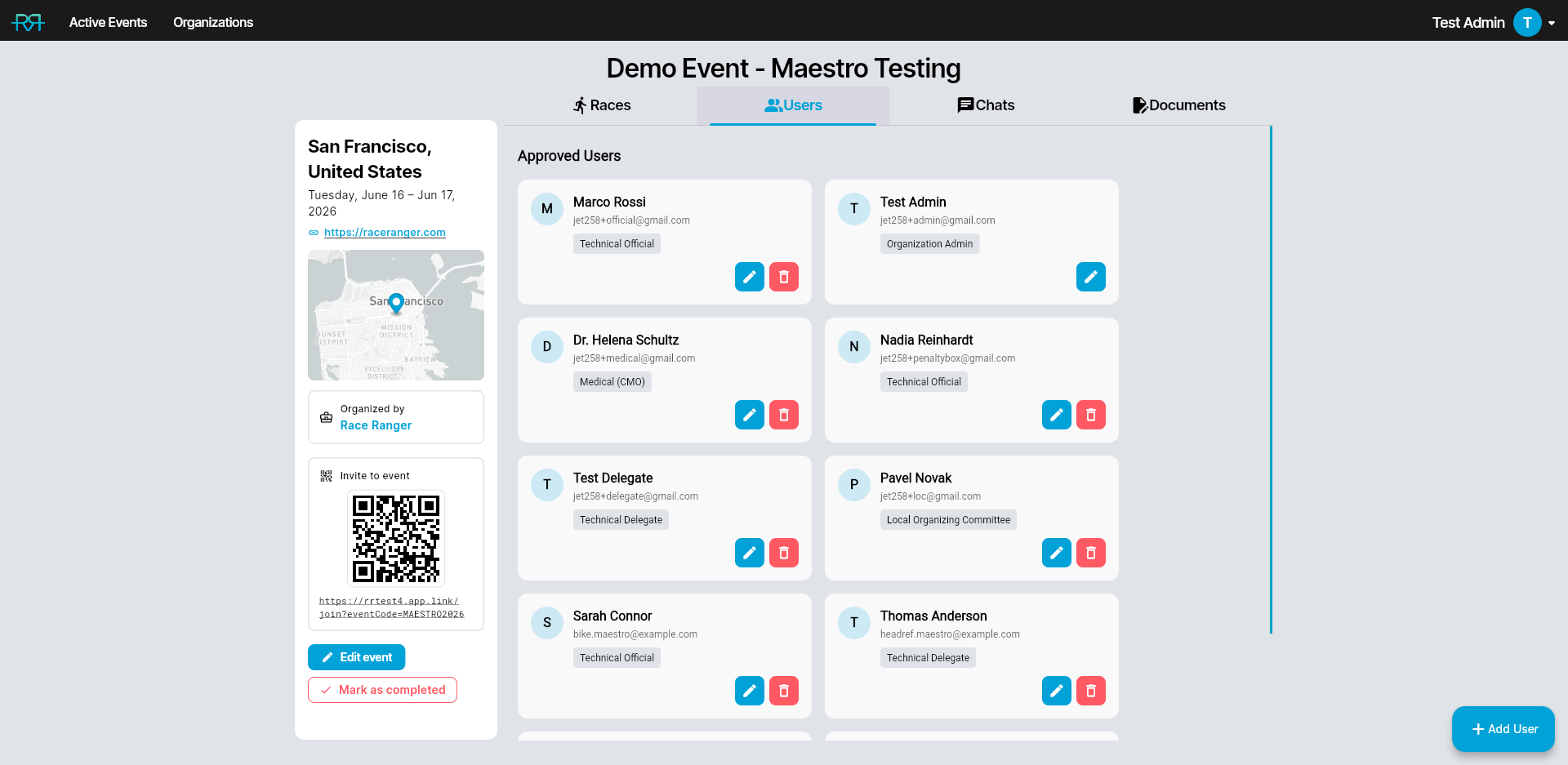
On each card you can:
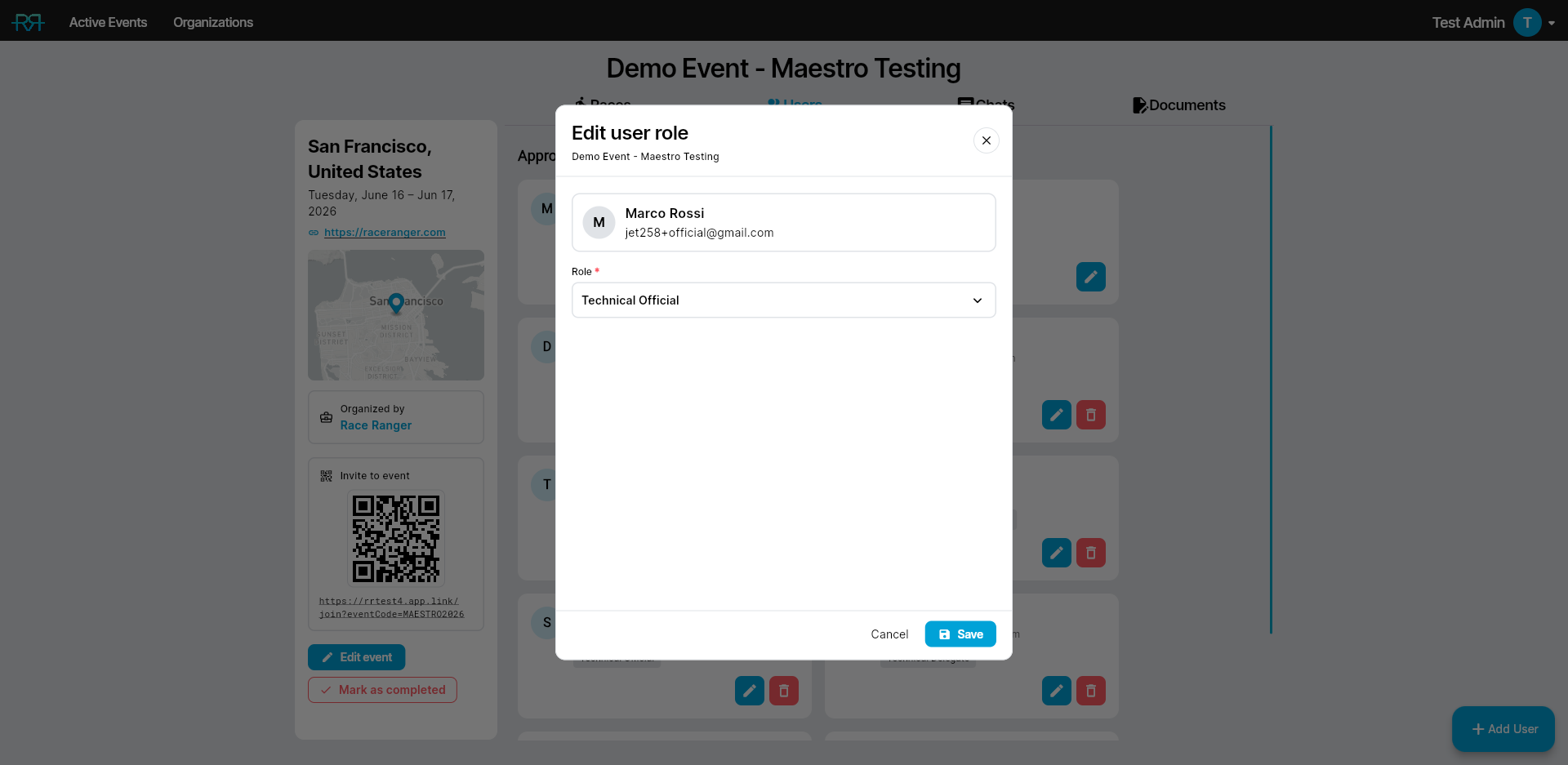
- Pencil (Edit roles) — opens the Edit user role modal where you can change the user's role, and fine-tune their permissions for this event (see Users and permissions). Choose Save.
- Tick (Approve) — only for people waiting for approval. It opens the same modal so you can pick a role before granting access with Approve.
- Trash (Remove) — appears when you point at the card. It removes the assignment after you confirm.
For someone you invited by email who hasn't accepted yet, the card shows who invited them and when the invitation expires, and lets you Resend invitation or Revoke invitation. Revoking stops the emailed link from working. Resending starts the 14 days again; it doesn't change the access or role of someone who's already on the event.
Removing access
To remove someone from an event, use the trash icon on their card. They lose access to the event immediately: they stop getting its notifications, and race control no longer opens for them.
To remove someone from the organisation entirely, choose Remove from organization on their row of the organisation's Users tab.
People can delete their own RaceRanger account from their profile. Once the deletion goes through, they leave your organisation's lists; their name stays on the events they worked.