Crew members' guide
This page is for volunteers, police, medical, security and other field crews who work at an event that uses RaceRanger. You don't need an account or an email address: you show a code on your phone, and your crew leader scans you in.
Organisers: share this page with your crews. Setting crews up is described in Crews.
Join your crew
You need the RaceRanger app on your phone; see Downloading the app.
- On the sign-in screen, tap Enter as event crew.
- Fill in:
- Your name: your first and last name, the way your crew leader knows you.
- Phone (optional): so your crew leader can call you. Some crews require it.
- Your age: events can set a minimum age.
- Tick the consent line and tap Show my code.
- Show the code to your crew leader. They scan it from the event's Crews screen.
Your phone moves on by itself once you're in. A code is valid for five minutes. If it expires, tap Show a new code when your leader is ready.
Already have a RaceRanger account? Sign in as usual and tap Join an event as crew at the end of your events list. You join with your account, and the event then appears at the top of your events list under Working as crew. Tap Open my crew to get to your crew screen.
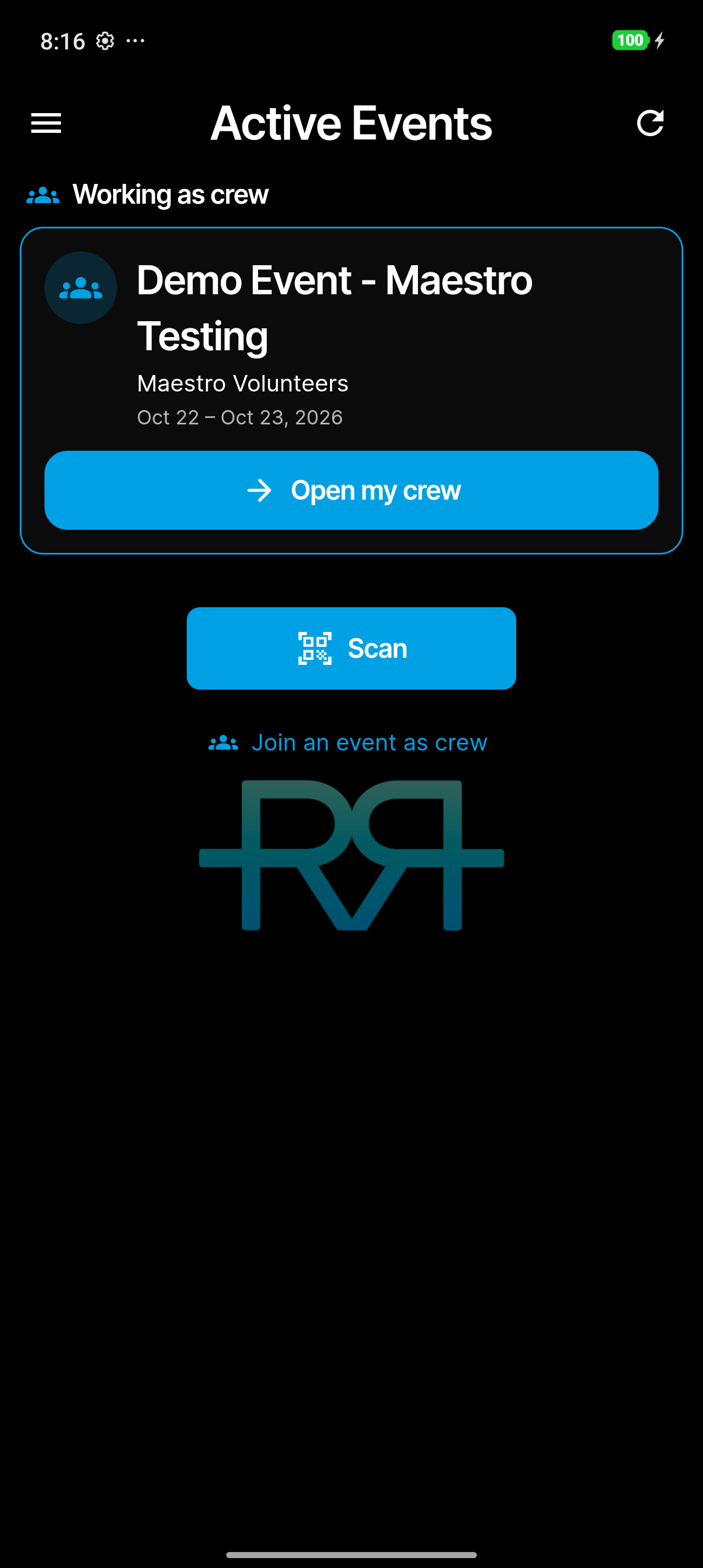
Your crew screen
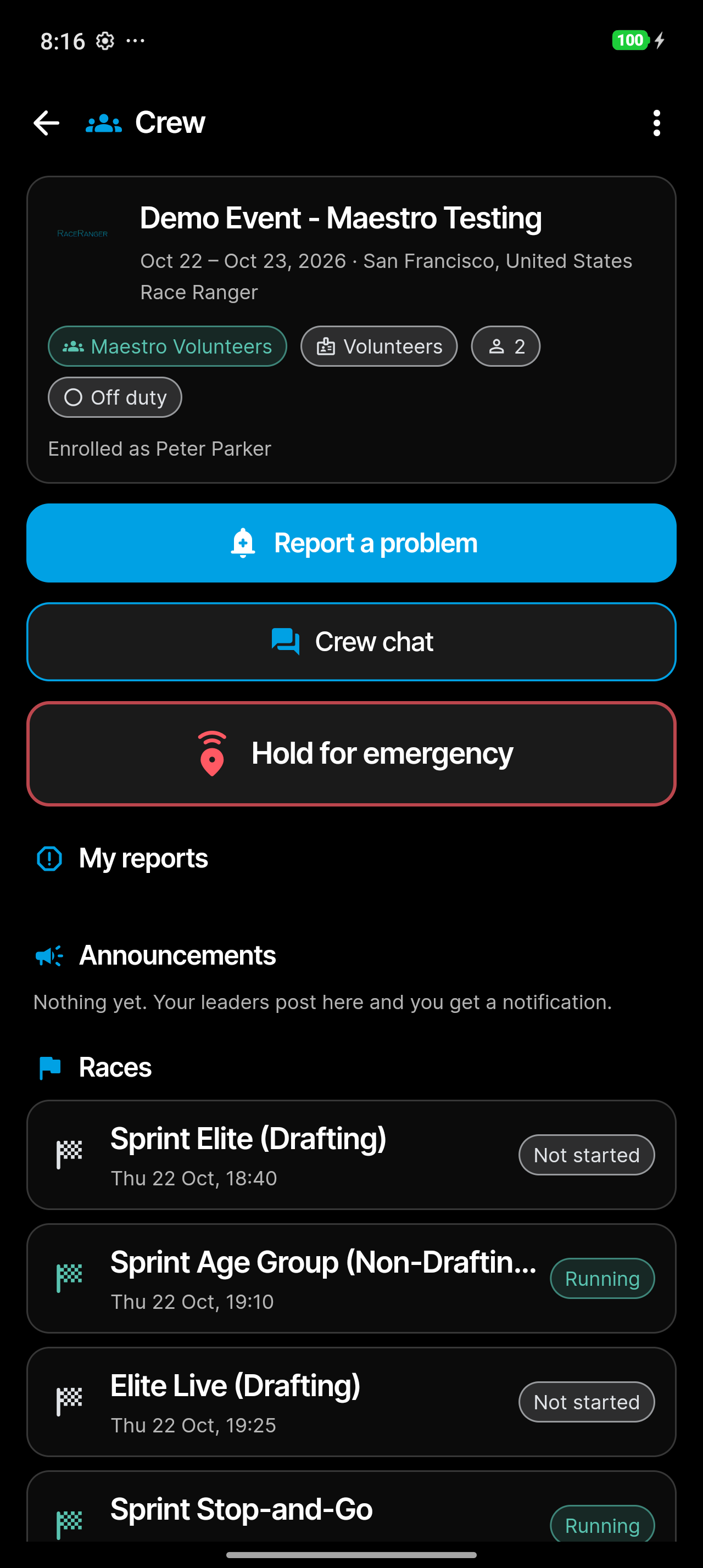
From the top:
- The event and your crew: the crew name and type, how many are in it, whether you're on or off duty, and the name you're enrolled as.
- Report a problem: see below.
- Crew chat: talk to your crew. Your leaders decide who can post.
- Call my crew leader: shows when your leader has added a phone number.
- Hold for emergency: see below.
- My reports: the reports you've sent, with their status.
- Announcements: messages from your leaders. You get a notification for each one.
- Races: each race's start time and status (Not started, Ready, Running, Finished). You get a notification when a race is about to start and when it starts.
- Shift: tap Start working when you begin and Go home when you finish. Your position is recorded once at each tap, nothing in between.
Report a problem
- Tap Report a problem.
- If it's about an athlete and you can read their race number, turn on About an athlete, enter the Number and pick the Race.
- Describe What happened: where, what, how many people.
- Add up to six photos with Camera or Gallery if they help.
- Tap Send to my crew leader.
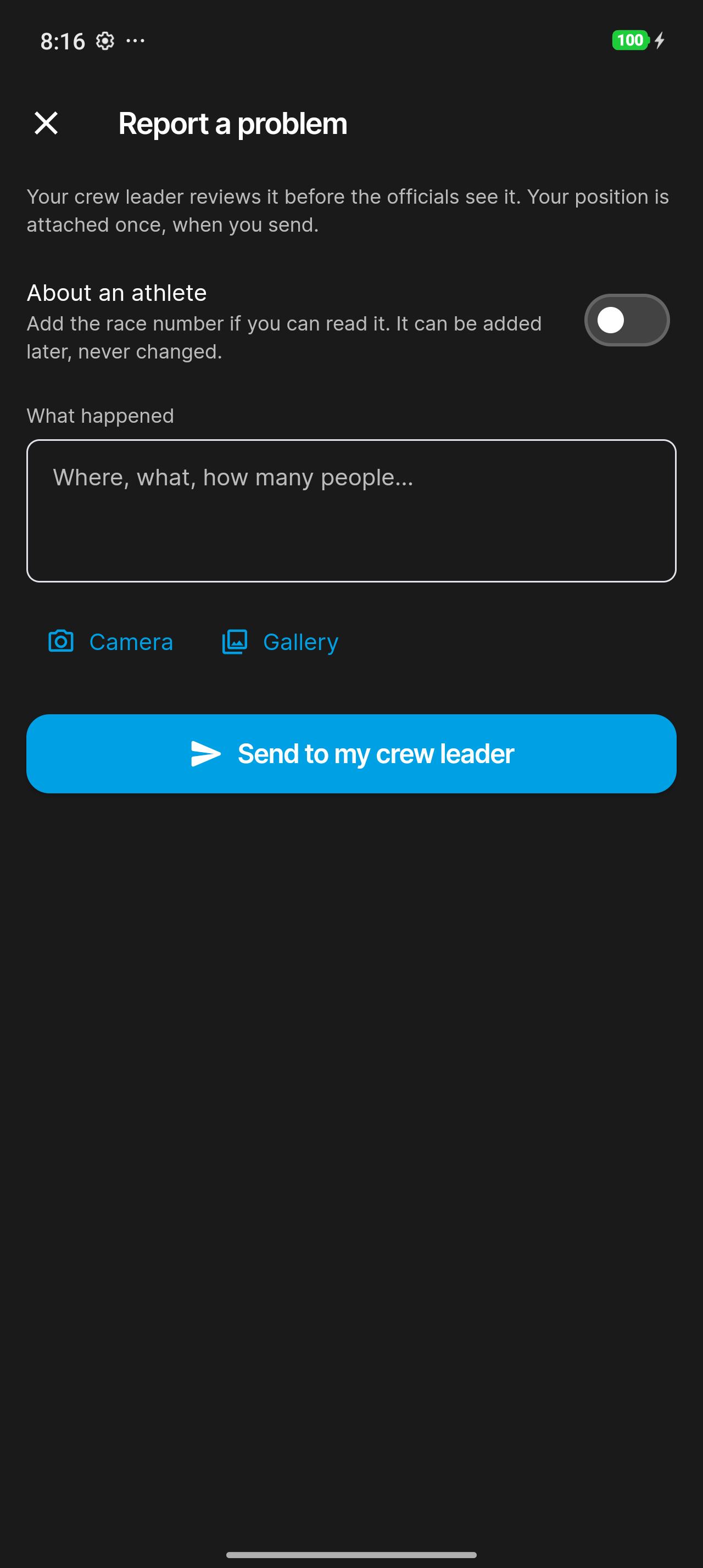
Your position is attached once, when you send. Your crew leader reviews the report before the officials see it.
Your reports show under My reports:
- New: your leader hasn't decided yet. You can still tap Add details.
- Needs detail: your leader asked for more. Tap Add details and answer.
- Accepted: the officials now have it.
- Closed: your leader closed it.
Can't read the athlete's number? Leave About an athlete off and say what you saw. The number can be added later, but once it's set it can't be changed. No signal? The report waits on your phone (Waiting for connection) and sends itself once you're back online.
Emergency
If you need help, press and hold Hold for emergency for a moment. It turns red: EMERGENCY ON · hold to stop.
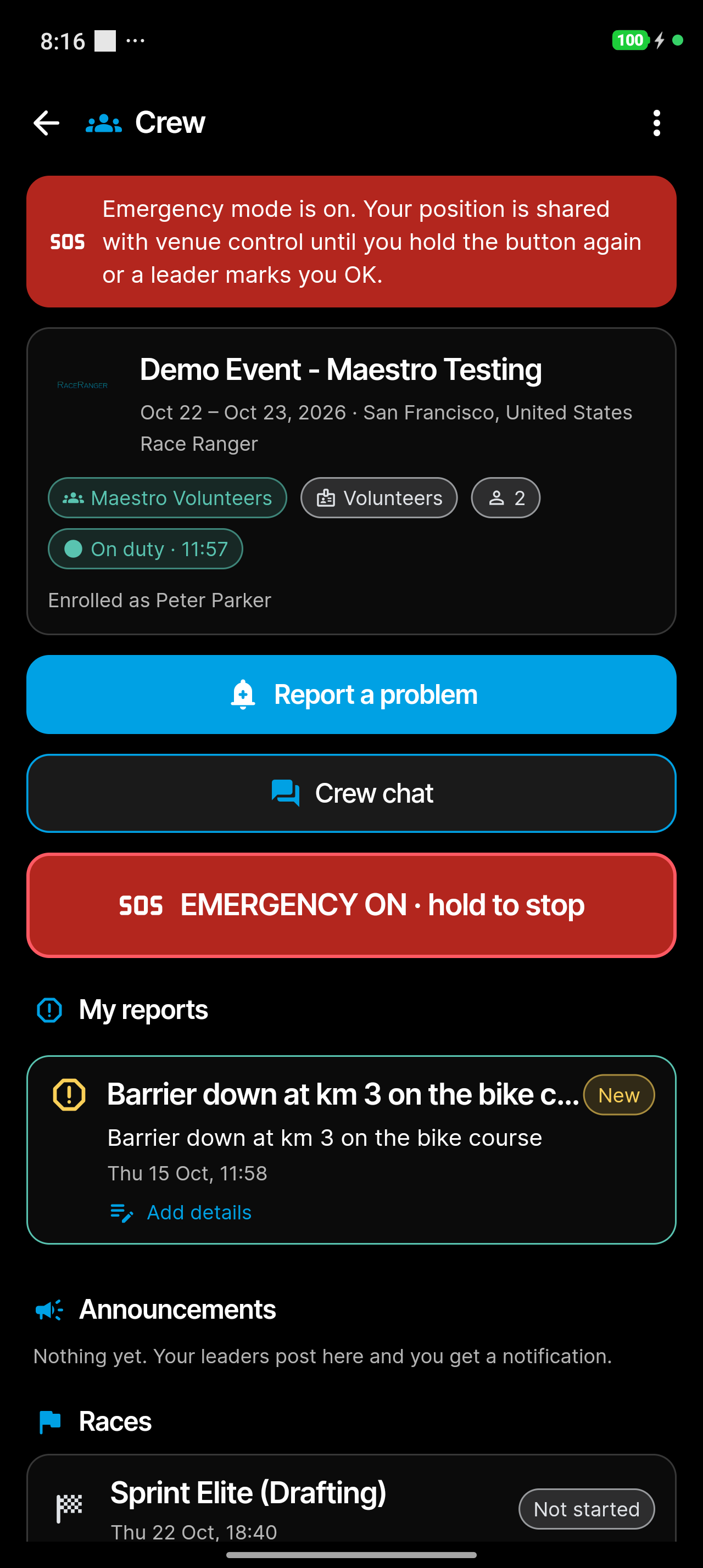
- Your crew leaders get an alert.
- Your position is shared with venue control until you hold the button again or a leader marks you OK. It keeps updating when the app is in the background, so allow location access when the app asks.
- No signal? Emergency mode goes out as soon as your phone is back online. If you can, call for help as well.
When a leader marks you OK, the app tells you and stops sharing your location.
Leaving
Open the ⋮ menu at the top right:
- Log out (if you joined without an account): you're signed out, and your place stays with your crew leader. To come back, have a leader scan you in again.
- Leave this crew (if you joined with your RaceRanger account): you keep your account, and a leader can scan you in again later.
The same menu adds or changes your phone number (Add my phone number or My phone).
If a leader removes you, the app says so. Tap Back to login, or Back to my events if you have an account.
Full details
Everything below is optional reading — open a section when you need it.
What your leaders and the officials see
Your crew leaders see your name, your phone number if you gave one, your age, when you started and finished work (with your position at each tap) and your reports.
The officials see a report of yours only after a leader accepts it, and your position only while emergency mode is on.
Your data
When you join without an account, you agree that your name is stored for this event and shared with its crew leaders. RaceRanger deletes this temporary account after the event.
When you join with your RaceRanger account, you agree that your name and photo are shared with the event's crew leaders for the duration of the event. You keep your account afterwards.
Notifications you get
- A race is about to start, and a race has started.
- Announcements from your leaders.
- Your report was accepted, needs more detail, or was closed.
- You were moved to another crew, or removed.
- Mentions and important messages in your crew chat.