Athlete check-in setup
Athlete check-in lets your officials check each athlete's uniform and equipment before the race, station by station, in race mode. This page covers your side of it: switching check-in on for an event, picking each race's checklist, giving officials access, and what happens to the photos and signatures after the event. How officials work the stations is in Athlete check-in.
An organisation feature
RaceRanger switches athlete check-in on for your organisation. If Athlete check-in doesn't show on the Extras tab when you edit an event that isn't over, contact RaceRanger to turn it on.
Switch check-in on for an event
Technical delegates and organisation admins do this once per event, on the web.
- Open the event and click Edit event.
- Open the Extras tab. Under Athlete check-in, click Switch on athlete check-in.
- The app asks you to confirm, because check-in can't be switched off again for this event. Click Switch on.
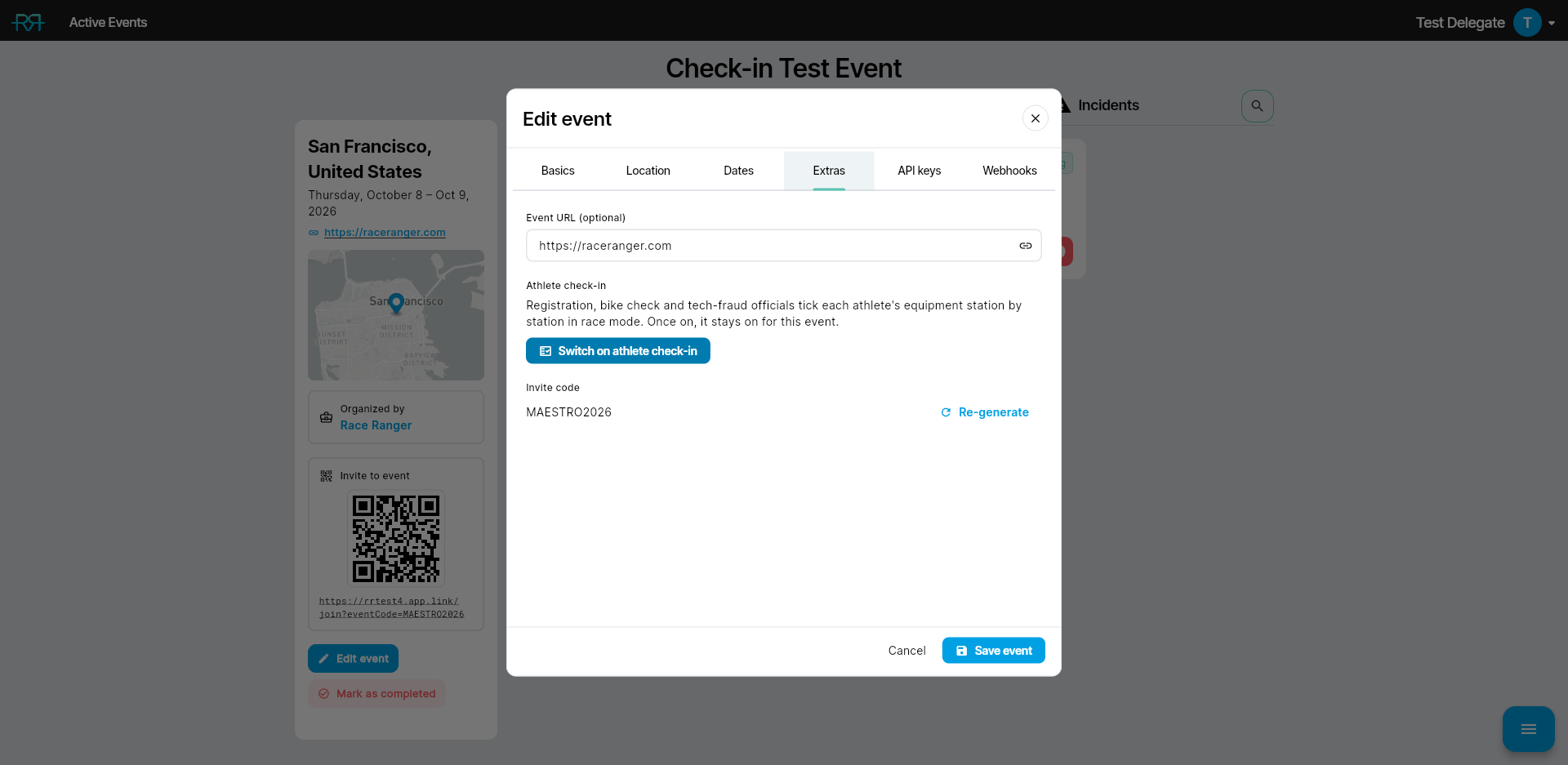
The tab then reads Athlete check-in is on, and officials with a check-in permission find the Athlete check-in tool in race mode, in the Tools folder.
RaceRanger prepares the start lists in the background. A race whose start list is imported opens at the stations once its bib numbers are in; a race whose start list you keep by hand opens straight away. Athletes added to a start list later get their checks automatically.
The switch is there when you edit an event that already exists and isn't over. Once an event with check-in is marked as completed, the tab says Athlete check-in is closed for this event.
Set each race's checklist
Each race uses the checklist for its category. By default, the race's name decides:
- Elite, U23 and Junior races get the Elite / U23 / Junior checklist.
- A para race gets the checklist for its class — Para PTS, Para PTVI or Para PTWC — when its name includes the class, such as PTS4.
- Age-group and relay races, and races whose name names none of these, have no check-in.
To set the checklist yourself:
- On the event's race list, hover over the race and click the pencil icon (Edit race).
- Open the Options tab and find Athlete check-in.
- Pick From the race name (the brackets show what the name gives), Elite / U23 / Junior, Para PTS, Para PTVI, Para PTWC, or No athlete check-in.
- Click Save race.
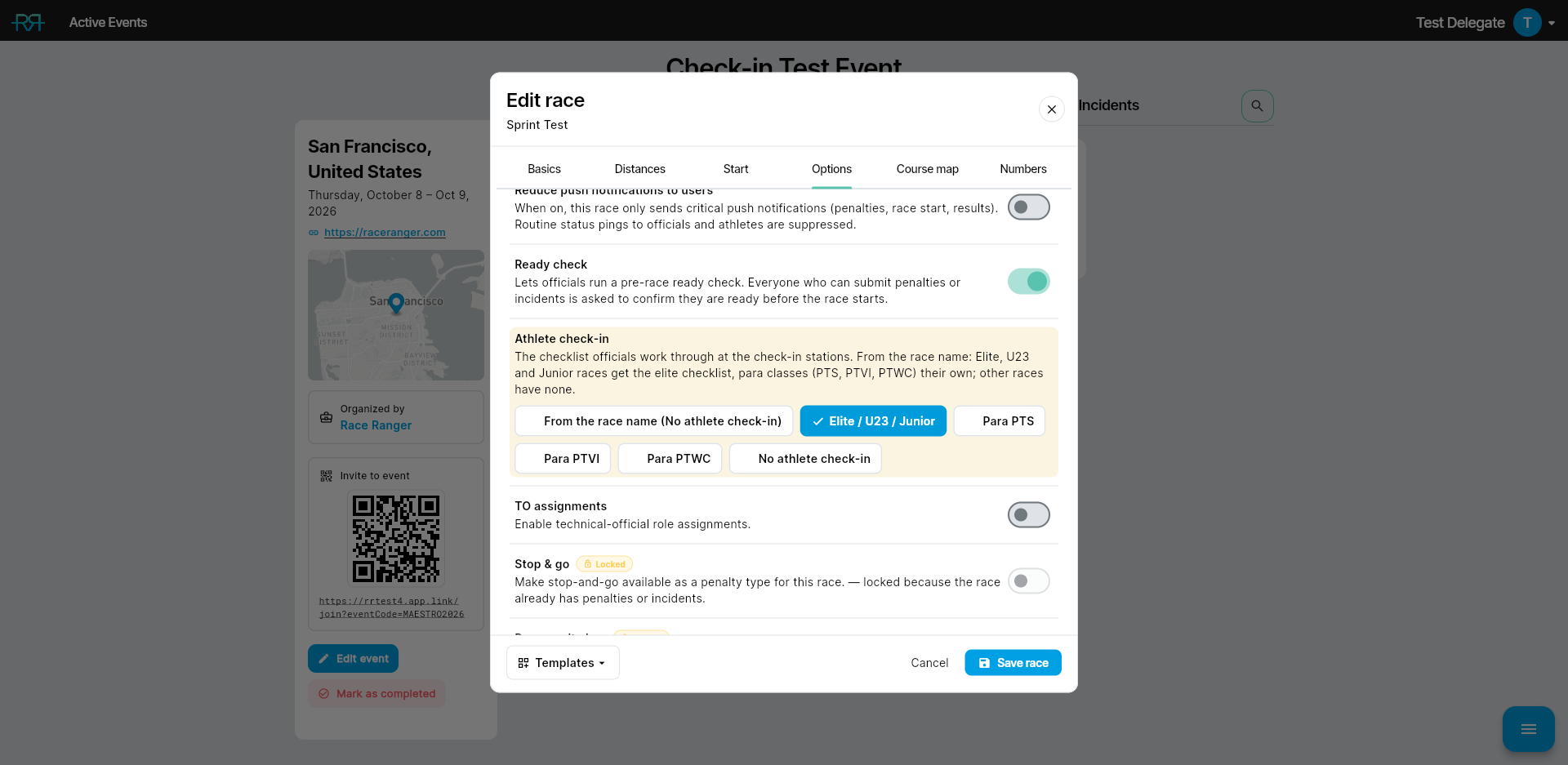
Officials see the new checklist straight away. No athlete check-in switches check-in off for that race only.
- On a merged race, set the checklist on each race inside it. The merged race doesn't show the setting.
- Practice (demo) races have no check-in.
- The setting is there whenever your organisation has athlete check-in, so you can pick checklists before you switch check-in on.
Give officials access
Check-in has three permissions in the roles editor (see Users and permissions):
| Permission | What the roles editor says |
|---|---|
| Can do race check-in | Work the check-in stations: tick items and escalate to the Head Referee. |
| Can manage check-in | Hold or release athletes and void answered checks. |
| Check-in notifications | Receive check-in escalations. |
In the station tool, Can do race check-in is what lets an official tick checks, take photos and signatures, and escalate. Can manage check-in adds Hold and Release on the athlete's card, and voiding an answer. Check-in notifications sends a push whenever a check is escalated on the race: it names the athlete's number, the check and the reason (never the note), and opens the race in race mode. Whoever escalated it isn't notified.
All three can also be part of a TO assignment for a race. To give one person a check-in permission without changing their role, see Customising permissions for one person.
Two more permissions matter:
- Escalations. Only an official with Can disqualify (DSQ) can answer an escalated check again. Make sure whoever decides escalations — typically the Head Referee — also has Can do race check-in, or they won't get the buttons.
- Following along. Everyone who can edit the event (Can modify event), such as you, can follow check-in read-only in race mode and in race control, without a check-in permission. See Following check-in in race control.
Before race day
- Races without an imported start list. Officials check athletes in by bib, within the race's number ranges. Set the ranges on the race editor's Numbers tab.
- Imported start lists. A race's stations open only once its start list has arrived with bib numbers. Until then, officials see Waiting for the start list.
- Wetsuits. The Swim station's wetsuit checks wait until a wetsuit decision for the race is recorded with the Environment tool in race mode. If wetsuits aren't allowed, those checks disappear.
Using the AI assistant
If your organisation has the AI assistant:
- Set a race's checklist. Ask, for example, "Use the Para PTS checklist for the PTS4 race." You review the change before it's applied.
- Ask how check-in is going. With event data analysis on, ask "How is athlete check-in going in each race?" The assistant answers with counts for each race — not arrived, in progress, cleared, escalated, on hold and DNS. It never sees names, bibs or individual checks; for those, use the overview in the check-in tool or in race control.
After the event
- Check-in closes when the event is marked as completed (Mark as completed on the event page). Officials can't tick any more, and the tool disappears.
- Check-in photos, signatures and any other check-in files are deleted 72 hours after the event is marked as completed. Athletes with an open matter, such as an unresolved escalation, a DNS or a DSQ, keep theirs for longer.
- If you reopen the event with Mark as ongoing before then, check-in opens again and nothing is deleted. Files that are already deleted can't be restored.
- Race reports leave check-in out.
Full details
Everything below is optional reading — open a section when you need it.
How the race name picks the checklist
With From the race name, RaceRanger reads the race's name:
- A para class — PTS, PTVI or PTWC, with or without its number, such as PTS4 — gives that class's checklist.
- Otherwise Elite, U23 or Junior gives the Elite / U23 / Junior checklist.
- Relay and age-group races (including names with "AG") get no check-in, even when the name also says Elite.
- Any other name gets no check-in.
Picking a checklist yourself overrides the name, for any race. Saddle position is checked only on Elite and U23 races.
What each checklist covers
In the current checklists:
- Elite / U23 / Junior — the Registration, Uniform, Swim, Helmet & bike and Run stations.
- Para PTS — the same stations plus Handler, with checks such as the bike adaptation and a numbered prosthesis.
- Para PTVI — the same five stations, with checks for the guide and the tethers.
- Para PTWC — Registration, Uniform, Swim, Helmet & bike, Handcycle, Racing chair and Handler.
In race mode, officials see the stations of the race they're in.