Location tracking
RaceRanger shows officials' positions on the course map so the team can see where everyone is — which officials are near an incident, who's covering which section, and whether anyone has moved out of position. Other officials with map access can see your position while a race is active.
What you need to do
- Allow location permission when the app asks — and set it to Always, so sharing keeps working with the screen off (see below).
- Be in race mode during an active race — that's when sharing runs.
- Glance at the round location button at the top right of race mode: a blue target means your position is being shared, and you're done. Tap it to see the status in words.
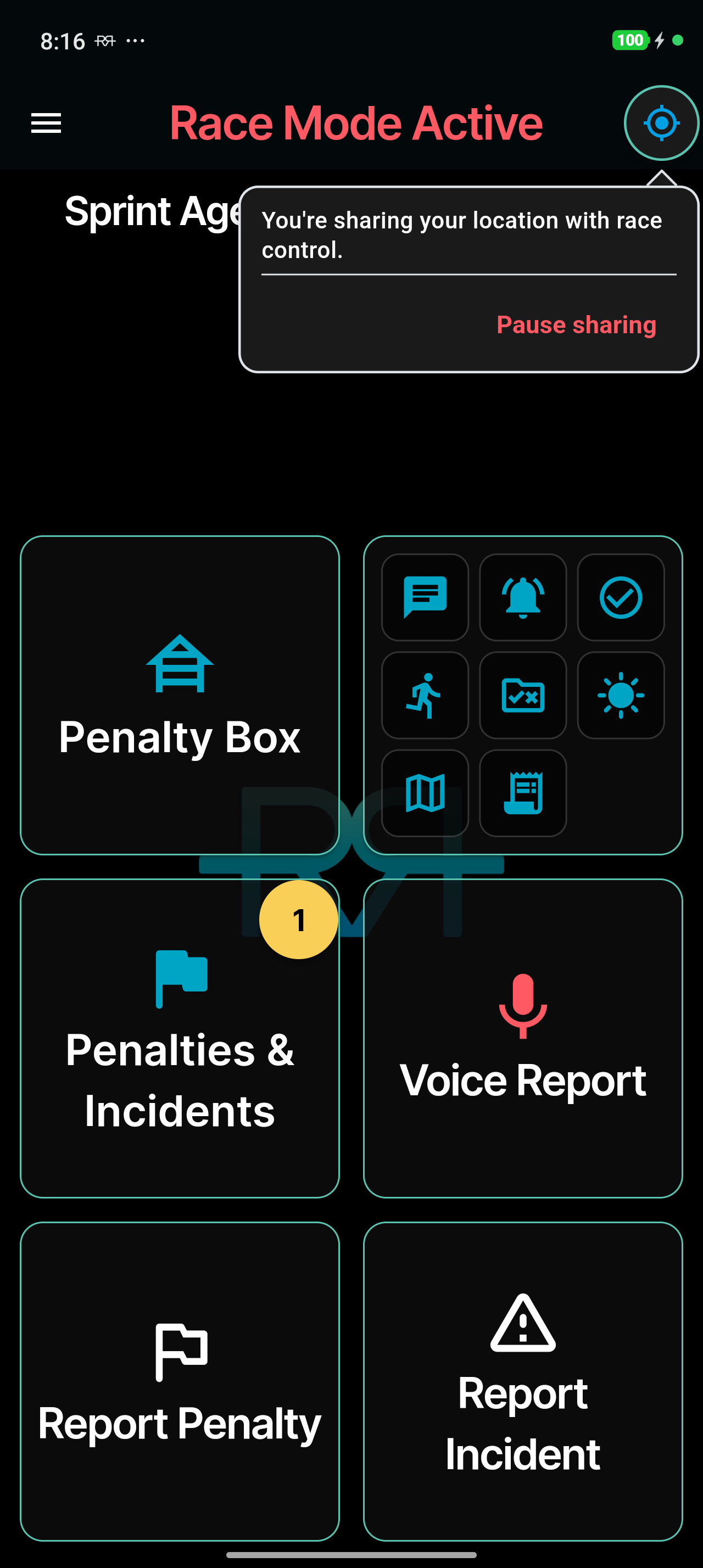
When you enter race mode on a race that tracks your role and the app can't use your location all the time yet, a Location tracking is on for this race message explains why and what to allow. Tap Continue to answer your phone's permission prompt, or Open Settings if the setting has to be changed there. When sharing starts, the location button briefly confirms that you're now sharing your location with race control.
Setting the location permission
- Open Settings → Privacy & Security → Location Services.
- Find RaceRanger in the list.
- Set to Always.
Or when the app prompts you, tap Allow While Using App, then later change to Always in Settings.
Apple's guide: Turn location services on or off
- Open Settings → Apps → RaceRanger → Permissions → Location.
- Select Allow all the time.
Or when the app prompts you, grant "Allow all the time" permission.
Google's guide: Manage your Android device's location settings
If location is turned off while you're in a race — or, on iPhone, set only to "While Using" — the location button blinks amber. Tap it: the message tells you race control can't see you on the course, with a one-tap Grant location button. It asks for permission again, or opens your device settings if you denied it before. On iPhone with "While Using", the button reads Open Settings instead. The warning clears itself once location is allowed.
Who is tracked
Not everyone — typically officials out on the course (bike, vehicular, and swim officials) are tracked, while stationary officials (registration, venue control centre) are not. Whether your position is shared is part of your role and TO assignments — ask your technical delegate if you're not sure.
Sharing runs in the phone app only, never from the web.
Privacy
- Your location is only shared while you're in race mode on an active race with tracking switched on for your role.
- Sharing stops when the race ends, when you leave race mode or the event, and when your battery drops below 20%. When you leave race mode after sharing, the app confirms that your location is no longer being shared.
- You can pause sharing at any time (see below).
- The positions you share are kept as the event's location history, so race control can look back at where officials were.
Full details
Everything below is optional reading — open a section when you need it.
Every status icon, explained
While you are in race mode, the round button at the top right of the screen shows your location-sharing status at a glance. Tap it for the status in words and the controls:
- Target (blue): your position is being shared. Tap Pause sharing to stop for a while.
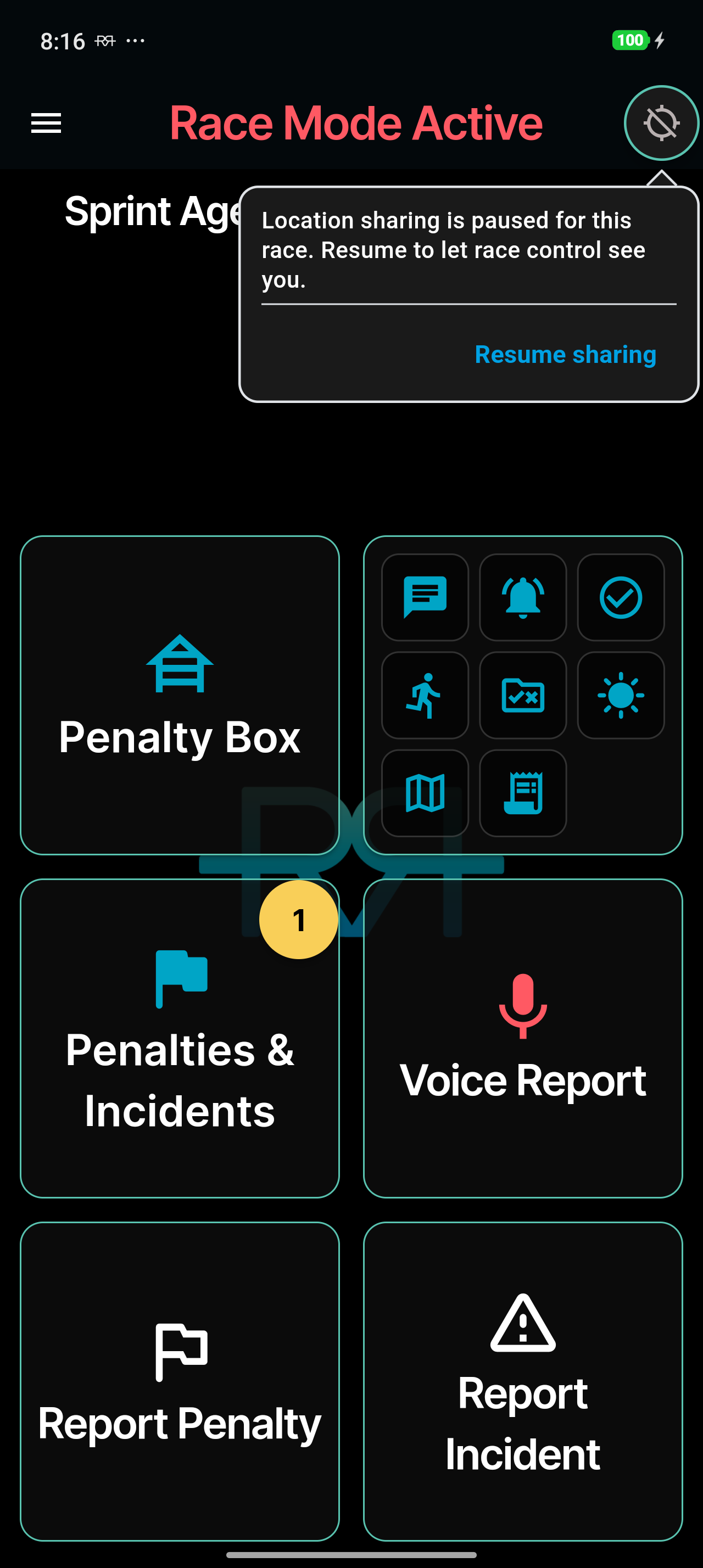
- Crossed-out target (grey): you paused sharing for this race. Tap Resume sharing to go live again.
- Location off (amber, blinking): location is off for the app, or not set to Always. Tap Grant location or Open Settings.
- Two arrows (blue, blinking): another device is sharing your location — a dedicated device, or another phone or tablet signed in to your account. See the next section.
The button disappears when sharing doesn't apply — for example when the race isn't active or your role isn't tracked.
Pausing, resuming, and moving tracking to another device
If you need a break from sharing — a planned stop, or stepping away from your section — tap the location button and then Pause sharing. Tap Resume sharing when you're back. While you're paused, race control sees a distinct Paused status instead of assuming you've dropped off, and you show as live again the moment you resume.
Only one device shares your location at a time. If you're signed in on two devices, the one that isn't sharing shows the two-arrows icon and the message that location tracking is running on another device. Tap Use this device there to move sharing over; until you do, the other device keeps sharing and nothing else in race mode is interrupted. A dedicated device can't be taken over this way — while one is sharing for you, the message just says so.
What other officials see about you
On the Race Map tool in race mode, an official who is sharing appears as a blue arrow pointing the way they're heading, with their name. Your own position is the teal target. Officials who aren't sharing keep a badge at their last known position: a blue pause sign when they paused, a red battery when sharing stopped for low battery, and a grey location-off sign otherwise.
Use Tap to track a user at the top of the map to follow one official, with their recent trail, or pick Overview (all) to see everyone. In that list, officials who aren't sharing are marked not sharing, and an amber dot next to a name means their position hasn't updated for about fifteen minutes — for example when an Android phone has closed the app in the background.
Everywhere officials' locations appear, each one carries a status in your own language — such as Sharing, Paused, Stopped — low battery, Race ended, or Location permission off. In race control on the web, hovering an official's battery indicator shows how their battery has changed over the last couple of hours. See Race control.
Battery tips
Location tracking is designed to minimise battery drain:
- Updates are motion-based, not continuous — the app sends updates more frequently when you're moving and less frequently when you're stationary.
- The app uses efficient location strategies that balance accuracy with battery life.
Sharing stops by itself when your battery drops below 20%, so keep your device charged during long events. A portable battery pack is recommended for officials on course all day.
Troubleshooting — I'm not on the map
- Look at the location button in race mode. Blinking amber means a permission problem; two arrows mean another device is sharing for you; a crossed-out target means you paused sharing.
- Check that location permission is set to Always ("Allow all the time" on Android) in your device settings.
- Ensure you're in an active race with tracking enabled for your role, and that your battery is above 20%.
- Verify you have a GPS signal (indoor locations may have poor accuracy).
- Check your internet connection — location updates need connectivity to reach the server.