Apple Watch
The Apple Watch app is a companion to the iPhone app. From your wrist you can submit penalties and incidents — manually or by voice — and approve pending penalties, without pulling the phone out of your pocket.
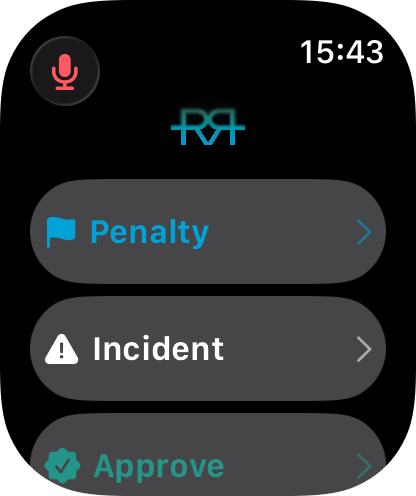
The home screen shows the race you're in and up to three actions — Penalty, Incident, and Approve (with the number of penalties waiting) — depending on what your role allows, plus a microphone button in the top-left for voice submissions.
Setup
The watch app is bundled with the iOS app. With the default Apple Watch settings it installs automatically when you install the iPhone app, and there is no separate sign-in — the watch uses the identity from your paired iPhone.
The watch app only works while the paired iPhone is in race mode. Open the iOS app, join a race, and tap into race mode — the watch app becomes active at that point. Until then the watch shows Not in race mode. If it shows Phone unreachable, the watch can't reach your iPhone — bring the phone closer or wake it.
Submitting a penalty
You have two ways in:
- Manually — tap Penalty, enter the athlete number, then pick the reason from a single scrollable Reason list of penalty types. Disqualifications aren't available on the watch.
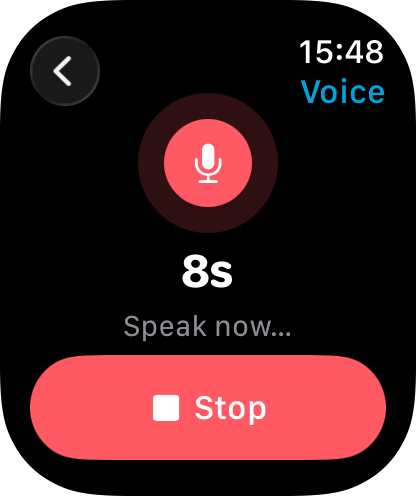
- By voice — tap the mic in the top-left of the home screen and speak your report. Recording stops after 10 seconds, or tap Stop when you're done. The AI turns your report into a penalty (or incident), and the watch shows it on a Review screen — check it and drag Slide to Submit. If the recording can't be used, the watch says why: tap Retry to record again, or Cancel. See Voice commands for what the AI understands and which languages are supported.
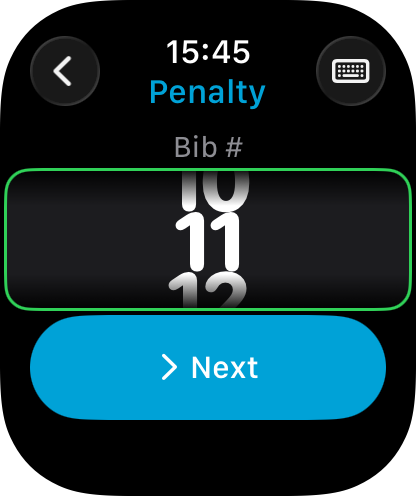
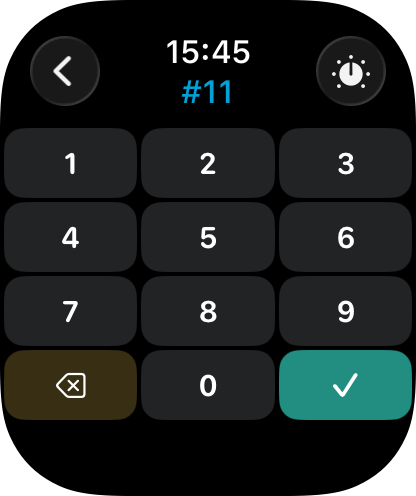
For the athlete number you can pick between two inputs and swap with the button in the top-right: the digital crown wheel, or a numeric keypad. Tap Next (or the tick on the keypad) to continue; a number that isn't in the race shows Number not in this race.
If the entered athlete number falls into more than one gender category, the watch asks you to confirm the gender before continuing. Relay submissions add an A/B/C/D step after that.
The penalty types in the Reason list appear in the language you use in the RaceRanger app on your phone; the watch's own buttons and labels are in English. On non-drafting races, drafting penalties come first, in blue, followed by the other penalty types in yellow. Where drafting is allowed, drafting penalties aren't offered.
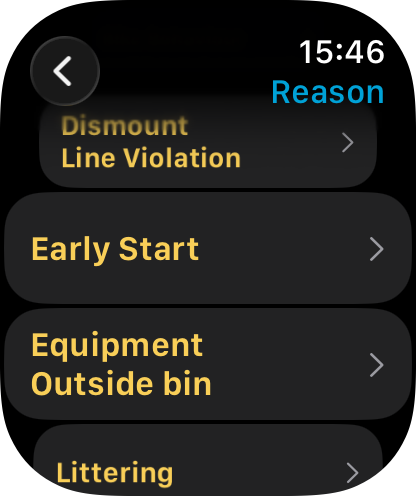
When the penalty type could be served in more than one place — the run box or the bike box, one of several numbered bike boxes, or stop and go — the watch adds a Penalty box step after the reason. Tap Bike (or Bike 1, Bike 2, and so on), Run, or Stop & Go. For a bike penalty that also fits a leg with no box on this race, None keeps it out of the box. When only one box applies, the step is skipped and the box is chosen automatically, so the penalty lands in the same box it would from the phone. Penalty types that can only be served as a stop and go, such as Late Briefing, never ask.
The last screen, Confirm, shows the athlete number and the reason — drag Slide to Submit to send it. Once your phone has filed it, the watch shows Submitted and goes back to the home screen; if it can't be filed, the watch says why. If your phone is slow to confirm and the watch sends the report again, it's still filed only once. On a merged race, the penalty is filed on the race the athlete's number belongs to.
Photos and videos can't be attached from the watch — submissions that need media still go through the phone.
Submitting an incident
Tap Incident on the home screen — the watch asks for the reason first, then the athlete number. For incident types that don't involve a specific athlete (course obstacles, weather conditions), the number starts at 0 — no athlete — so you can tap Next straight away, or pick a number if an athlete was involved. Then drag Slide to Submit on the Confirm screen.
You can also use the mic on the home screen to submit an incident by voice — the AI classifies the report the same way as for penalties.
Approving penalties
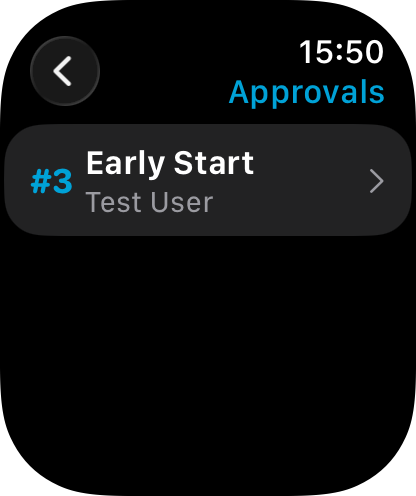
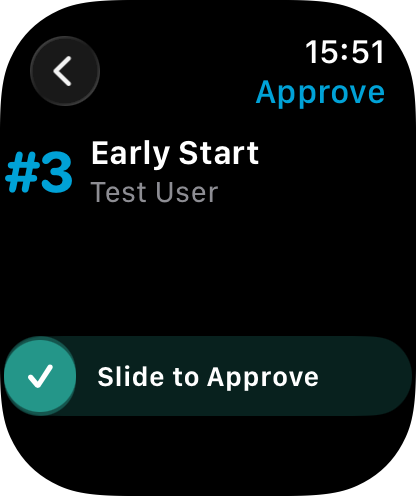
Officials with approval permissions can approve pending penalties from the watch. Tap Approve on the home screen to open the Approvals list — each row shows the athlete number, penalty type, and submitter. Tap a row to see the details, then drag the Slide to Approve pill to confirm. When nothing is waiting, the list says Nothing to approve.
Complications
Add a RaceRanger complication to your watch face for one-tap access. Five complications are available:
- Open RaceRanger — launches the watch app.
- Penalty — jumps straight into the penalty flow.
- Incident — jumps straight into the incident flow.
- Voice — starts a voice submission immediately.
- Approve — opens the pending approvals list.
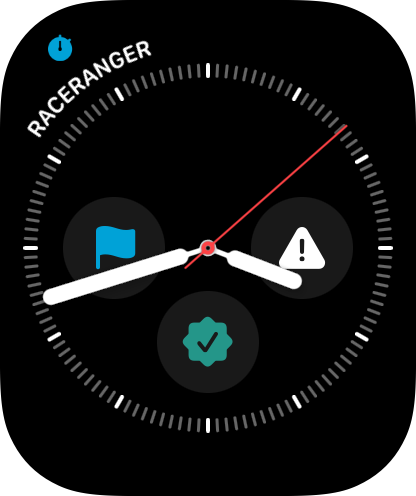
Configure complications from the Watch app on your iPhone, or by long-pressing the watch face and editing it.
Requirements
- An Apple Watch paired to an iPhone that has the RaceRanger app installed.
- The paired iPhone in race mode for the current event.
- For submissions: a role that can report penalties or incidents on the race.
- For voice, the same as on the phone: the event includes voice reports and your role has Can use AI (see Voice commands). Without them the watch shows no mic, and the Voice complication answers Voice reports are off for you here.
- For approvals: a role with penalty approval permissions.
If you'd rather wear a Garmin, see Garmin watches.