Crews
Crews bring field teams into an event: volunteers, police, medical, security and anyone else who works the course but isn't an official. Crew members don't need a RaceRanger account. Each person shows a code on their phone, and a crew leader scans it.
Crew members get their own simple screen, not race mode: their crew, race start times, announcements, a crew chat, a way to report problems and an emergency button. Officials see a crew's reports only once a leader accepts them as incidents.
This page is for organisation admins and crew leaders. Share the Crew members' guide with your crews.
1. Switch crews on
Crews are switched on in two places:
- For your organisation. RaceRanger switches Crews on per organisation on request. Until then, the event's Crews tab says The Crews function is not active.
- For each event. An organisation admin opens the event on the web, chooses Edit event, and on the Admin tab turns on Enable crew mode for this event. Then Save event.
When crew mode is on, two optional rules appear under the switch:
- Minimum age: nobody younger can be enrolled. It starts from your organisation's default.
- Member limit: the most crew members the event can have at once, across all its crews. Leave it empty for no limit.
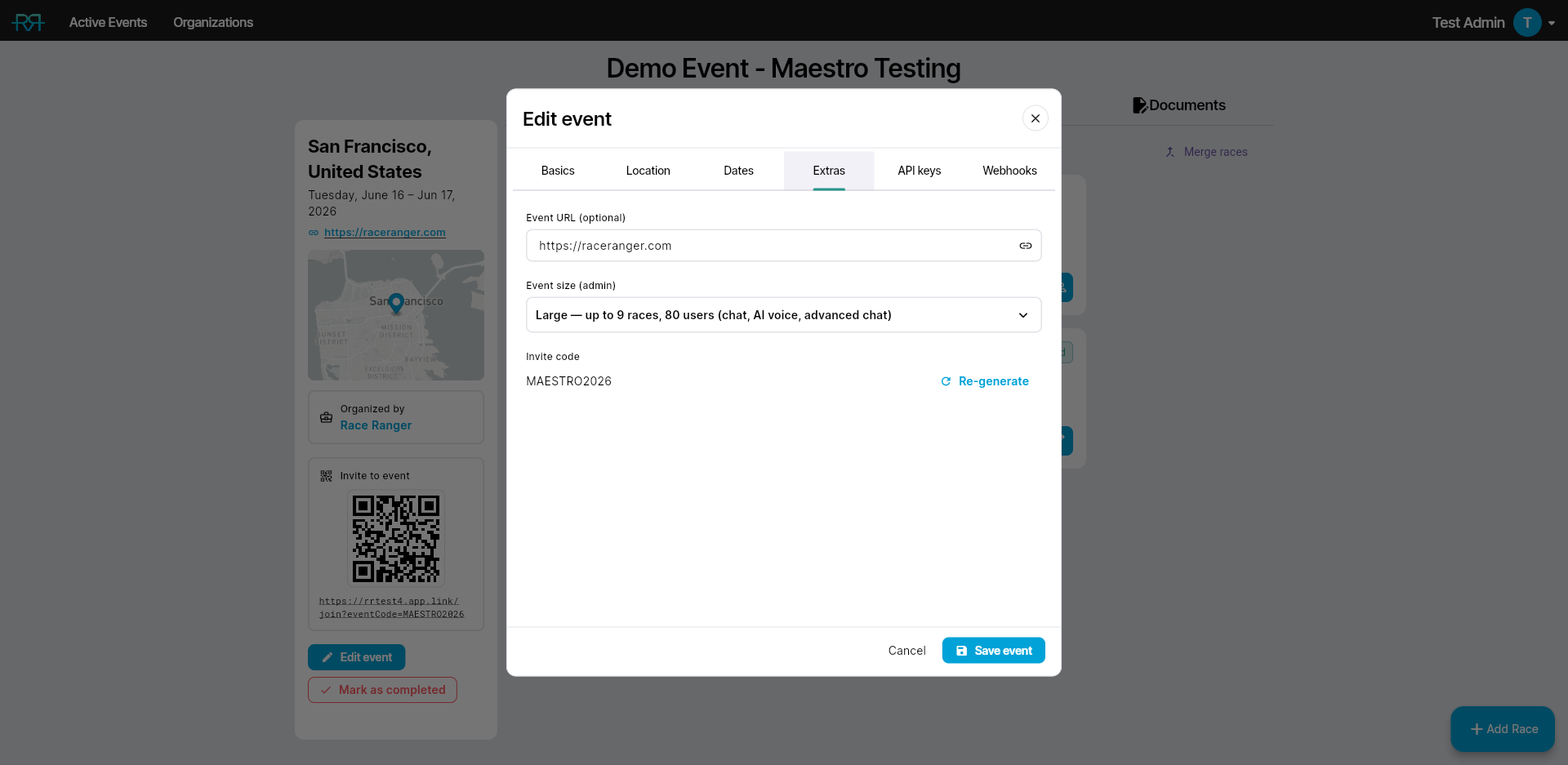
Crew members don't count towards the user limit of the event's size.
2. Decide who manages crews
You can manage crews when:
- your role on the event has Can manage crews. RaceRanger's Local Organizing Committee role has it. Add it to other roles in the roles editor, or to one person on one event with Customize permissions for this event; see Users and permissions.
- you're an organisation admin.
- you're a crew type manager. People who can edit the event name them on the web, one crew type at a time (for example, only Police); see Full details below. They see and manage only the crews of their types.
3. Create the crews
Each crew belongs to one event and has a type: Volunteers, Police, Medical crews, Security, Contractors, Other crews, or a type you add yourself (see Full details).
- Phone: open the event, open the menu and tap Crews. Tap the + button next to Scan to enrol.
- Web: open the event, click the menu button (☰) at the bottom right and choose New crew.
Then fill in:
- Name, for example "Bike course north".
- Kind: the crew type. You can't change it later.
- Leaders: the people who run the crew. They get its reports and emergency alerts, and they moderate its chat. You are always a leader of the crews you create.
- Who can post in the crew chat: Everyone, Leaders only or Leaders + speakers. You pick the speakers once people are enrolled.
- Phone number required: people can only join this crew with a phone number.
- Description (optional): meeting point, shift, who to call.
Every crew gets its own crew chat.
4. Enrol people
Enrolment works only by scanning, on a phone.
- The person opens RaceRanger and shows their code. Without an account, they tap Enter as event crew on the sign-in screen. With an account, they tap Join an event as crew at the end of their events list. The Crew members' guide walks them through it.
- On your phone, open Crews for the event and tap Scan to enrol. You need at least one crew first.
- Check the name on the Enrol crew member sheet. It shows whether the person has a RaceRanger account or gets a temporary one, their age, and how long the code stays valid.
- Pick the crew and tap Enrol.
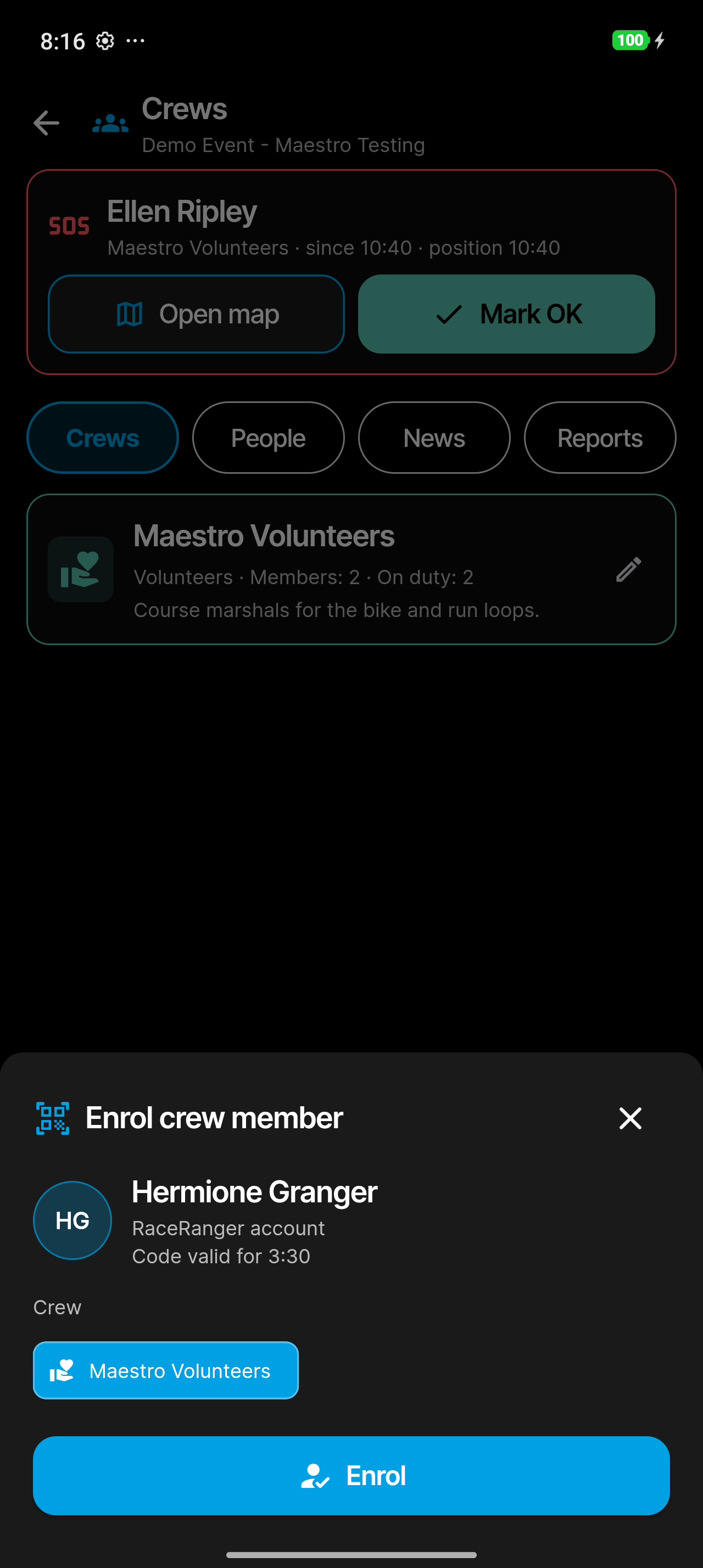
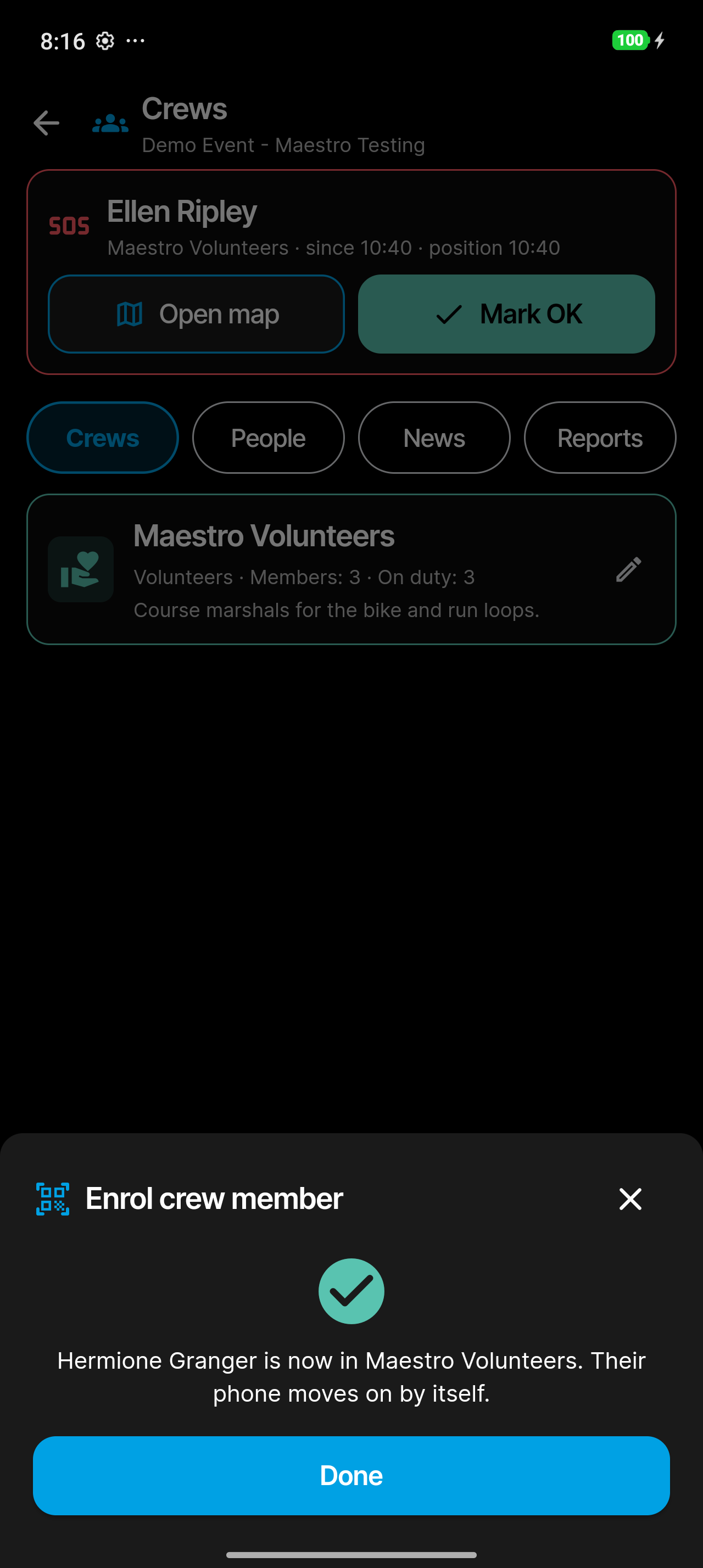
The sheet confirms who joined which crew, and their phone moves on by itself. Tap Done.
A code is valid for five minutes. When it expires, ask for a new one.
5. Run the crews
Crews opens on the phone from the event menu, and on the web as the Crews tab of the event page. It has four tabs: Crews, People, News and Reports. On the web, people who can edit the event also get Crew types.
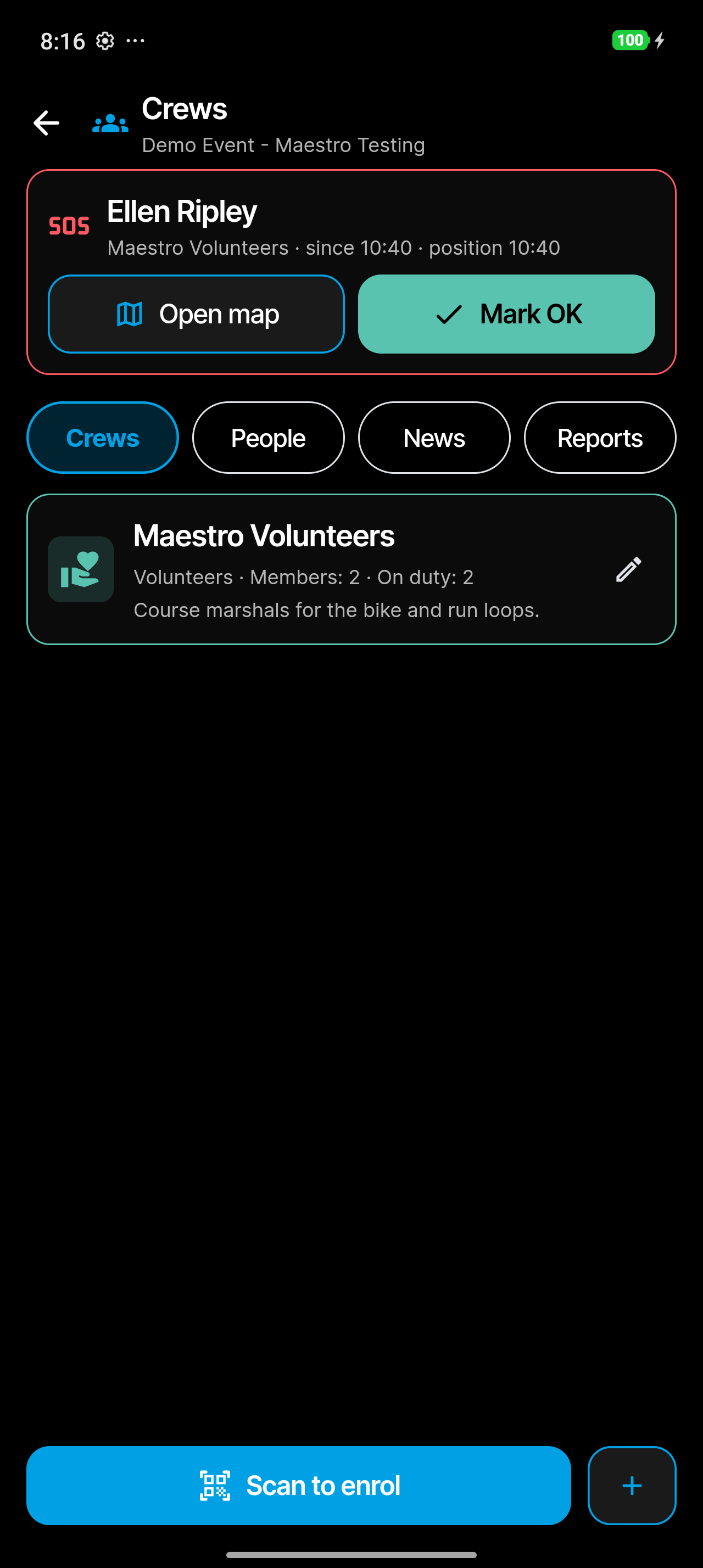
- Crews: each crew with its type, members and how many are on duty. Tap the pencil to edit a crew.
- People: everyone enrolled. You can Call them, Check in or Mark as gone home, Move to another crew, Set post or task (for example "Aid station 2 — drinks"), Stop their reports, or Remove from event. Removed people lose access on their phone at once; Reactivate brings them back. On the web the same actions sit in each row's Actions menu, and Export CSV downloads the list.
- News: announcements. On the phone, tap the megaphone button; on the web, choose New announcement. Write the message, pick To (All crews or one crew) and Post. Everyone it's for gets a notification. Turn on Important for messages that must get through muted notifications. You can Pin or Delete an announcement and see who has read it (Seen by).
- Reports: what crew members send in; see the next section.
Moves stay within one crew type. To move someone to a crew of another type, remove them and scan them in again.
6. Review reports
Crew members report problems from their phone: what happened, photos, an athlete's number if there is one, and their position. The crew's leaders get a notification for each new report.
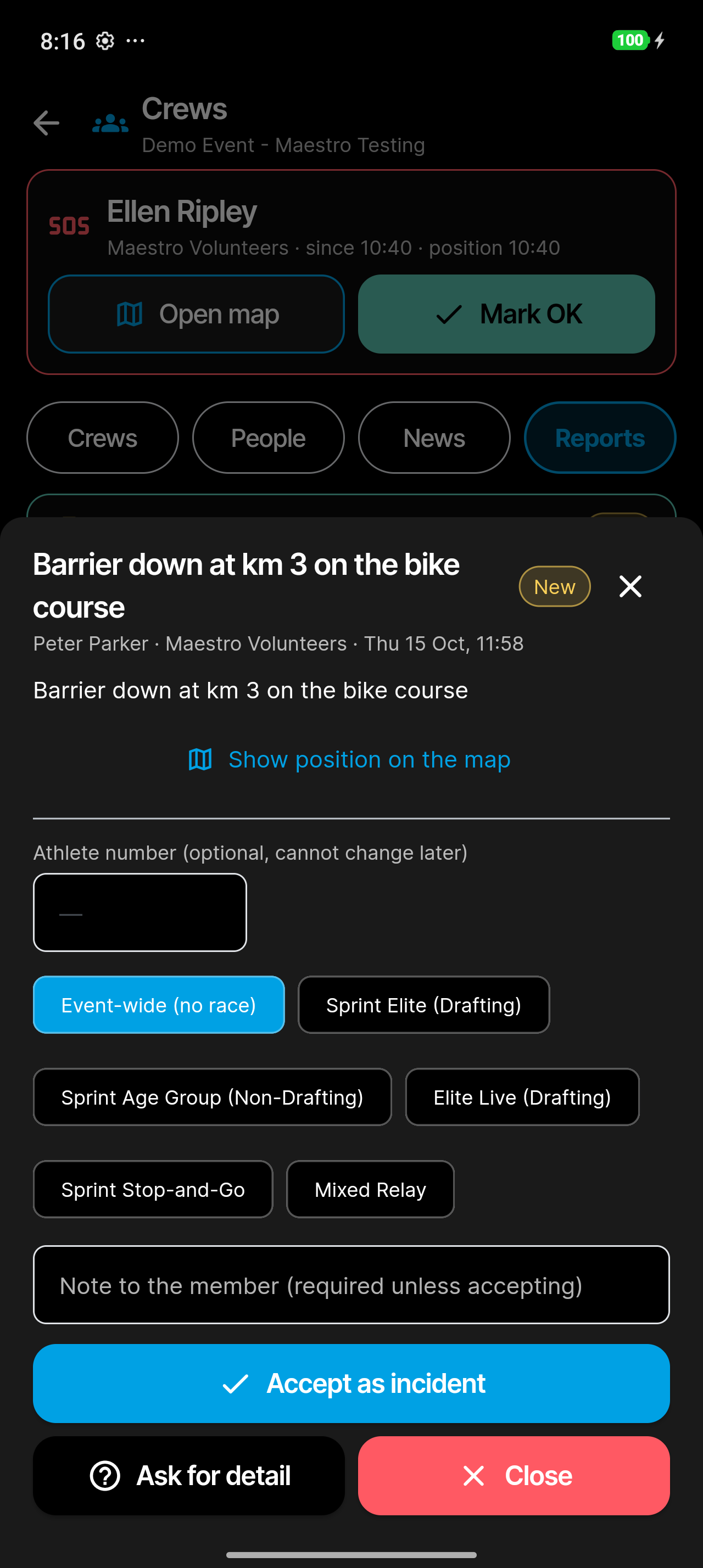
Open a report from Reports. You see who sent it and when, their text and photos, and Show position on the map. Then choose:
- Accept as incident: pick the race, or Event-wide (no race) if it isn't about a race. Add the athlete's number if you know it; it can't be changed later. The officials now have an incident.
- Ask for detail: your note goes back to the member. When they add details, the report comes back to you.
- Close: closes the report without an incident.
You need a Note to the member for Ask for detail and Close.
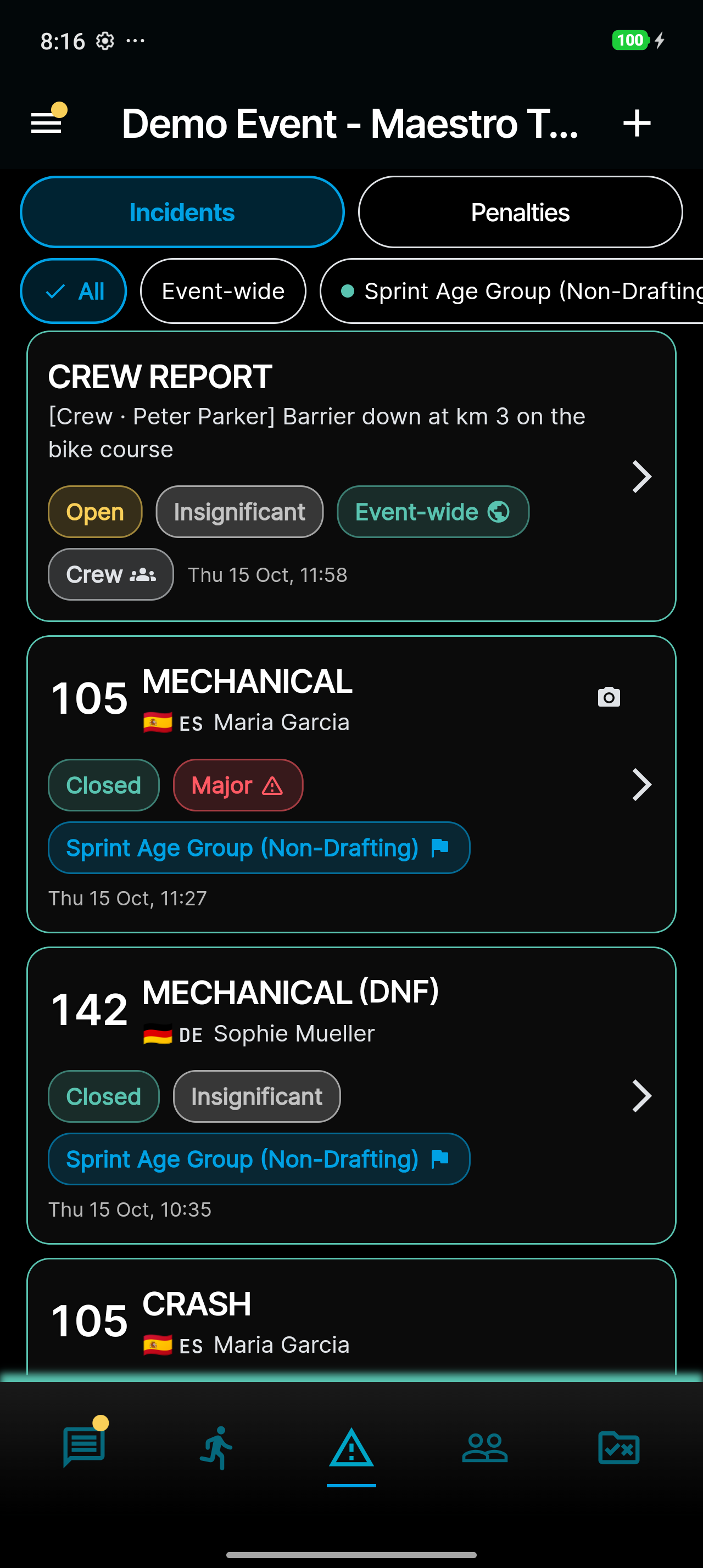
An accepted report shows up in the event's incidents list, marked Crew and named after the member who sent it. Its type reads Crew report until an official picks one, and a report that isn't about a race is marked Event-wide. If the report would change an athlete's race (for example a DNF), a technical official still has to confirm it. See Event-wide incidents.
7. Handle an emergency
A crew member in trouble holds Hold for emergency on their phone. The crew's leaders get an alert, and the member's position is shared until they hold the button again or a leader marks them OK. Every official on the event sees the position on the race maps while the emergency lasts.
A red banner at the top of Crews names the member and their crew, when the emergency started, and the time of their last position:
- Open map shows them on the app's race map.
- Call rings them, if they've added a phone number.
- Mark OK ends the emergency. Their phone stops sharing their location and tells them so.
When the event ends
Once the event is marked as completed, nobody can create crews or enrol people. 30 days after the event ends, its crews and their member lists are deleted. The temporary accounts of people who joined without a RaceRanger account are deleted at the same time, provided the event is marked as completed. People who joined with their own account keep it.
Full details
Everything below is optional reading — open a section when you need it.
Crew types and their managers
On the web, people who can edit the event see a Crew types tab on the event's Crews tab. It lists your organisation's crew types and who manages each one:
- Add manager names an official as manager of that type. A type manager creates its crews, enrols and moves its members, and reviews their reports.
- Remove manager takes it away again.
- People whose role has Can manage crews manage every type; they show as all types (role).
If you can edit the event but have no crew role, the Crews tab shows only this section until you name yourself manager of a type.
New crew type (also in the event page's ☰ menu) adds a type with a name, icon and colour. It's added to your organisation's list, so your other events can use it too.
Enrolling: special cases
- The crew needs a phone number. If the person didn't give one, the sheet asks you to type it, then Save number and enrol.
- The same name is already enrolled without an account. The sheet asks whether it's the same person on a new phone. Same person reconnects them to their membership. Different person — new account enrols someone new.
- They're already in another crew. Use Move to another crew on their row instead.
- Below the minimum age, or the member limit is reached. Enrolment is refused.
What crew members and officials can see
Crew members see their own crew, the event's races and times, the announcements meant for them, their crew chat and their own reports. They don't see athletes, penalties, the officials' chats or the officials' positions.
Officials see a crew's report only once a leader has accepted it, and a crew member's position only during an emergency. Crew chats and the report inbox stay with the people who manage crews.
Leaders see each member's name, phone number (if given), age, duty times with the position at each tap, and their reports.
Notifications crew members get
- A race is about to start, and a race has started.
- Announcements.
- Their report was accepted, needs more detail, or was closed.
- They were moved or removed.
- Mentions and important messages in their crew chat.
Crew members never get race mode, weather, ready-check, penalty or incident alerts.
When crew mode is off
On the phone, the event menu shows Crews only while crew mode is on for the event. If you open the Crews screen another way, a card says why it's off, and New crew and Scan to enrol stay unavailable:
- Crew mode is not enabled for this organisation. RaceRanger switches it on per organisation on request.
- Crew mode is switched off for this event. An organisation admin turns it on in the event settings on the web.
- This event is over, so crews can no longer be created or enrolled.
- The app could not check whether crew mode is on. Tap Try again.
On the web, the Crews tab says The Crews function is not active, Crew mode is off for this event, or No crew access when you don't manage crews. Creating a crew on an event that's over shows Event is over.