Race configuration
Each event contains one or more races. A race represents a single competition — for example, a sprint triathlon, an Olympic-distance race, or a relay. You create and edit races on the web.
The race list
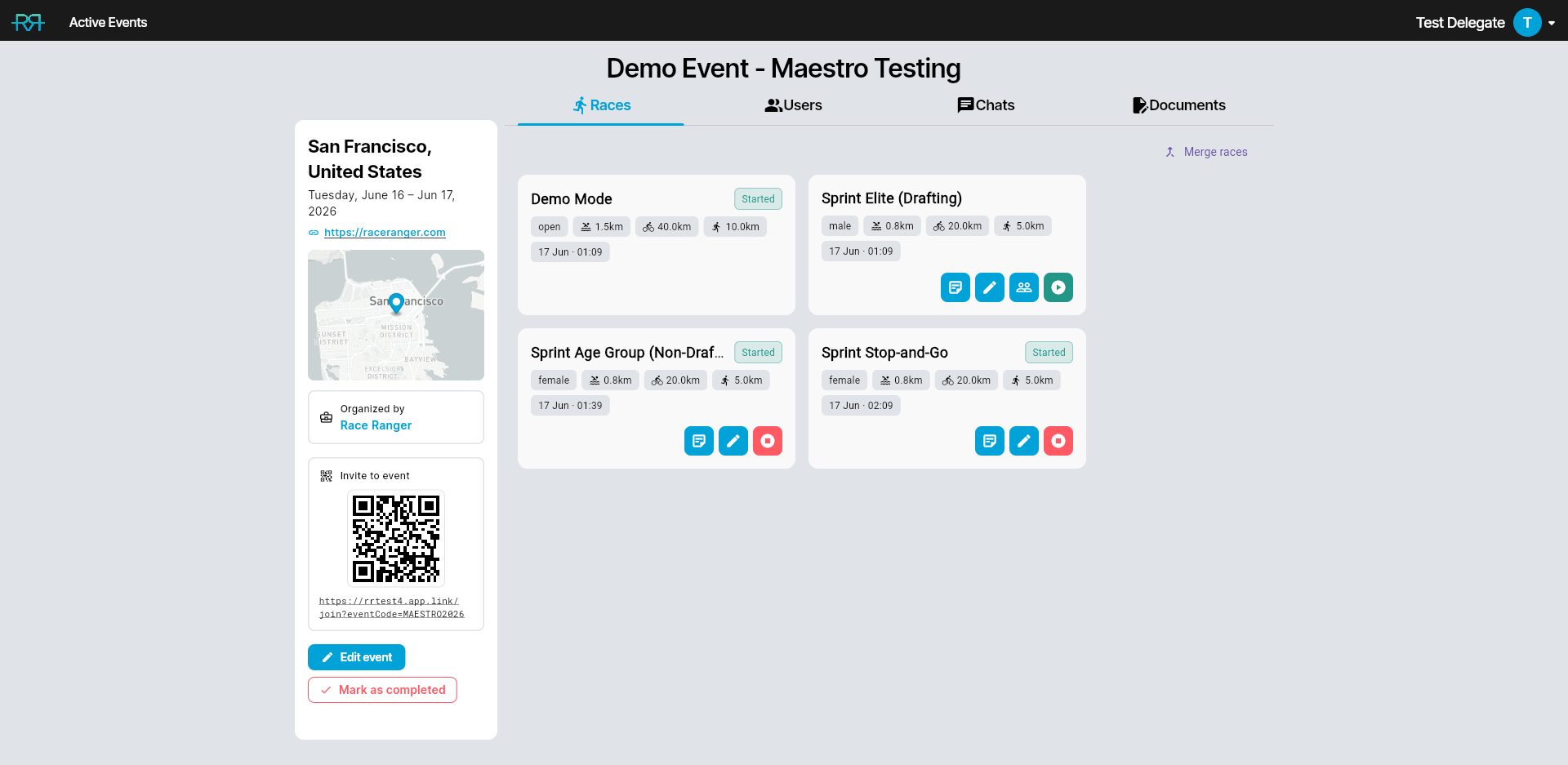
Open the event from the events list. The event page has the tabs Races, Users, Chats, Documents, Crews, and Incidents, and opens on Races. Each race is a card with its name, a status label, its gender category, the swim / bike / run distances, and the start date and time.
The status label shows where the race is:
- Pending — not started yet. The app shows this label; on the web, a pending race simply has none.
- Active — race mode is on, and nothing has been reported yet.
- Running — race mode is on, and the race has penalties or incidents.
- Finished — race mode is off again after penalties or incidents were reported.
The solid Race control button opens race control for that race. Move the pointer over the card to show its other buttons (on a touch screen they're always shown):
- the pencil — Edit race;
- the green play or red stop button — Activate race mode or Deactivate race mode (see Starting and stopping a race);
- the people icon — Edit TO assignments, when the race uses TO assignments (see Managing officials);
- Split race, on a merged race.
A search button sits at the right end of the tab row. Click it or press Ctrl/⌘ + F, then type to filter the Races and Users lists as you go; Esc clears it.
Add a race
- Open the menu button at the bottom right of the event page and choose Add race. If your organisation has race templates, RaceRanger first asks Start from a template? — a template pre-fills every step with a known-good setup, so prefer one when you can. Otherwise pick Blank race.
- Basics — the race name (e.g. "Elite Men Sprint", at least five characters) and the Gender category (Female / Male / Open / Relay). The category is used to check the athlete numbers officials enter.
- Distances — the swim, bike, and run distance of each leg.
- Start — the start date and time, in the event's local time.
- Options — the race rules. Most races need three decisions: is drafting allowed, how penalties are served (run penalty box, bike penalty box, or stop & go), and the penalty times. Every option is explained under Full details below.
- Numbers — the valid athlete-number ranges for the race (e.g. 1–99), used to check the numbers officials type in.
- Click Create race. The editor stays open with the race's tabs, so you can upload the course map straight away — see Course maps.
If the event already has as many races as its size allows, RaceRanger tells you the maximum is reached; ask your organisation admin to change the event size.
To edit a race later, click the pencil on its card. The same fields are presented as tabs — Basics, Distances, Start, Options, Course map, and Numbers — so you can jump straight to the one you need. The editor shows the race's name under the title, highlights the fields you've changed, and saves them when you click Save race.
Using a template
If your organisation has set up race templates, you can skip filling in the form by hand:
- New race from a template — when you choose Add race, pick a template in the Start from a template? chooser instead of Blank race. Adjust anything you need and finish the wizard as usual.
- Apply a template to this race — when editing a race, open the Templates menu at the bottom left of the dialog and choose Apply template. RaceRanger lists the settings that will change; click Apply, review the form, and click Save race to keep the changes. The gender category and number ranges aren't changed, and settings locked after a race has started are kept. You can't apply a template to a merged race.
- Save this race as a template — organisation admins can capture the current setup for reuse from the same Templates menu.
Locking after the first penalty or incident
Warning
Once a race receives its first penalty or incident, its gender category, drafting, stop & go, and penalty-box settings lock, existing number ranges can't be removed, and the race can't be deleted. This protects the integrity of the data — changing rules mid-race would invalidate existing records. Plan your race configuration before the race starts; if you need to change a locked setting after that, contact the RaceRanger team.
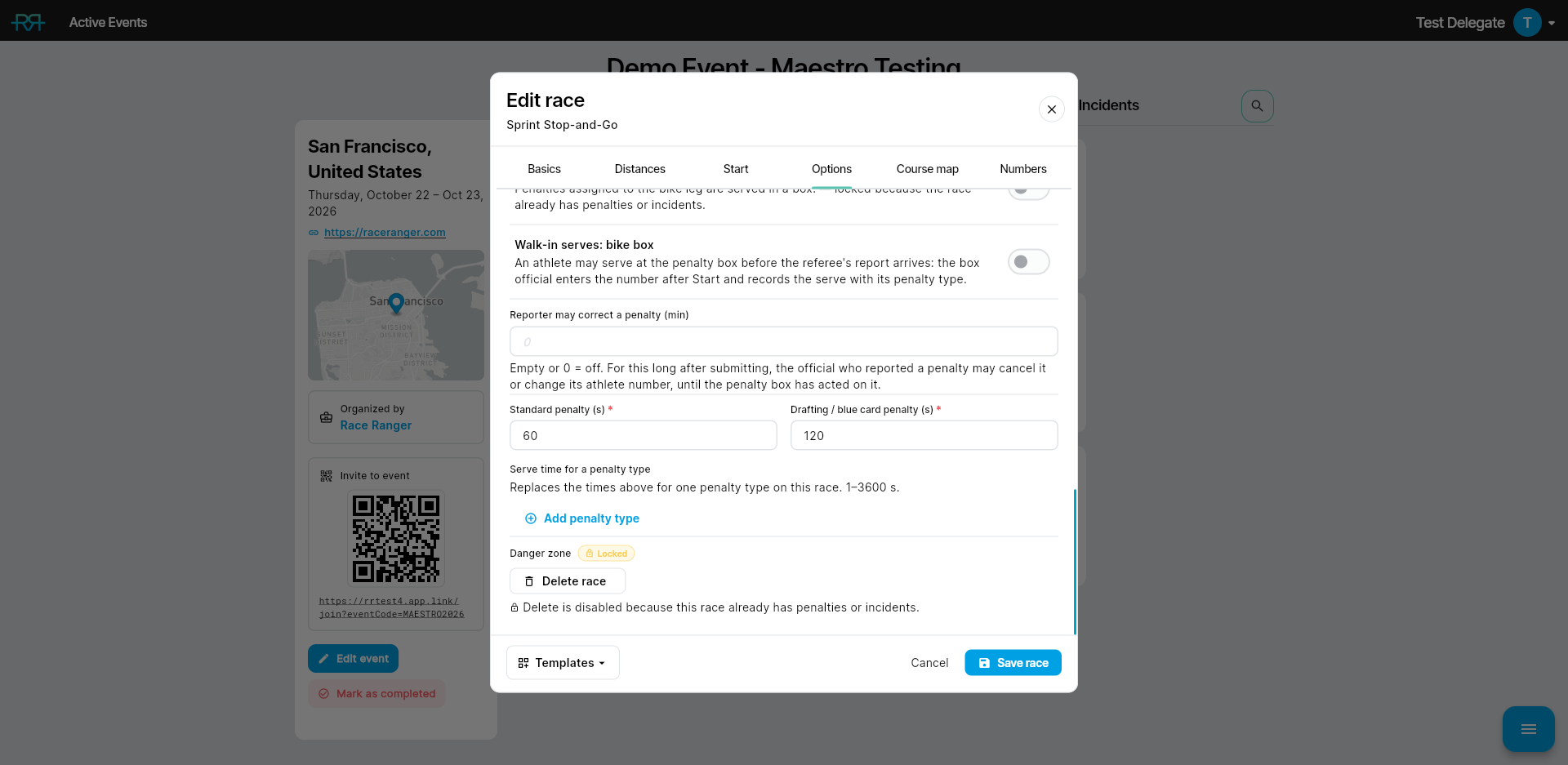
The race editor marks each locked setting Locked and says why. Other settings stay editable — the name, distances, start time, tracking, the acceptance requirement, walk-in serves, and new number ranges, for example.
Penalty times stay editable too. Changing the Standard penalty (s), the Drafting / blue card penalty (s), or a Serve time for a penalty type row on a race that already has penalties or incidents asks you to confirm (Change penalty times mid-race? → Acknowledge and save). That's because penalties already issued but not yet served switch to the new time, and a penalty-box stopwatch that's already running restarts. The change is recorded in the race log.
Starting and stopping a race
Starting a race turns race mode on for every official on it: real-time features like location tracking and notifications go live. You need permission to start and stop races — typically the head referee and the technical delegate have it.
- Web — on the race card, click the green play button (Activate race mode) and confirm. The red stop button (Deactivate race mode) stops race mode for all users; in the same step you can move them to another race.
- App — in race mode, open the tools folder, expand Danger zone, and tap Activate race mode or Deactivate race mode.
RaceRanger also helps on race day:
- An hour and a half before the start, everyone who can start the race gets a Race Starting Soon notification.
- An hour before the start, RaceRanger activates race mode by itself — unless another race in the same event is still active. Then switch over by hand: deactivate the other race and move its users to this one.
- If race mode stays on for three hours with no recent penalties or incidents, everyone who can stop the race gets a Race Mode Still Active reminder to deactivate it if the race is over.
Athlete check-in
If your organisation has athlete check-in, the Options tab has an Athlete check-in row (except on demo races and on a merged race itself). It sets the checklist officials use for this race once check-in is switched on for the event. Leave it on From the race name to let the race name pick the checklist, or choose one yourself. See Athlete check-in setup.
Full details
Everything below is optional reading — open a section when you need it.
Every race option, explained
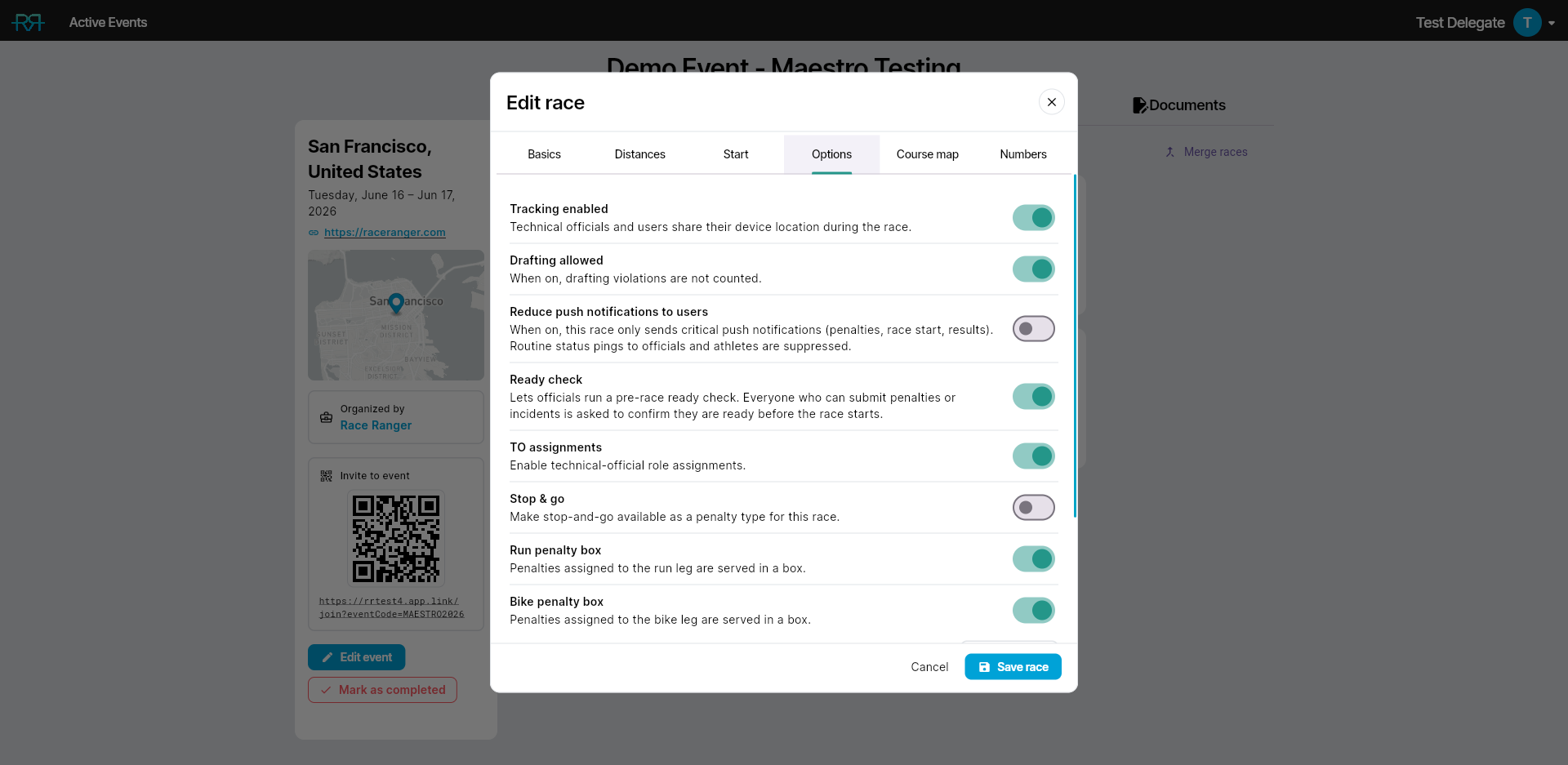
The Options tab is where the rules that govern penalties and officiating live. The screenshot shows the end of the tab for the Sprint Elite (Drafting) race in the demo event.
Race-day features
- Tracking enabled — technical officials and users share their device location during the race, so they show on the race map.
- Drafting allowed — when on, drafting is legal and drafting violations aren't counted. Turn it off for a non-drafting race (e.g. the Non-Drafting age-group race): drafting then counts as a violation, and the Drafting / blue card penalty (s) time appears.
- Reduce push notifications to users — when on, the race only sends critical pushes (penalties, race start, results). Routine status pings to officials and athletes are suppressed.
- Ready check — enable a pre-race ready check for this race. When on, officials can ask everyone who can submit penalties or incidents to confirm they're ready before the start. See the Ready check guide for how officials run it.
- Athlete check-in — only when your organisation has athlete check-in: the checklist this race uses. See Athlete check-in setup.
- TO assignments — only when your organisation uses TO assignments: give each technical official roles on this race (e.g. Chief Bike, Assistant Swim, Chief Penalty Box). See Managing officials.
Penalty boxes (triathlon events)
- Stop & go — make stop-and-go penalties available as an alternative to time penalties. Stop & go and the run penalty box are mutually exclusive — turning one on turns the other off, so a run-leg penalty is always either served in the box or as stop-and-go.
- Run penalty box / Bike penalty box — enable the run-leg or bike-leg penalty box. When the bike box is on, choose how many bike boxes there are under Bike penalty boxes (1 to 4).
- Penalty box must accept penalties — off by default, and only available while the run or bike penalty box is enabled (turning the last box off clears it). When on, incoming approved penalties wait as "unaccepted" at the top of the penalty box screen until a box official taps Accept (optionally with a photo); when off, penalties go straight to the athlete's card. Unlike most box settings, this can also be changed after the race has started.
- Walk-in serves: run box / Walk-in serves: bike box — off by default, and each only available while its box is on. When on, an athlete may serve at that penalty box before the referee's report arrives: the box official enters the number after Start and records the serve with its penalty type. When the report comes in, RaceRanger joins the two into one penalty if they clearly match; otherwise race control decides in the penalty review. See Penalty box.
Penalty times and corrections
- Reporter may correct a penalty (min) — off when empty or 0, up to 60 minutes. For this long after submitting, the official who reported a penalty may cancel it or change its athlete number, until the penalty box has acted on it. See Penalties.
- Standard penalty (s) — the time, in seconds, served for a standard violation.
- Drafting / blue card penalty (s) — shown when drafting isn't allowed: the time served for drafting and other blue-card penalty types.
- Serve time for a penalty type — gives one penalty type its own time on this race, replacing the times above for that type. Click Add penalty type, pick the type, and enter the seconds (1 to 3600). Each type can have one row.
Danger zone
- Delete race — deletes the race for good, after a confirmation. It's disabled once the race has penalties or incidents, and isn't offered for demo races or races in a merged group.
The editor's Advanced tab — athlete sync, sync with external timing systems, drafting devices, and the race's IDs at your timing provider — is only shown to the RaceRanger team. Ask them if one of these needs changing; see also Athlete management.
The Course map tab
The Course map tab is where you upload a KML course file. It appears once the race has been created. Until a course is uploaded, the tab shows the event's location with a pin and an Upload course map button.
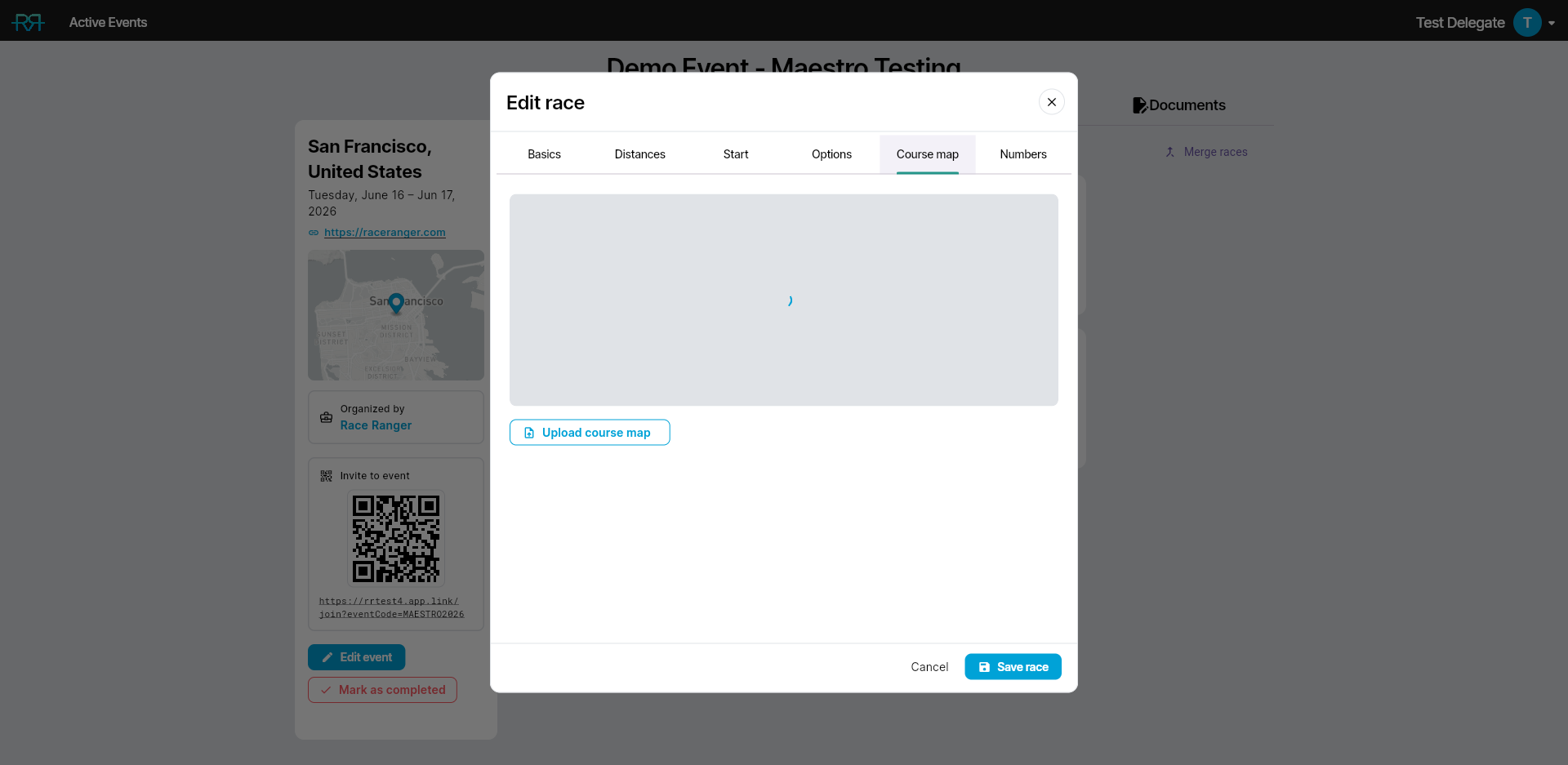
Once the file is processed, the same tab shows the route in colour-coded swim / bike / run lines, and the button reads Replace course map. File requirements and troubleshooting are in Course maps.
Number ranges in detail
The Numbers tab holds the race's athlete number ranges. Each row is a from–to pair; click Add range to add more ranges (e.g. 1–99 and 200–299). Officials' typed numbers are checked against them when they report penalties and incidents.
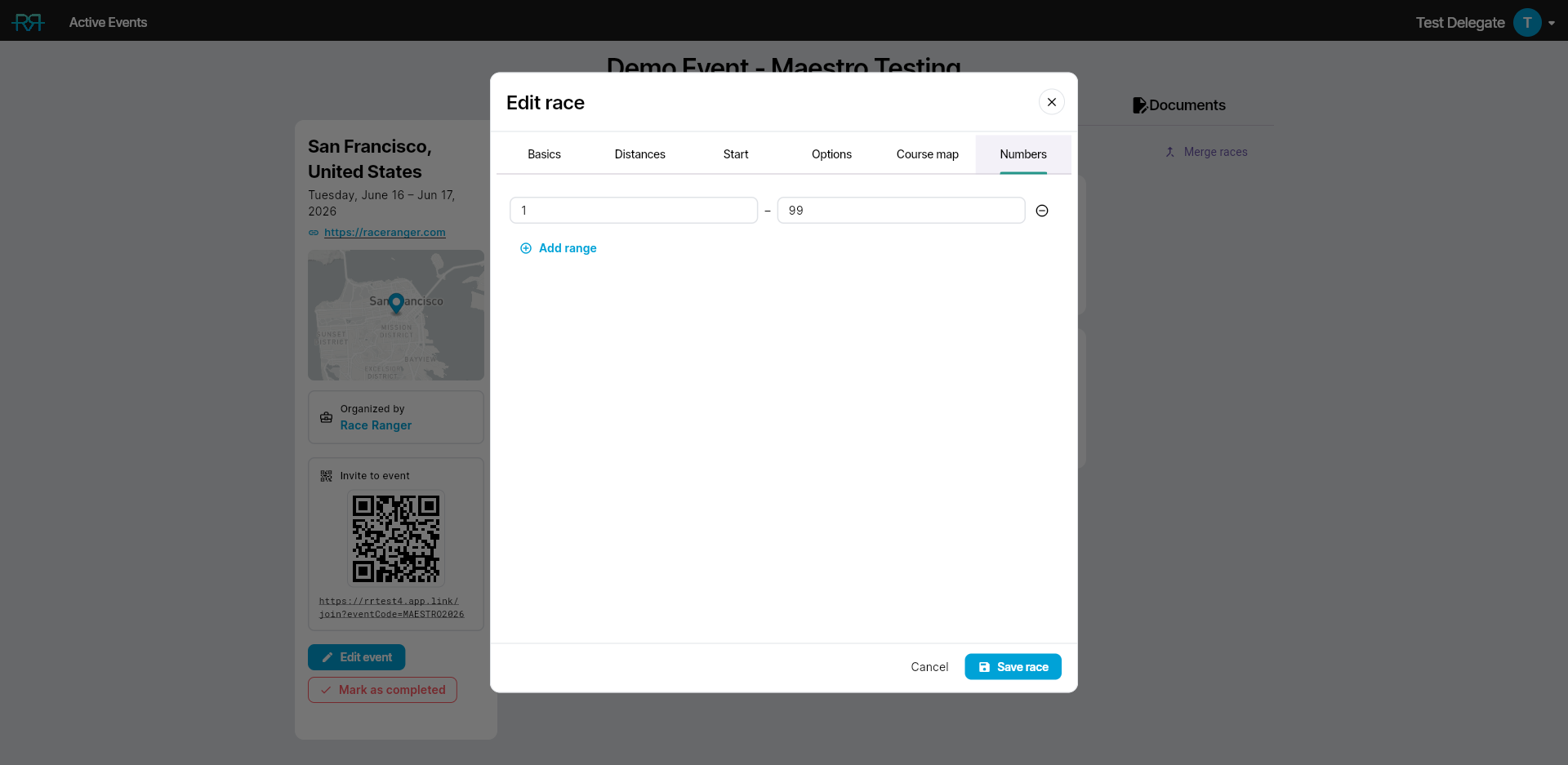
Each race has its own ranges, and they belong to the race's gender category. For a race in a merged group, the tab also lists the numbers the group's other races already use, and warns you if a range overlaps with another race of the same gender. Once the race has penalties or incidents, you can still add ranges but not remove existing ones.
Merged races — what's shared vs per-race
Races can be merged when they run at the same time on the same course (e.g. elite men and elite women). Merging combines the penalty and incident views so officials see everything in one list.
Organisation admins merge races from the menu button: choose Merge races, tick at least two races that aren't active and have no penalties or incidents yet, and click Merge (the button counts the races you've ticked). A merged race starts with a readable name based on the races you combined — the wording they share, or their names joined together — and you can edit the merged race to give it its own name. It keeps the name you set instead of being rebuilt from the races inside it.
Until it has penalties or incidents, an organisation admin can split a merged race back into its races with Split race on its card.
You can edit the merged race directly to change its name, its course map, and the settings that are shared across the whole group — drafting, tracking, notifications, TO assignments, stop & go, the penalty boxes (including the acceptance requirement and walk-in serves), and the reporter's correction window. Editing them on the merged race keeps every race in the group in sync. Settings that are specific to each race — gender, distances, start time, penalty times (including serve times per penalty type), ready check, athlete check-in, and athlete numbers — are edited on the individual races; the merged-race editor shows a note pointing you there.
Demo races
Demo (practice) races can be edited too, but only their distances, drafting, penalty boxes and penalty times — everything else (name, gender, tracking, notifications) stays fixed. The editor shows only those fields for a demo race.