Running an event
Race mode is the screen you work from during a race. This page covers getting into it, what's on it, and what happens when a race starts, stops, or hands over to the next one.
Entering race mode
When you open an event, you land on its race list — or on its Info page, if the event has one. Each race shows its status at a glance — Pending, Active, Running (active with activity already logged), or Finished. Tap a race and confirm with Enter to open race mode.
You can enter a race once race mode is active for it. If your role can start and stop races, you can also enter a race before that and activate it yourself — see Starting and stopping a race.
Race mode switches on by itself about an hour before a race's start time. Half an hour before that, officials who can start and stop races get a Race Starting Soon notification, so they can switch it on earlier if they want to. If another race in the event is still active, race mode doesn't switch on by itself — move the team over from the running race instead. When race mode comes on, officials who receive race notifications get a Race Mode Activated notification that takes them straight into the race.
On a dedicated tablet, the race is pre-selected — you go straight to the race mode screen.
Tip
Being in race mode is important. It ensures your location is tracked (if enabled for your role), you receive real-time notifications, and you can react quickly to penalties and incidents.
The race mode screen
This is where you spend most of your time during a race. While race mode is on, the top bar reads Race Mode Active in red. Before the race is activated it reads Not Active, and in a practice race Demo Mode.
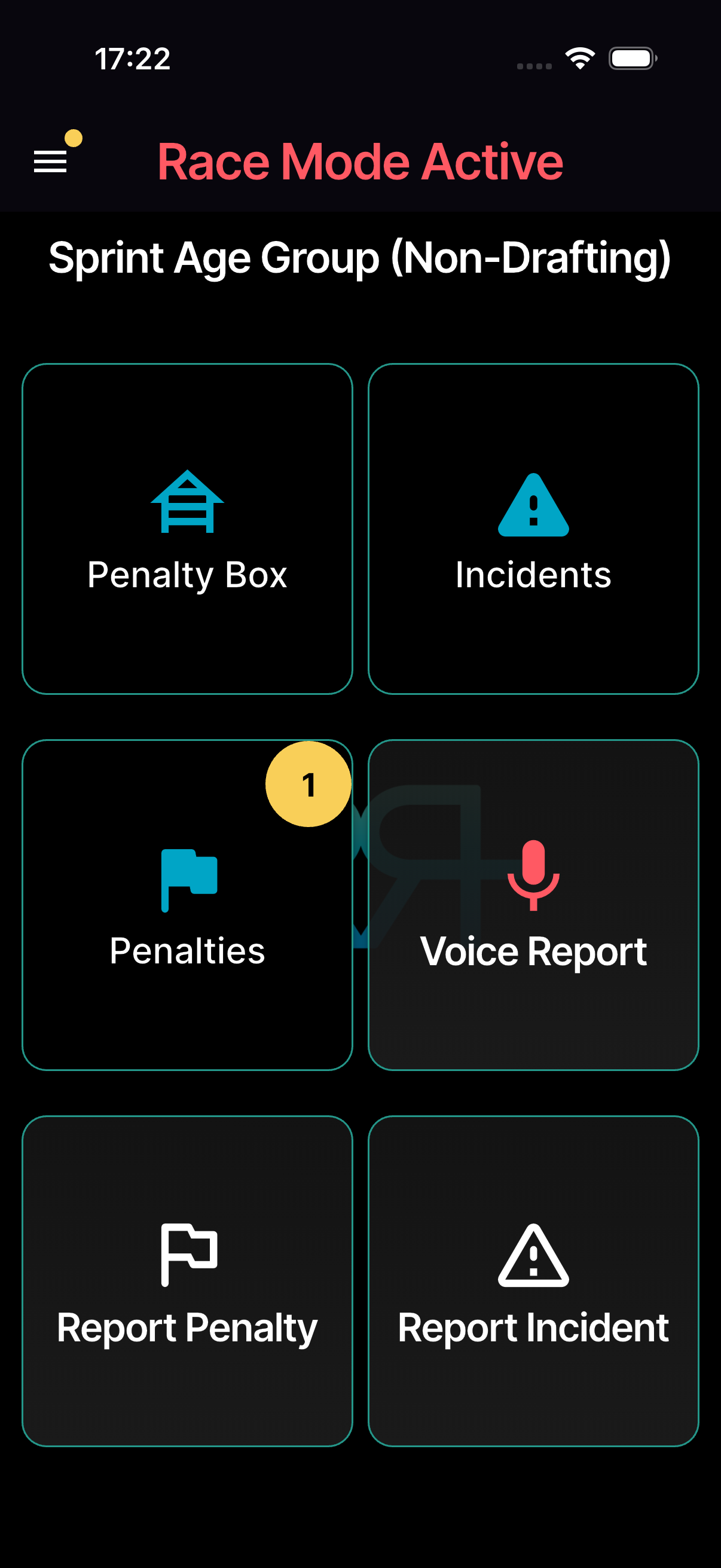
The screen is a grid of large buttons. Each one gives a light haptic tap when you press it, so you know it registered:
- Report Penalty — start the penalty flow.
- Report Incident — start the incident flow.
- Voice Report — report by voice, when voice reporting is available for the event.
- Penalties & Incidents — every penalty and incident in the race, in one view. Approvers see a badge with the number of penalties waiting for approval. Keep the two tabs, or switch to a single feed under Profile → App Settings → Penalties & Incidents view. If your role sees only one of the two, the button reads Penalties or Incidents.
- Penalty Box — for officials stationed at the penalty box.
- Drafting — the live drafting feed, when drafting devices are switched on for the race.
- The Tools folder — everything else (see below).
The buttons you see depend on your role and TO assignments.
Two controls sit in the top bar. The menu button (top left) opens the race-mode drawer. The round button (top right) shows whether you're sharing your location — see Location tracking.
The Tools folder
The tile of small icons at the top right of the buttons is the Tools folder. Tap it to open the rest of the in-race tools:
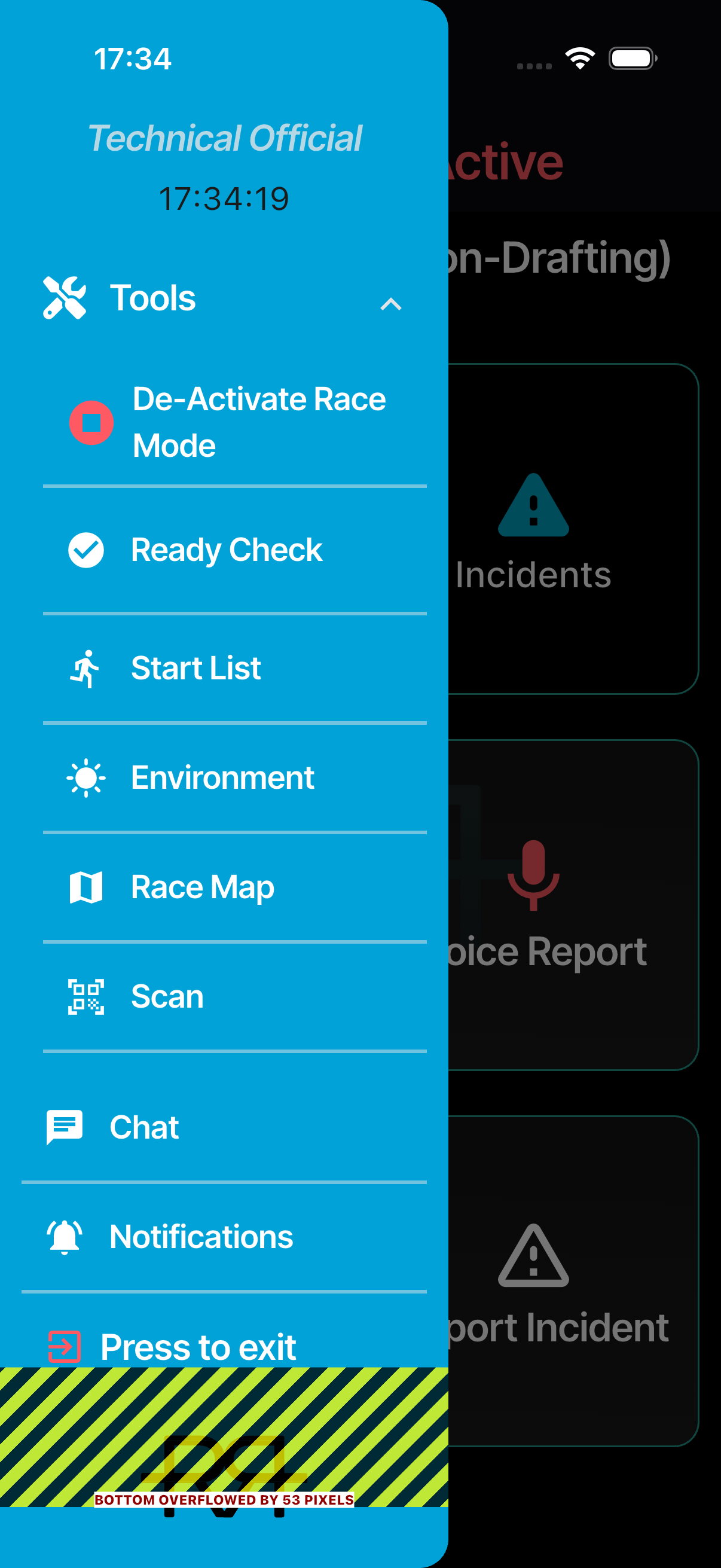
- Chat — the event's chats and this race's threads. See Chat.
- Notifications — this race's notifications. See Notifications.
- Ready Check — confirm every official is ready before the start. See Ready check.
- Start List — the race's athletes with their status and penalty and incident counts. Search by number, name, or country, and tap an athlete to see their timeline.
- Documents — the event's and the organisation's documents, such as rules, briefing notes, and course maps.
- Environment — log the current conditions (see Logging the weather).
- Race Map — officials' positions on the course map, when tracking is on for the race.
- Race Log — the race's log, read-only and in your language. Search it, or tap a penalty or incident to open it.
- Athlete check-in — uniform and equipment checks at the start line, when check-in is switched on for the event. See Athlete check-in.
- Race Control — the race control dashboard. On tablets only; see Race control.
Badges on Chat and Notifications count your unread items, and the folder shows their total. The tools you see depend on your role, and a practice race has no Tools folder.
Looking for the AI assistant? If you can use it, it's at the top of the chat list.
The race-mode drawer
The drawer is where you leave the race. Open it with the menu button or the back gesture — back never drops you out of race mode by accident. The drawer shows your role for this race, a clock, and two buttons:
- Scan — scan a QR code, for example to approve a sign-in on a shared device.
- Press to exit — leave race mode. The app asks Leave Race Mode? and reminds you that location sharing for this race stops. Tap Leave, or Stay to carry on.
On a dedicated tablet, the exit button reads Press to logout and signs the tablet out.
Starting and stopping a race
Officials whose role can start and stop races find the control in the Danger zone at the bottom of the Tools folder. It stays folded away so it can't be mistaken for leaving race mode — tap Danger zone to show it.
- Activate race mode (green) starts the race for every official on it.
- Deactivate race mode (red) stops the race for the whole team, not just your device.
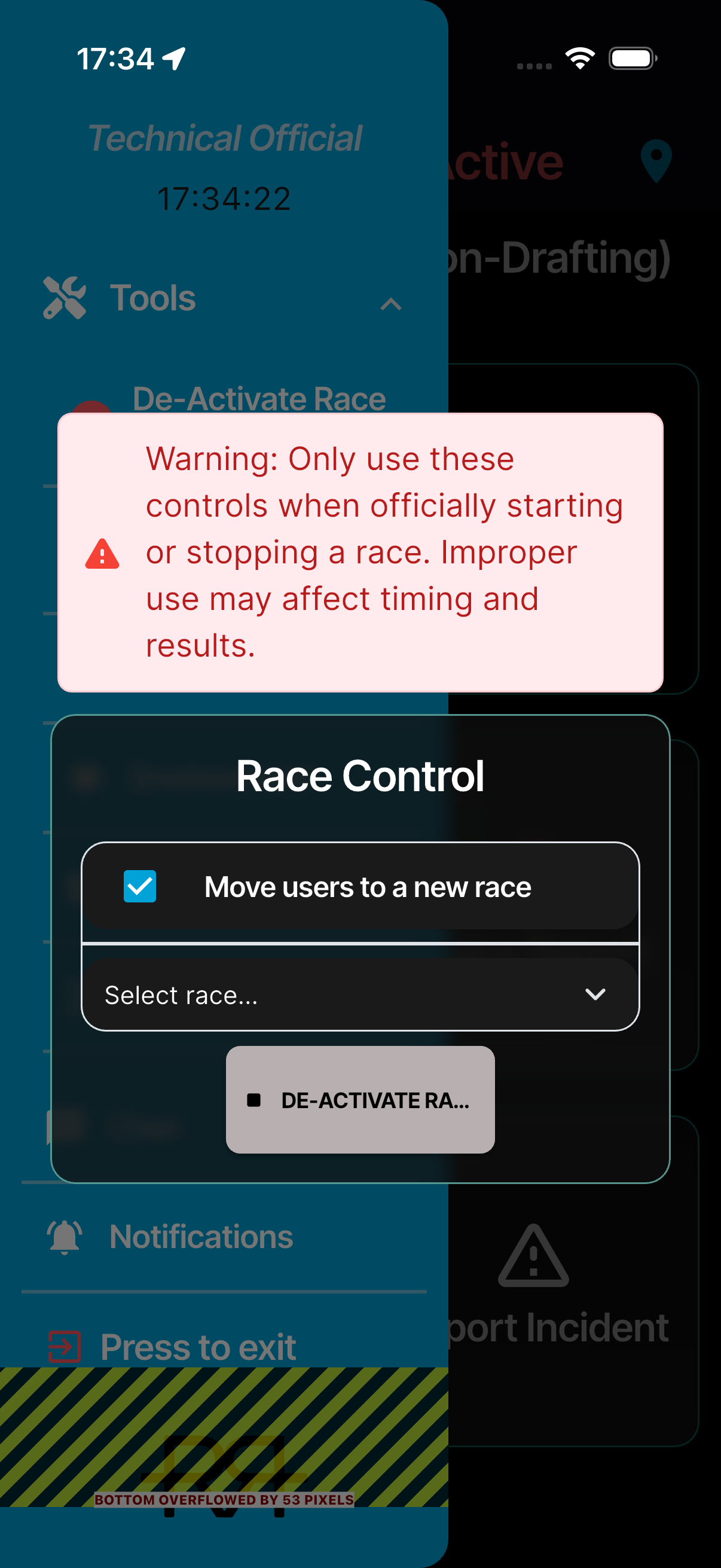
Either one opens the Race Control dialog. To start a race, tap ACTIVATE RACE MODE there and confirm with Activate.
When one race wraps up and the next is about to start, you can stop the current race and move the whole team to the next one in one step.
How to stop a race and move the team
-
Open the Tools folder, tap Danger zone, then Deactivate race mode. The Race Control dialog opens. Its warning reminds you to use these controls only if you understand what they do.
-
Switch on Move users to a new race and pick the race the team should go to. Races that are already live are marked Live, and finished ones Finished.
- Tap DEACTIVATE RACE MODE and confirm with Deactivate.
The current race stops and the chosen race goes live. Everyone in race mode moves across by themselves. Leave the switch off to stop the race without moving anyone: officials go back to the event's race list.
When the team moves to another race
When race control stops your race and moves the team on, race mode switches to the new race by itself — you don't need to do anything. If you receive race notifications, a Race Mode Switched notification names the new race.
If you were part-way through a penalty or incident at that moment, the unsent report is discarded and nothing is filed. Check that what you saw was recorded, and report it again on the right race if needed.
If the race is stopped without a move, race mode closes and you're back on the event's race list.
Switching races yourself
If you're assigned to several races in an event, leave race mode from the drawer and pick another race from the race list. Your active race decides which penalties, incidents, and race threads you see.
If you're in a practice race while a real race in the same event is live, an amber DEMO — live banner names the live race and reminds you to switch race before adding penalties.
Logging the weather
The Environment tool records the conditions for the race: air and water temperature, WBGT (with its heat risk level), and whether wetsuits are Mandatory, Optional, or Not allowed. Measured at is Now unless you pick an earlier time. Tap Submit to save the reading.
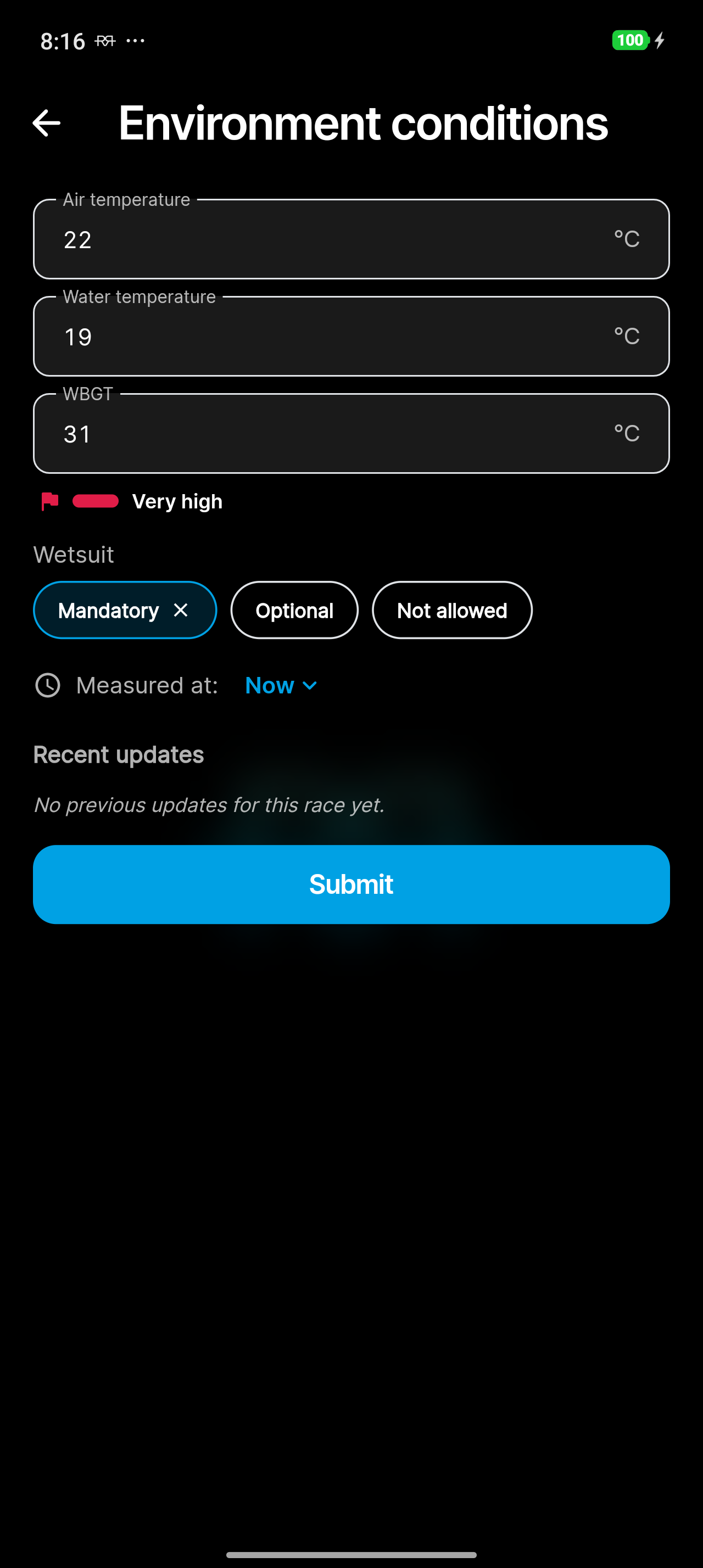
Below the form, Recent updates lists the readings logged for the race. Each reading also goes into the race log, and officials with weather notifications get an alert. If your role can't change the weather, the tool opens read-only.
Athlete check-in
When athlete check-in is switched on for the event, officials whose role includes a check-in permission open it from the Tools folder to check uniforms and equipment at the start line. If you can edit the event — as a technical delegate usually can — you can follow check-in there read-only. Stations, checks, photos, and escalating a check are all covered in Athlete check-in.
Race overview on your lock screen
While you're in race mode, RaceRanger keeps a live race overview outside the app: on iPhone on the lock screen and in the Dynamic Island, and on Android as a notification that stays in place until you leave race mode. It shows the race name, a running clock, the penalty and incident counts, and — for approvers — how many penalties are waiting for approval.
The overview also carries quick-action buttons — Penalty, Incident, Approve, and Voice — that take you straight into the matching flow without opening the app first. You only see the buttons your role allows, the same as on the race mode screen.
How the overview behaves on iPhone and Android
- iPhone: the overview stays current even while the app is closed or the phone is locked. It lists the latest incidents (and, for approvers, penalties) with a badge for how many came in since you last opened the app; opening the app clears the badge. New items update it quietly — the push notification is the sound. It clears when the race ends, and if you swipe it away it can come back when there's new activity.
- Android: when a new incident comes in — or, for approvers, a new penalty waiting for approval — the overview alerts you again and shows the newest item.
Tablets
On a tablet, Report Penalty opens a wide layout: the number pad, the athlete's details, the penalty types, and the submission form sit side by side on one screen. It's handy for officials at the penalty box or the venue control centre. Tools such as Ready Check and Documents open as a dialog over race mode, and the Race Control tool is available.
Event home
Opening an event takes you to its race list — or to its Info page, if the event has one. The icons along the bottom switch between the event's pages:
- Chat — every chat you're in for the event.
- Races — the race list; tap a race to enter race mode.
- Penalties and incidents — every penalty and incident across the whole event, with a filter by race (see Incidents).
- Info — the event's details, the current weather, and the forecast, when the event has an info page.
- Users — the event's officials. Tap a person to open their profile; if they've added a phone number, Call rings them.
- Documents — the event's and the organisation's documents.
Working with a poor connection
You can keep working when the signal drops. Penalties, incidents, and chat messages you send are kept on your phone and go out as soon as you're back online. A small status chip shows what's happening — Offline, or how many items are still waiting or uploading. If it turns red with Sync stuck — tap to retry, tap it to try again.
What happens automatically
When you submit a penalty or incident, the app takes care of the bookkeeping — you don't need to update anything manually.
What the app does in the background
- Athlete flags update — the athlete's status flags (has penalty, has drafting penalty, DNF, DNS, DSQ, lapped) are recalculated automatically based on all their penalties and incidents.
- Race log entry — every submission and status change is recorded in the race log with who did it, when, and what changed.
- Notifications — officials with the right notification settings receive push notifications.
- Race locking — the first penalty or incident in a race locks most race configuration options to protect data integrity.
Leaving and rejoining
To leave race mode, open the drawer and tap Press to exit, then Leave. If you were sharing your location, the app confirms that it's no longer shared with race control. Your data is saved as you go, so you can come back at any time and pick up where you left off. If the app is closed or the device restarts, signing back in takes you to the event and race you were last viewing.
If you are removed from an event by an organisation admin, the app takes you to the events list automatically.