Race control
Race control is a web dashboard with a live overview of a race — your team, the race log, every penalty and incident, the map, and the athletes — designed for officials monitoring the race from a fixed location, typically a control room at the venue. You may also hear it called the VCC (Venue Control Centre).
Opening race control
Sign in at app.raceranger.com on a computer, open the event, and click Race control on the race. For races that run merged, open it from the merged race: it covers every race in the merge. On a tablet in race mode, Race Control in the tools folder opens it too.
Race control opens on the Race log, so you land on the running record of the race straight away. Across the top you see the race name, whether it's Active or Not active, when it starts, a live clock, and your role, with the tab bar underneath; the selected tab is underlined in teal.
The Search... box at the top right filters whichever tab you're on — press Ctrl+F (⌘F on a Mac) to jump to it. The full-screen button in the corner hides the site's top bar to give the dashboard more room.
Who can access it
Race control is open to:
- organisation admins and technical delegates;
- officials whose role on the race has the Race view permission — by default, for example, Head Referee, Chief Venue Control Centre, and Chief Technology. On races that don't use per-race official roles, the official's event role decides.
If you're removed from the event, you lose access to its race control straight away.
The tabs at a glance
- Team — who's in race mode, who's sharing their location, who needs attention, and the ready check.
- Race log — a running record of everything that happens in the race.
- Penalties and Incidents — the live list, updating as officials submit.
- Map — the course, with penalties, incidents, officials, crew, and athletes as layers you can show or hide.
- Athletes — the start list, with each athlete's penalties and incidents, and the athlete check-in overview.
- Chat — the event's channels, in a floating panel available on every tab.
Every penalty and incident in race control — in the log, the list, the map, or an athlete's timeline — opens the same review. Open a section below when you want the detail of a specific tab.
Full details
Team tab
Cards across the top show how many officials are in race mode (RACE MODE), how many are sharing their location with this race (TRACKING), and how many need attention — not in race mode, or in race mode but not sharing their location when their role should (NEEDS ATTENTION, highlighted in amber). While a ready check runs, a READY card shows how many have confirmed and turns green once everyone is ready.
Below the cards, officials are grouped by role (for example Local Organizing Committee, Medical (CMO), Technical Delegate, Technical Official). Each group shows how many are in race mode, not in race mode, and without a location, and each person's tile shows coloured status dots — race mode, location sharing, battery, and their ready check answer. Hover a dot to see what it means. Officials who are Not in Race on this race aren't listed and aren't asked in the ready check.
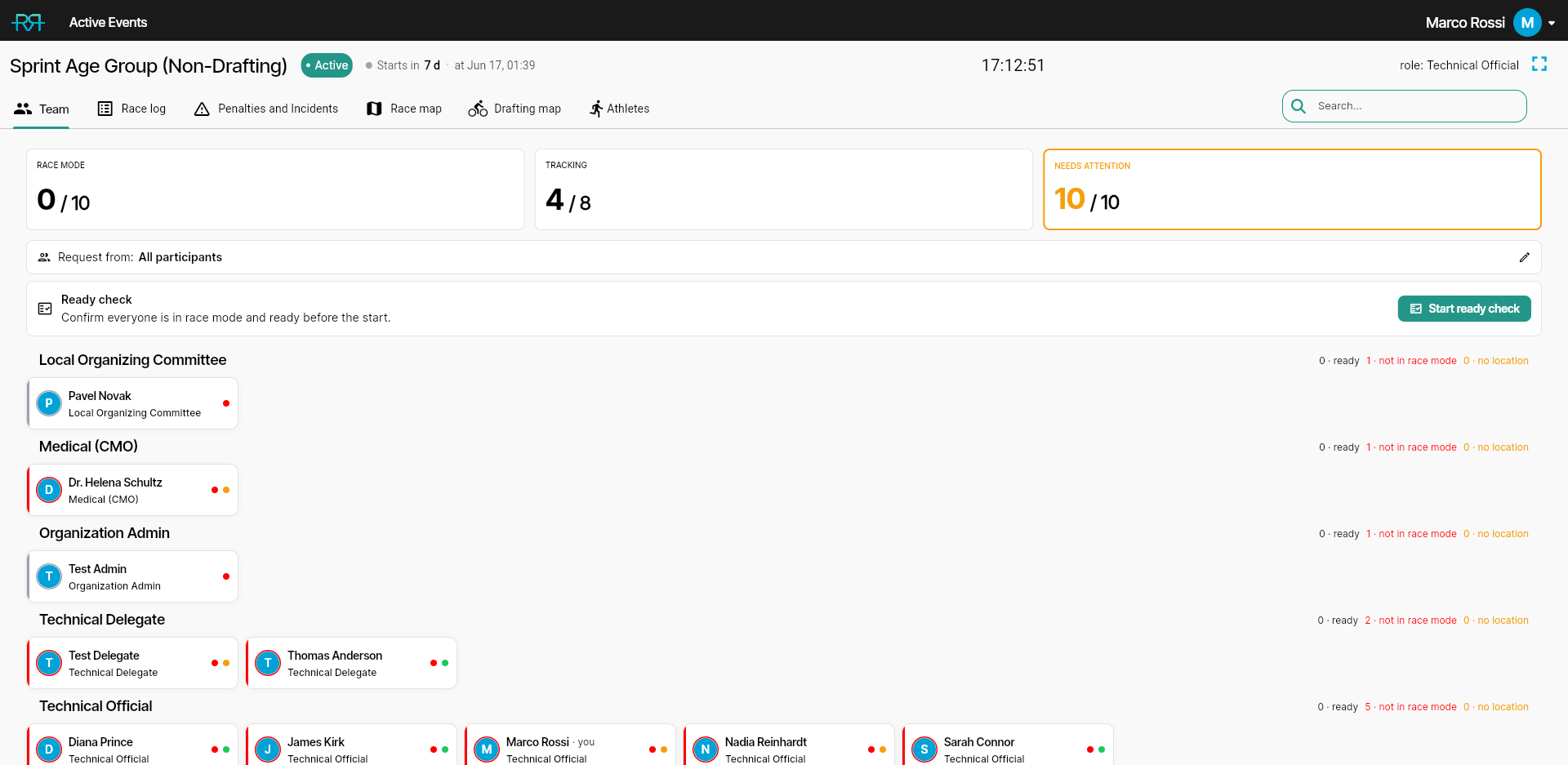
Running the ready check. On an active race with the ready check turned on, officials who can start and stop the race run the ready check from this tab: choose who to ask under Request from (All participants by default), then click Start ready check. While it runs you can Resend, Reset, or End it. See Ready check.
An official's card. Click an official's name or photo to open their card: their profile (with Call if they've added a phone number), whether they're in race mode and sharing their location, their battery, their last location with Open in Maps, and their answer in the running ready check. If you can run the ready check, the card also asks just that official — Request ready check starts a round for them alone, Ask again asks them again in the running round, and Add to the ready check adds them to a round that left them out. You can ask the same person again after 30 seconds.
Race log and AI reports
A chronological record of everything that happens in the race — penalty and incident reports and updates, approvals, weather readings, race mode switching on and off, officials answering Not ready in a ready check, start-list syncs, and notes officials add. Each row shows its kind (PEN, INC, ENV for weather, RDY for a ready check answer, LOG for other entries), the athlete number with their country flag (and the team leg on relay races), what happened with the athlete's name, who did it and their role, and the time. New rows flash briefly and carry a NEW tag. Entries appear in your app language.
The log spells out changes in plain language, including type changes, moving a report to a different athlete, penalty-box changes, status flags like DNF or disqualification, removed photos, walk-in merges, and when an entry is deleted. It also flags an athlete who isn't in the imported start list: their penalties and race status don't reach the results system until you re-sync the start list.
Click a penalty or incident row to open its review; a weather row opens the weather history.
At the top, three cards summarise the race: LOG ENTRIES (with the last 15 minutes and the last hour), TO APPROVE (penalties waiting for a decision, with the total and any disqualifications), and WEATHER — the latest air temperature and its trend, the water temperature, WBGT with its heat-stress flag colour (hover for the category), and the wetsuit rule. Hovering or tapping the temperature opens an air-temperature history — a small trend chart with the recent readings. The + on the weather card (Add weather reading) opens the weather form so you can log a new reading on the spot; it appears read-only if your role can't change the weather.
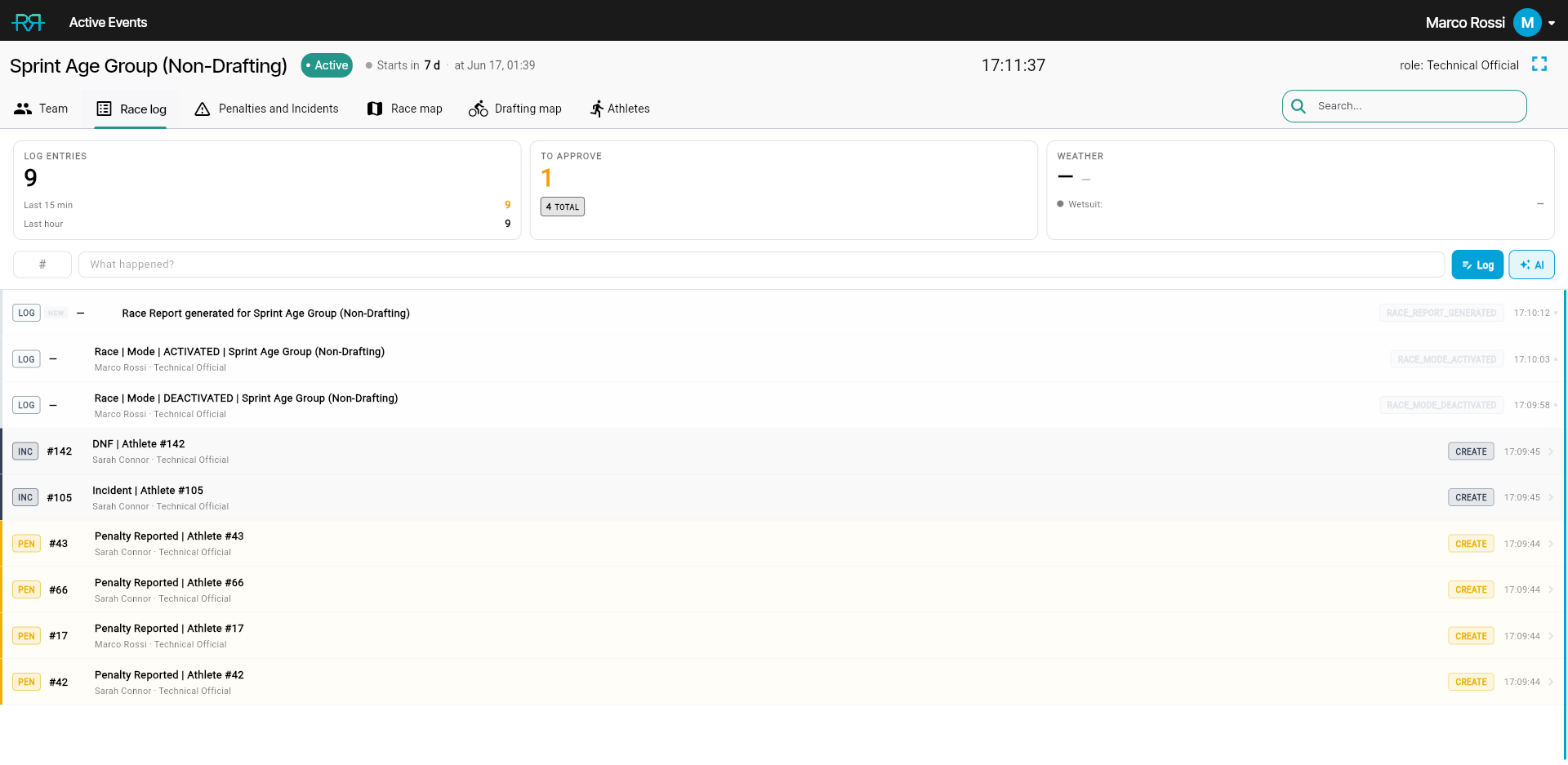
Adding a note or an AI report. The row under the cards takes an optional athlete number and a description of what happened.
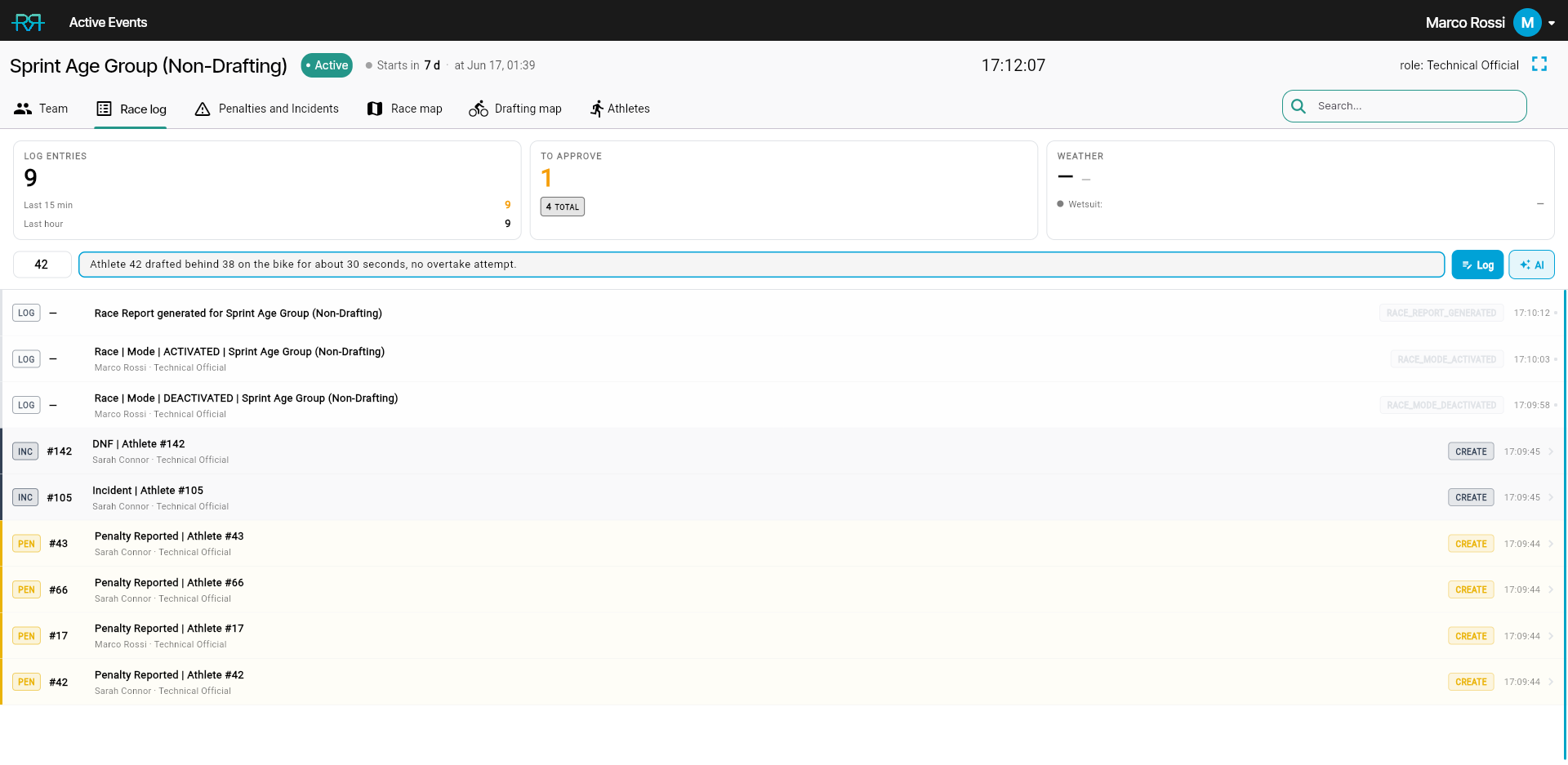
- Add note — writes your text to the log as a note. No classification, just a record.
- Report — the AI reads your description and either creates a penalty or incident from it, or asks a follow-up question if there isn't enough information. It appears when the event has voice commands, your role has Can use AI and you can report penalties or incidents on this race. The composer reminds you that the draft is AI-generated and can be wrong, so check it before approving.
Typing "Athlete 42 drafted behind 38 on the bike for about 30 seconds, no overtake attempt." and clicking Report creates a new penalty against athlete 42:
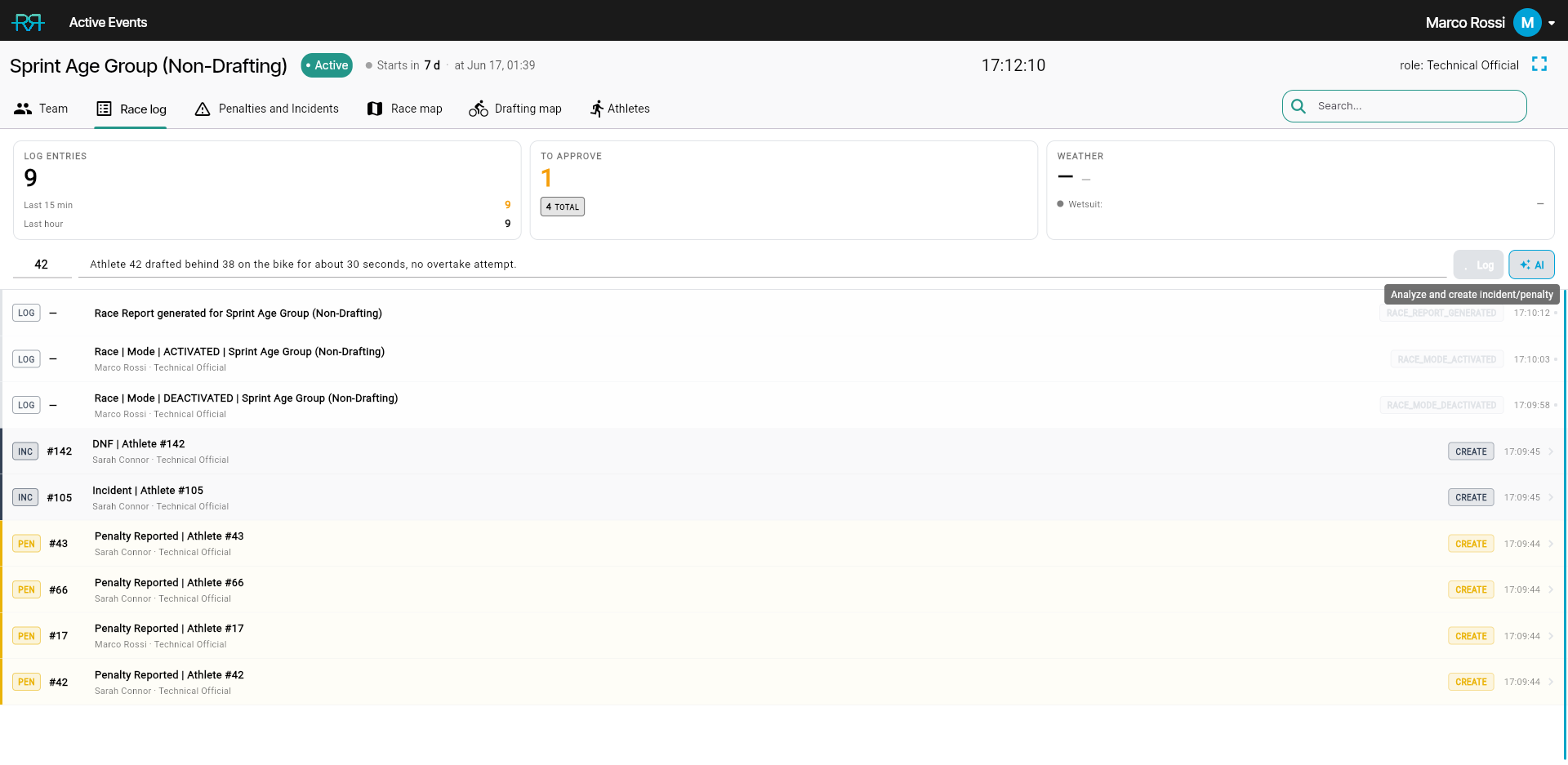
If the description is ambiguous, a follow-up question appears instead — answer it and the AI either completes the report or asks again. The AI can get things wrong, so check what it created before you approve it. If the same report is sent twice within a couple of minutes, the first one is kept and the app tells you.
Reading the race log on your phone. The race log is not web-only. During an event you can open a read-only Race Log from the race-mode tools on your phone, so officials on the course can still follow the running record of the race. Log entries appear in your app language.
Penalties and Incidents tab
A live list that updates in real time as officials on the course submit. The pills at the top — All, Penalties, and Incidents, each with a count — switch between the combined view, penalties only, and incidents only. The two buttons on the right filter the list (by status, critical, to review, lapped, or eliminated) and sort it (Newest first, Oldest first, Number ↑, or Severity (high → low)).
Each row starts with a tag — PEN, DRF (drafting), or DSQ for penalties; for incidents, three letters from the incident type (for example MED, MEC, or CRA), plus DNF or DNS when the athlete is out. Then come the athlete number (with the team leg on relay races), the name, the type, any CRIT, LAP, or ELIM marker, the status, and the time. Penalty statuses are Submitted, Approved, Served, Declined, Cancelled, and Protest; incident statuses are Open, In progress, Closed, and Cancelled. Penalty types appear in your app language. Click a row to open its review.
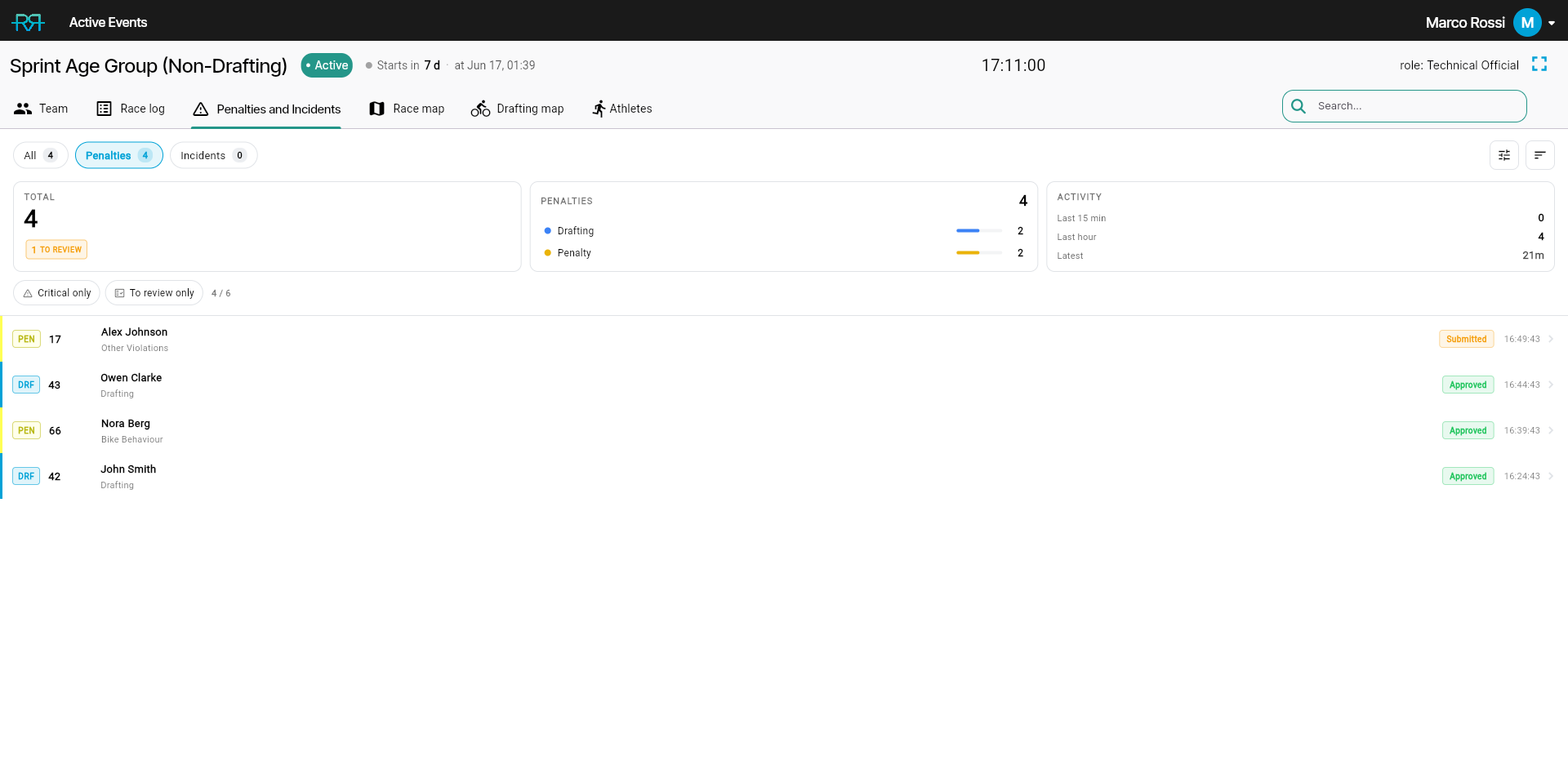
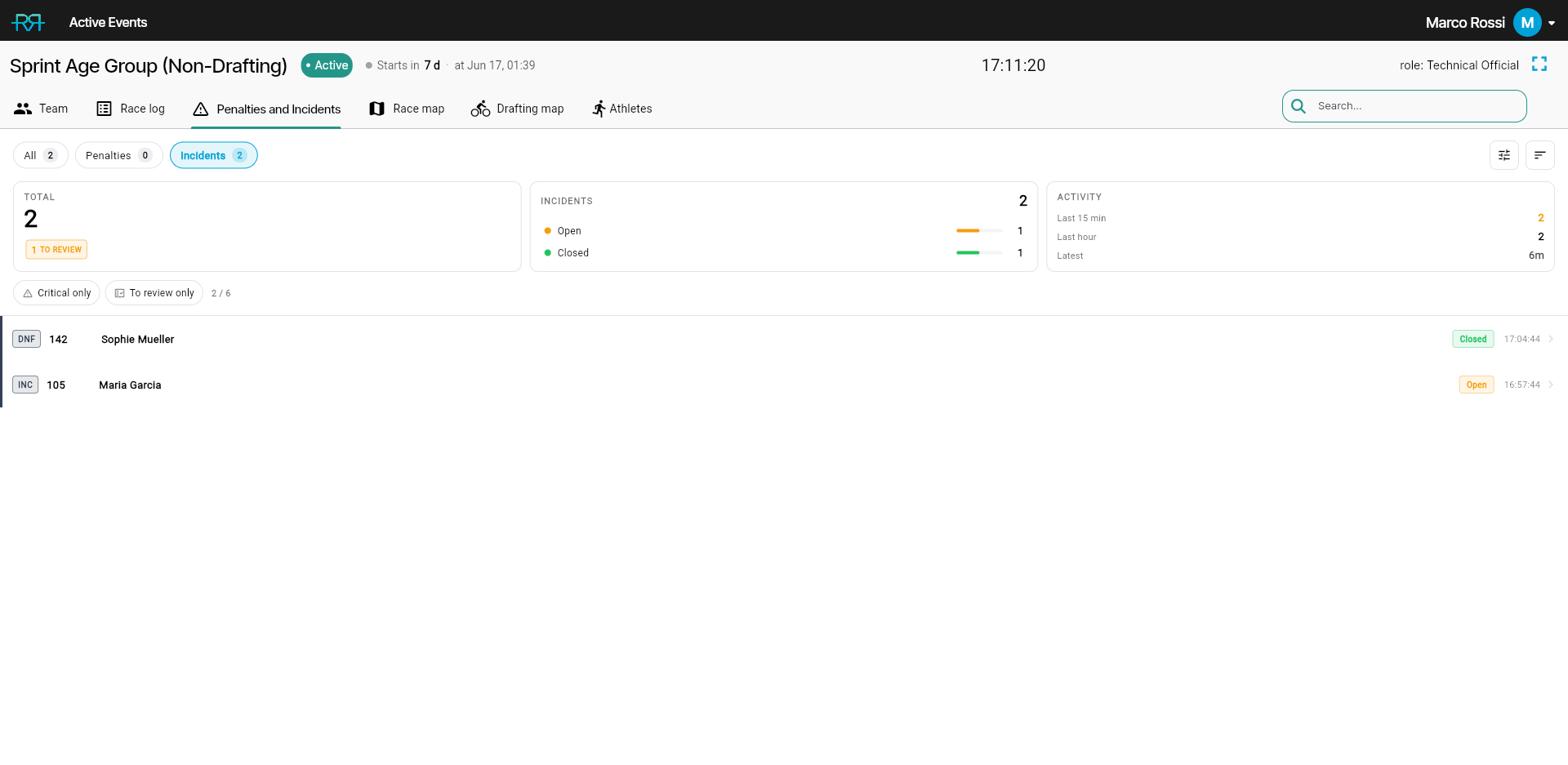
Above the list, cards summarise what's shown: TOTAL, with shortcut badges such as TO REVIEW, CRITICAL, DSQ, LAP, and ELIM; a PENALTIES card split into Drafting, Penalty, and DSQ; an INCIDENTS card split by status, with the critical count; and an ACTIVITY card with the last 15 minutes, the last hour, and the latest entry. Clicking a badge or a breakdown row filters the list to it.
The chips under the cards — Critical only (critical incidents and disqualifications) and To review only (penalties waiting for a decision and incidents still open) — narrow the list further without changing the pill. A count such as 4 / 6 shows how many items the filters leave.
Walk-ins. On races with walk-in serves, a penalty served at the penalty box before anyone reported it is listed with a WALK-IN tag (WALK-IN · 1? when a report it may belong to was found), and a Walk-ins without a report chip, with its count, filters to them. Once a walk-in is merged into an official's report, only the report is listed. See Penalty box.
Reviewing a penalty or incident
Clicking a penalty or incident opens its review as a card over the dashboard. At the top, an identity bar shows the type, the athlete number, the athlete, and the status. Below it are the details and who reported it, one Evidence card for the map, photos, and videos, and the Progress timeline of every update. On a wide screen the review spreads across columns.
If your role can approve penalties, a penalty waiting for a decision shows a Decision card with Approve and Decline. Add Update opens the update form, where you can add a note, photos, or videos.
Walk-in card. For officials who can approve penalties, the review of a walk-in — or of a report a walk-in may belong to — has a walk-in card:
- Find a match lists the reports the walk-in may belong to, with the reason for each. Merge joins it to a report about the same athlete; Ask referee asks in the report's chat when the number or the race doesn't match; Not the same rules a report out.
- No report expected closes a walk-in that nobody will report.
- On a report, Possible walk-in offers Merge and Not the same.
- After a merge, both sides show what happened, with Unmerge.
Map
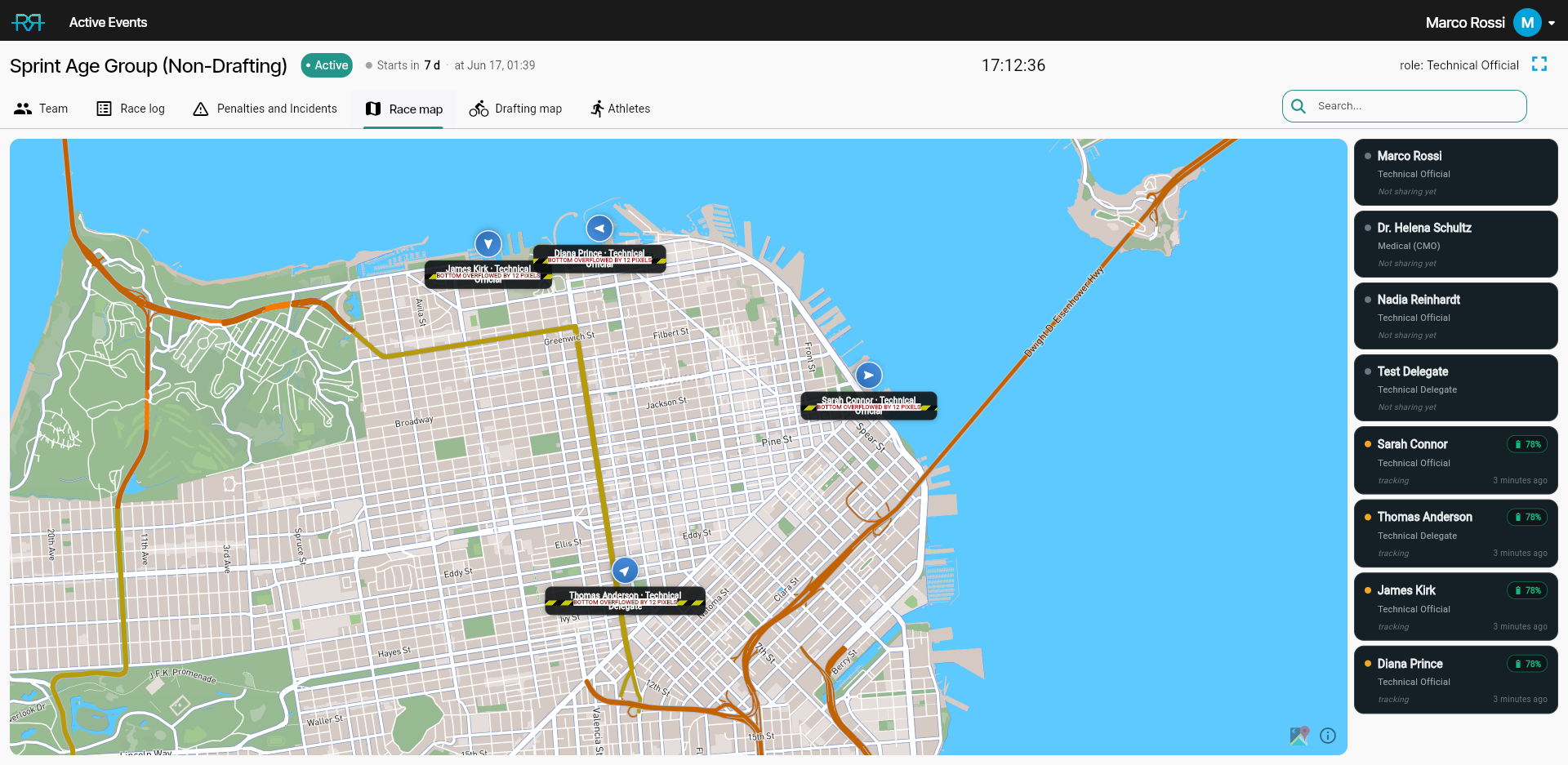
One interactive map showing the course route (swim, bike, run) if a course map has been uploaded. Everything on it is organised into layers you show or hide with the chips at the top left, each with a count:
- Penalties and Incidents — pins labelled with the athlete number. Hover a pin for a summary; click it for its details, with Open penalty or Open incident to go to the review.
- Officials — live positions of officials sharing their location, on races with tracking. Hover for their role, status, battery, and last update; click for their details, then Follow on the map. While you follow an official, their recent trail appears, and the button at the top right switches between Full history and Recent trail.
- Crew — on events with crews, crew members in emergency mode (SOS) wherever they are and, if you manage crews, crew members on duty at the spot where they went on duty. Click one for details.
- Athletes — on races with RaceRanger drafting devices, each athlete's live position, coloured by their device's light. Hover for their drafting time and penalty cards; click to follow them. See Drafting view.
Every details card also offers Open in maps and Copy location. A layer that doesn't apply to the race is greyed out with a lock. Fit all zooms out to everything shown, and the search box filters the markers.
Athletes tab, check-in, and the start list
A filterable roster of all athletes in the race. A bar across the top counts the numbered athletes — TOTAL, IN RACE (still racing — not out), ACTIVE (with any activity), PEN and INC counts, and OUT (out of race); a badge appears once its count is above zero. Cancelled and declined penalties, and cancelled incidents, are withdrawn decisions, so they're left out of these counts and the per-athlete pills.
Filter chips below the bar narrow the list to athletes With activity (any penalty, incident, or status change), Out of race (DNF, DNS, DSQ, eliminated, or otherwise out), Imported only (synced from the start list rather than entered manually), or No number (athletes who don't yet have a race number). Athletes without a number are hidden by default; click No number to show just them, and click it again to hide them.
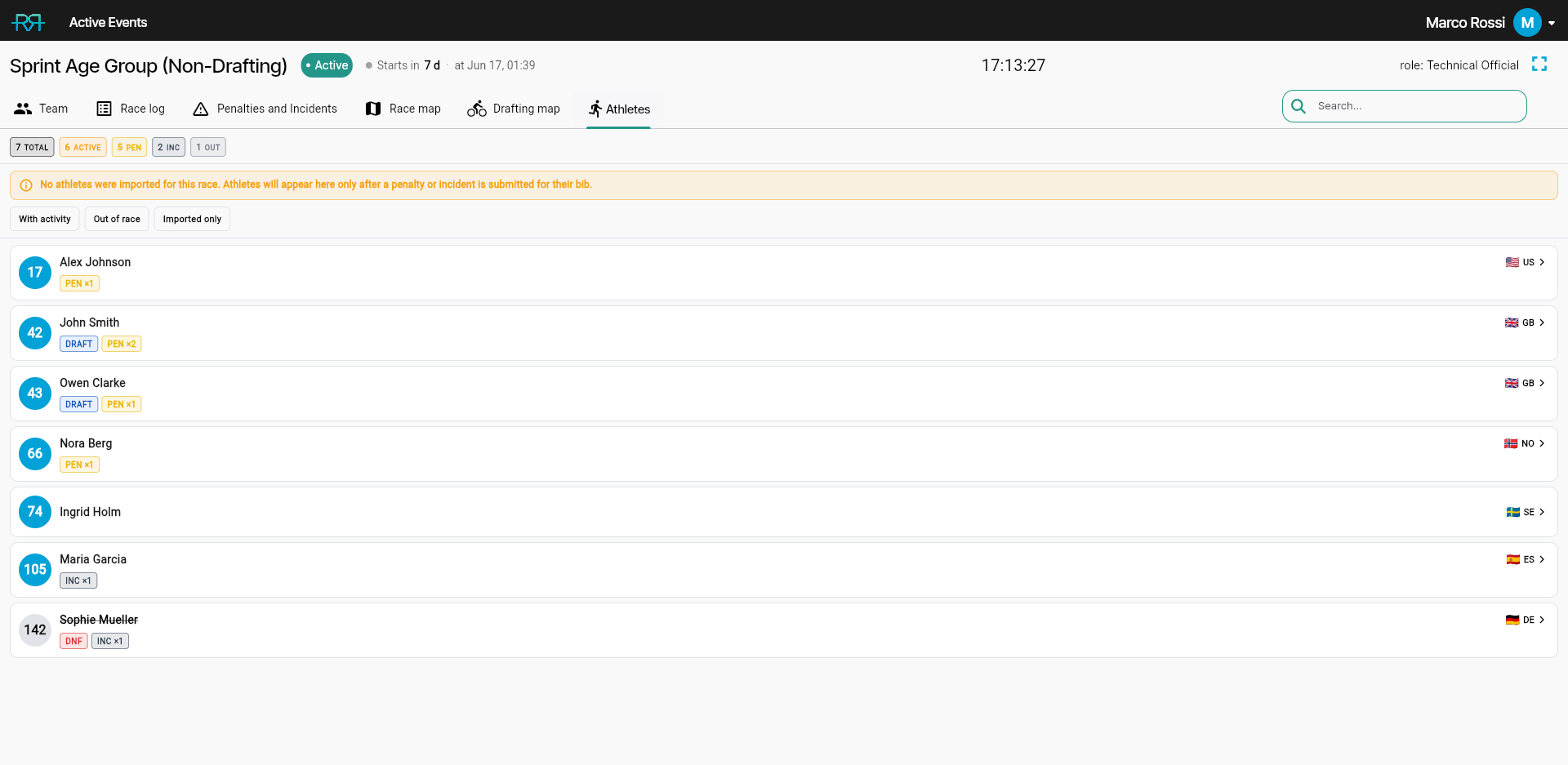
Each athlete row shows the race number, the name, a nationality flag and 2-letter code, and coloured pills — DRAFT, PEN ×N, INC ×N, DNF, DSQ, LAP, and more; on a merged race it also names the athlete's race. Click a row to open the athlete's details — source (imported or manual), bib, nationality, category, and external and athlete IDs — followed by a chronological timeline of their penalties and incidents; click a timeline entry to open its review.
A banner appears when no start list has been imported, as athletes only appear once a penalty or incident is filed against them.
Importing the start list. When the race is connected to a start-list program (Athlete sync enabled in the race settings) and your role can edit the event, a green IMPORT button sits in the counts bar. Clicking it pulls (or re-pulls) the start list from the linked program and reports the result. Once a race has been synced, a small timestamp under the button shows how long ago the last sync ran (for example 5m ago). The roster repopulates on its own as the sync completes.
Athlete check-in. When athlete check-in is live for the event, officials with check-in permissions and event editors such as technical delegates see an Athletes | Athlete check-in switch at the top of the tab. The check-in side is a read-only overview of how check-in is going — see Following check-in in race control.
Chat panel
Access to the event's chat channels directly from the dashboard, so you can coordinate without switching screens. The chat opens as a floating panel at the bottom-right of every tab (the small "Chat" button visible in the bottom-right corner of the screenshots above).
When to use it
Race control is most useful for:
- Venue control centre officials — monitoring the entire race from a fixed location, coordinating responses to incidents.
- Technical delegates — keeping an overview of the race while managing officials and handling escalations.
- Head referees — reviewing penalties and incidents as they come in, approving or declining from the dashboard.
The mobile app's race mode is designed for officials on the course — quick penalty submission, voice commands, location tracking. Race control on the web is designed for officials at a desk — broader overview, multiple data streams visible at once, larger screen real estate. Both show the same underlying data in real time.