Athlete check-in
Athlete check-in is where technical officials check each athlete's uniform and equipment before the race, station by station, right from race mode. You enter the athlete's bib, tick off each check, and everyone working check-in sees the same live picture of who is done and who is still waiting — even on a patchy start-line connection.
The tool is there once athlete check-in is switched on for your event (see Athlete check-in setup) and your role includes a check-in permission.
Opening the tool
In race mode, open the Tools folder in the top-right corner and tap Athlete check-in. The tile appears as soon as check-in is switched on for the event.
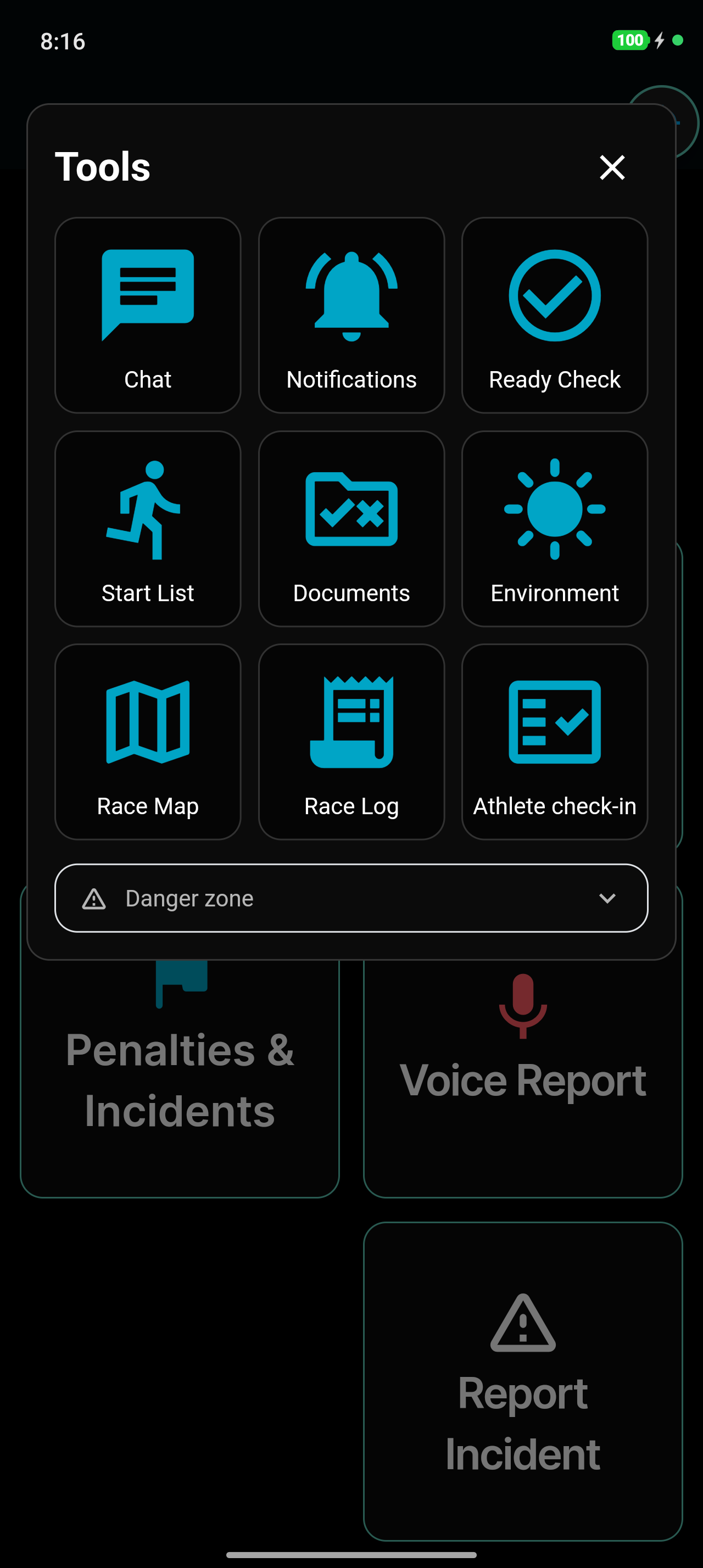
The tool shows the race you're in. On a merged race, it covers every race inside it.
Checking an athlete in
1. Pick your station
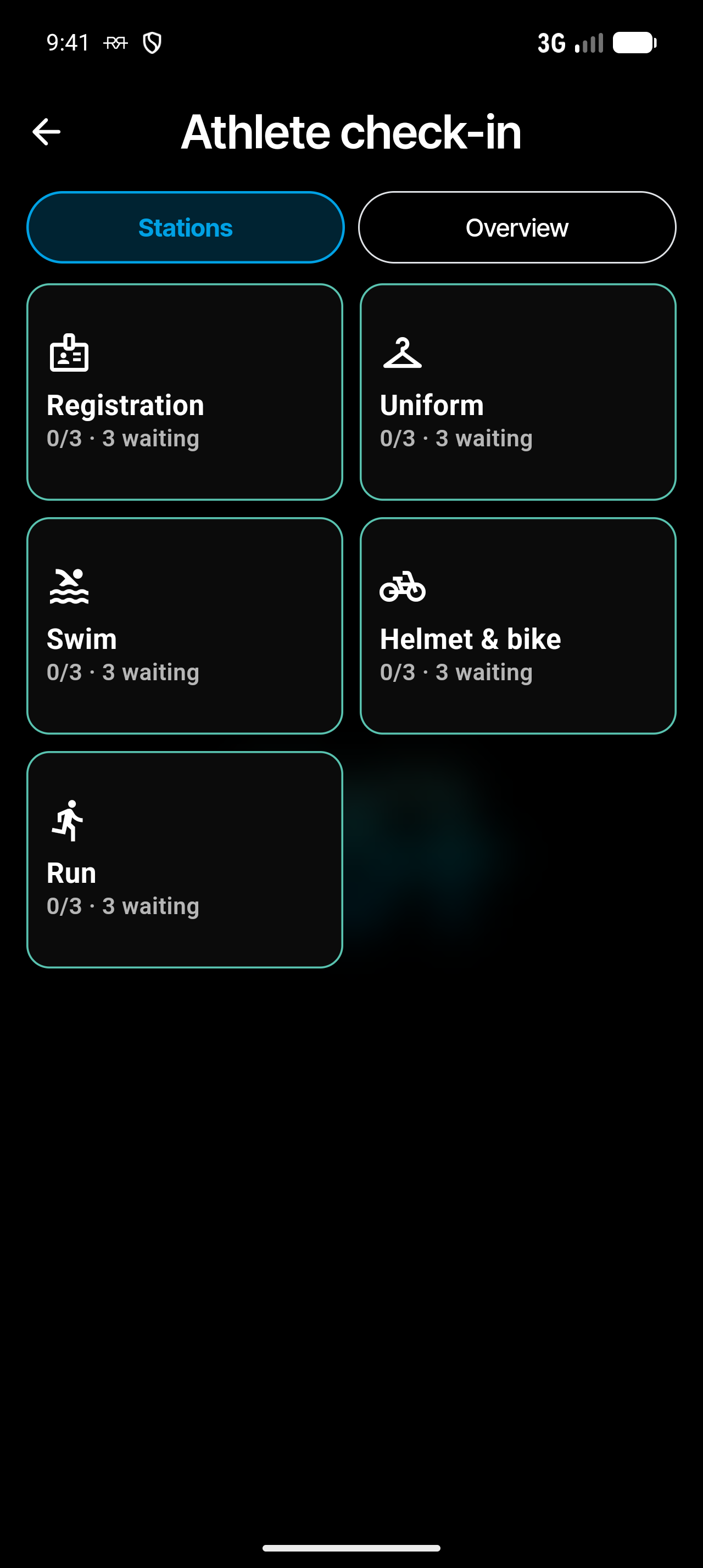
The tool opens on Stations: one tile per station, in the order athletes meet them — for example Registration, Uniform, Swim, Helmet & bike and Run. Para races add stations such as Handler, Handcycle or Racing chair. Each tile shows how many athletes are done and how many are still waiting there, such as 0/3 · 3 waiting. Tap your station.
2. Enter the bib
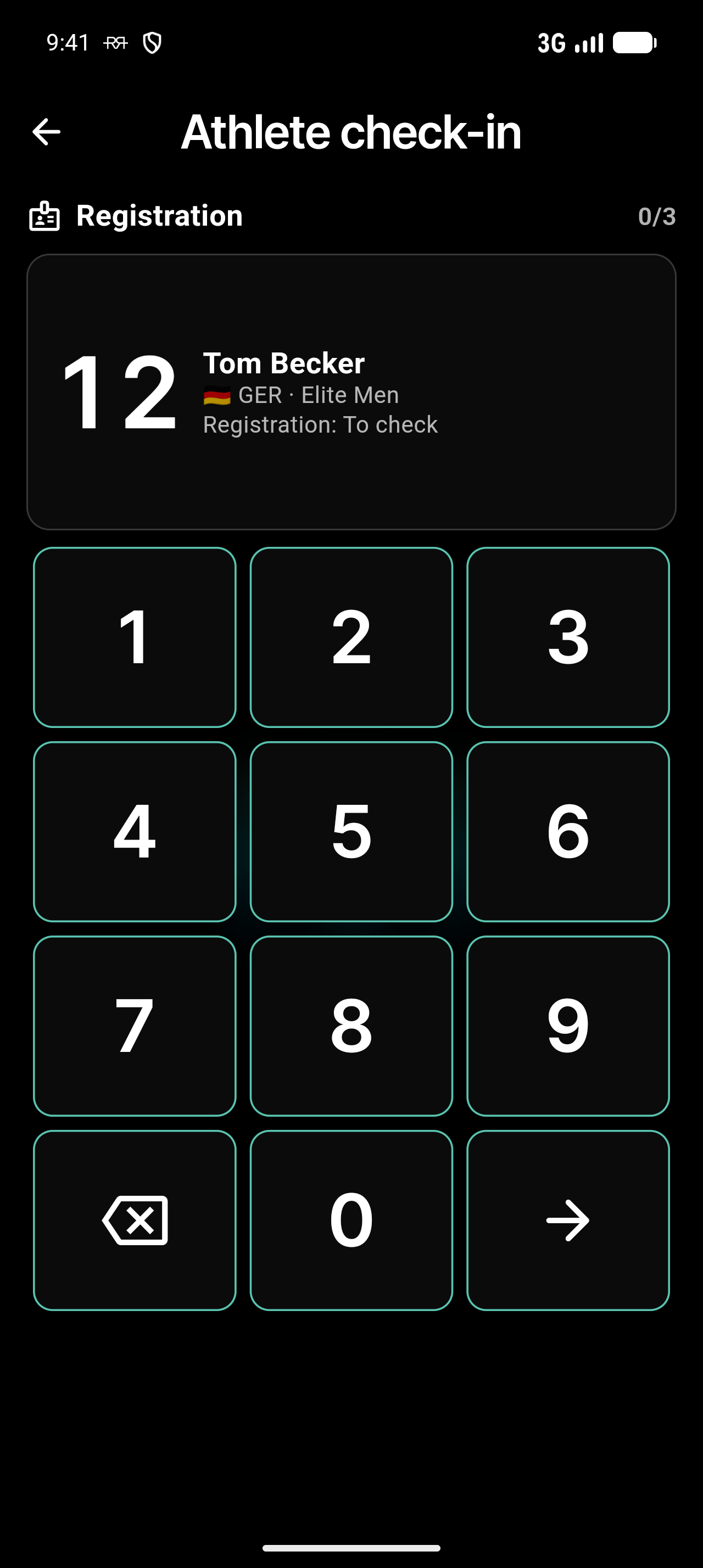
Type the athlete's bib on the keypad. As you type, the card above it shows whose number it is — name, country and race — and what's left for them at your station, such as Registration: To check. Tap the arrow key to open their checks.
If two athletes in a merged race share the number, the app asks which one you mean.
3. Tick each check
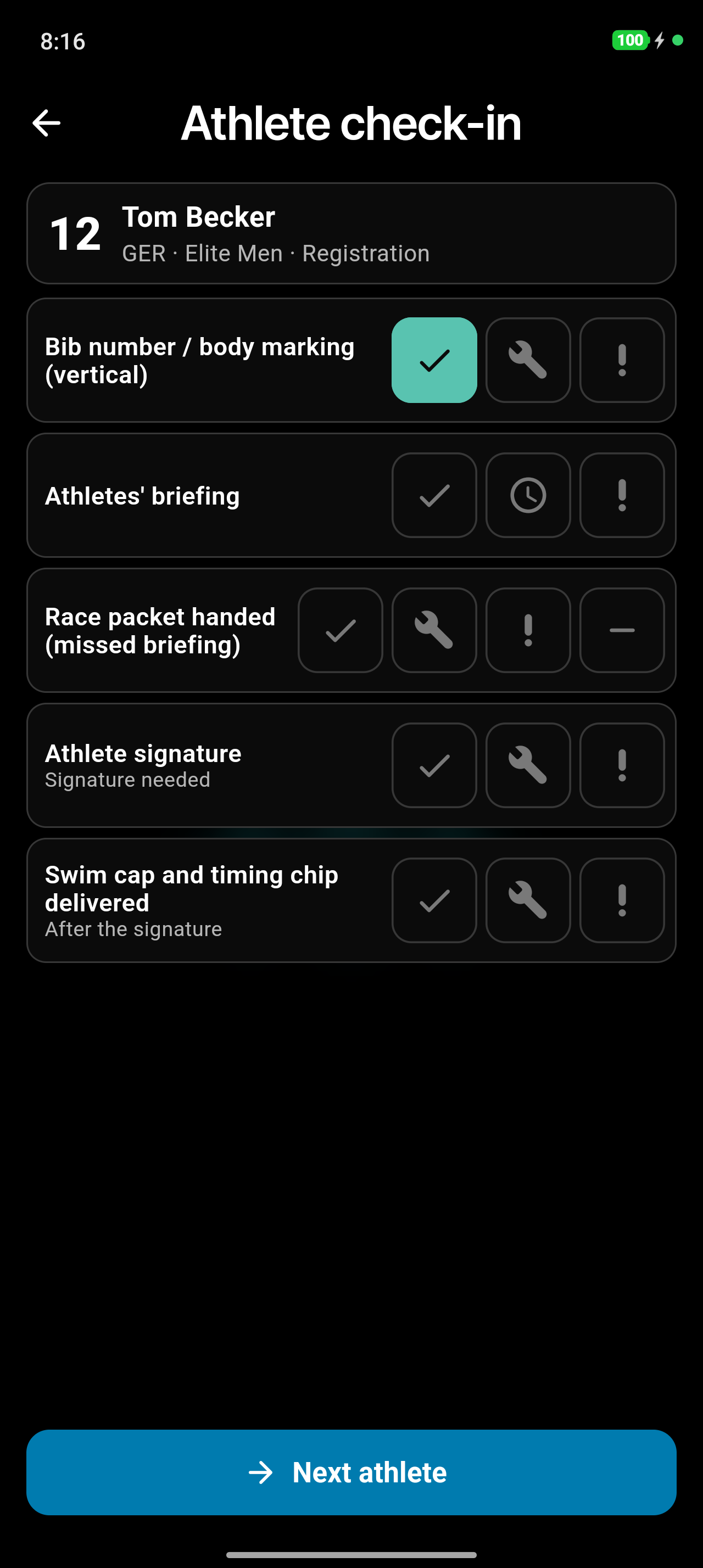
Each check has a row of buttons:
- ✓ — OK.
- The spanner — it wasn't right, but it was corrected. The app asks how.
- ! — escalate: someone has to decide (see Escalating a check).
- – — not applicable. Only on checks where that's allowed.
Your answer lights up in its colour: green for OK, amber for corrected, red for escalated and grey for not applicable. Some checks ask for more first — a measurement, the shoe model, a photo or the athlete's signature (see Full details). A check that depends on another one says so: Swim cap and timing chip delivered can only be ticked after the athlete has signed.
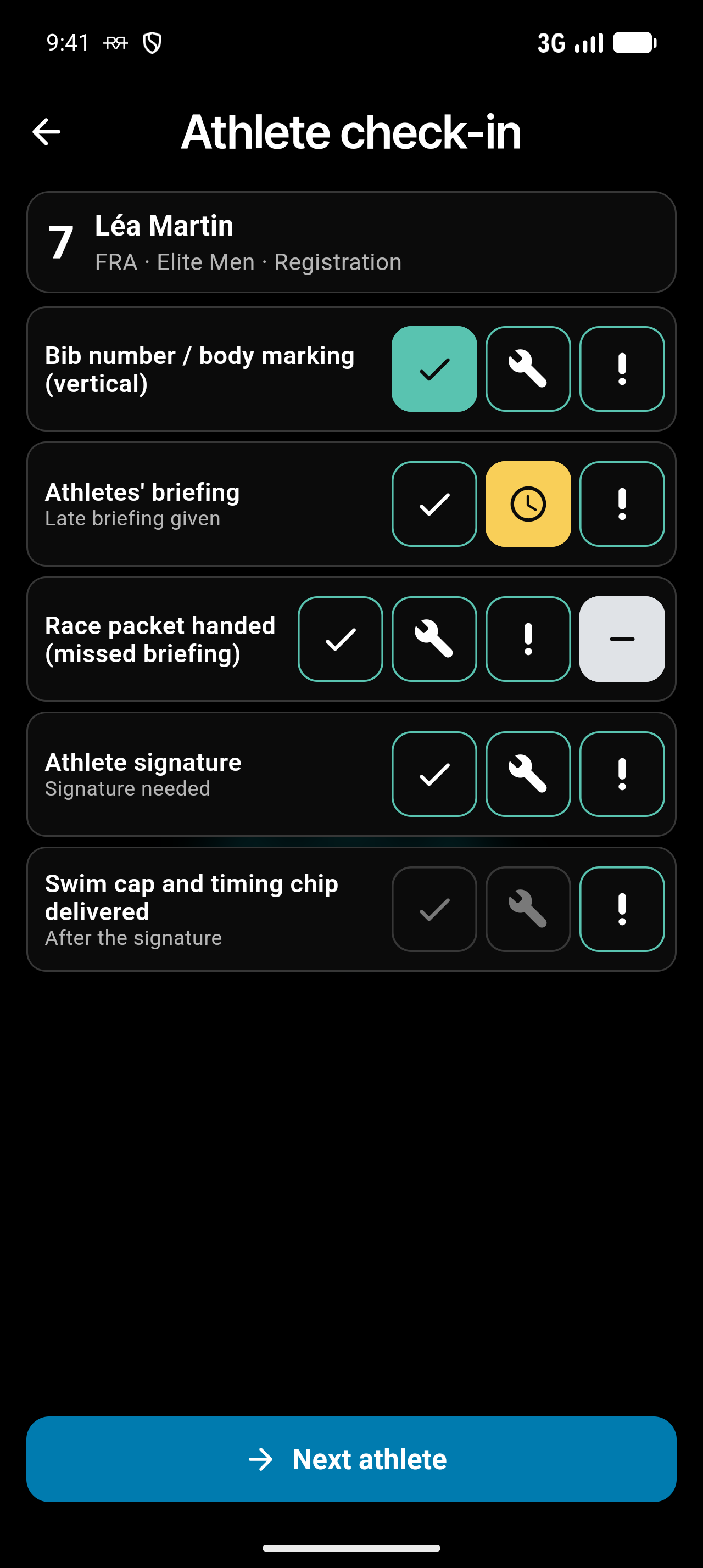
When you're done, tap Next athlete to go back to the keypad. Back always goes one step back: from the athlete to the keypad, and from the keypad to the stations.
Escalating a check
When something needs a closer look, tap ! on that check and pick why: Out of limits, No approval on file, Damaged or unsafe, Missing or Other. You can add a short note. The check — and the athlete — now show as Escalated.
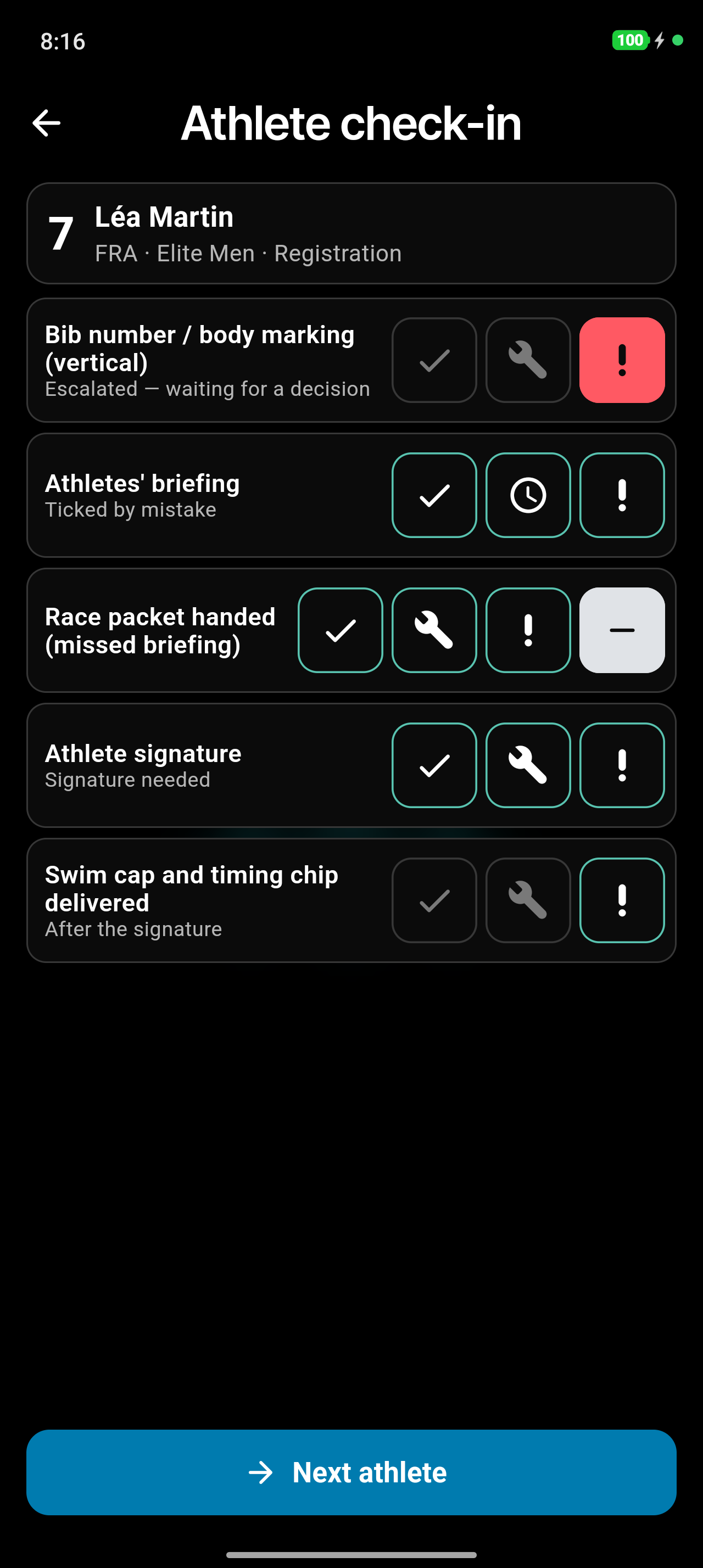
Only an official who can disqualify athletes (typically the Head Referee) can answer an escalated check again. Everyone else sees Escalated — waiting for a decision, with its buttons switched off.
Officials with Check-in notifications for the race get a push straight away, naming the athlete's number, the check and the reason. Your note stays in the app.
Putting an athlete on hold
With Can manage check-in, the athlete's card has a Hold button. Tap it and pick why: Uniform, Equipment, Documents, Late check-in or Other. The athlete shows as On hold until someone releases them, and the hold goes into the race log.
To lift it, tap Release on the same card and confirm. The athlete can carry on with check-in.
Seeing what's done and who's waiting
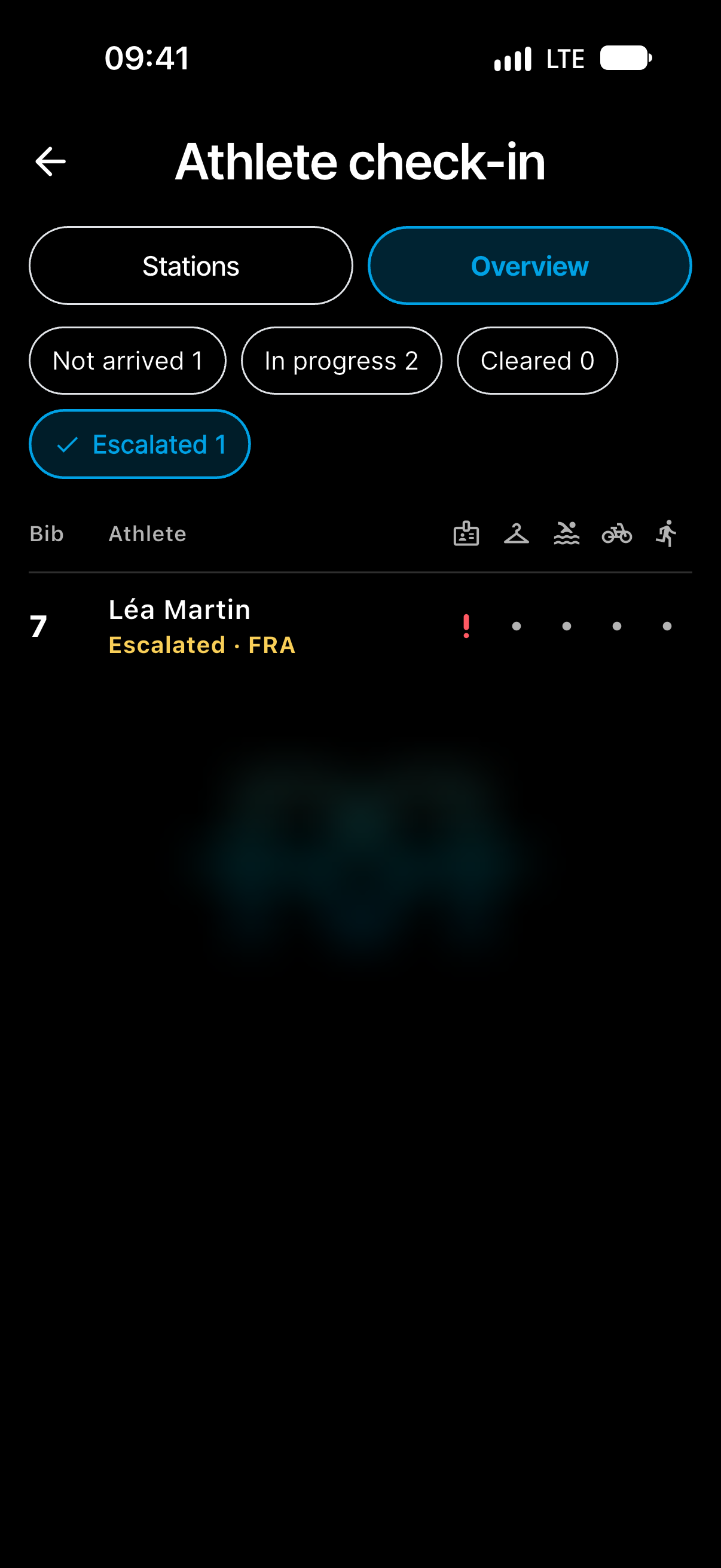
Tap Overview at the top of the tool. It lists every athlete with their status and a mark for each station.
- Tap a status — Not arrived, In progress, Cleared or Escalated — to see only those athletes. Tap it again to see everyone.
- Tap a station's icon above the list to see who is still missing there.
- Tap an athlete, then a station, to go straight to their checks there.
Working offline
Check-in keeps working without a connection. Every tick is saved on your phone straight away and syncs once you're back online. Photos and signatures wait on your phone and keep uploading in the background, even after you've moved on to the next athlete.
While your phone still has photos to upload, a strip at the top of the tool says how many, such as Waiting for connection: 3 photos. Tap it to see each one and Retry now.
If a tick can't be saved once your phone reconnects — for example because check-in has closed for the event — the app tells you it was Not saved.
Following check-in in race control
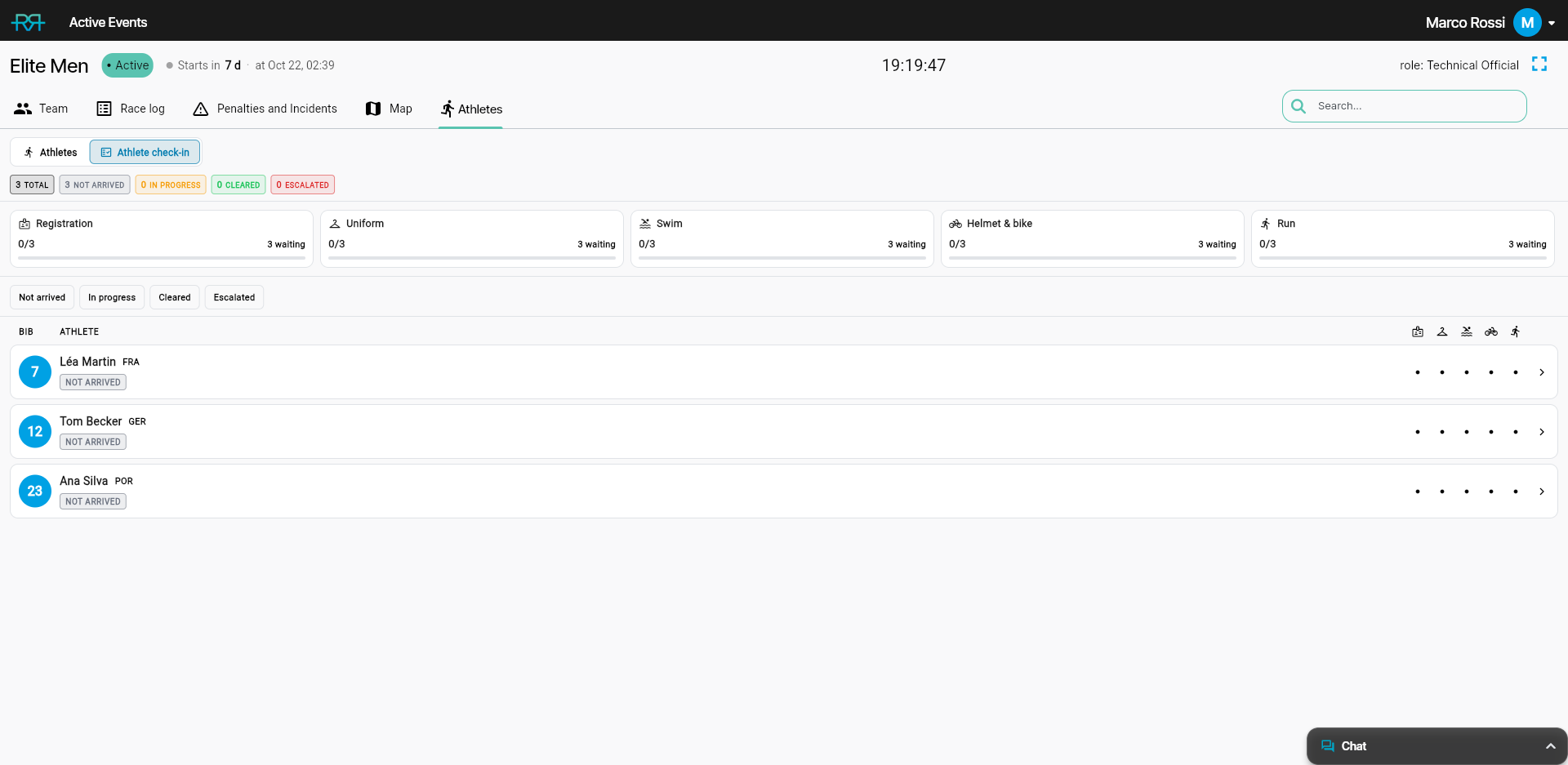
In race control on the web, open the Athletes tab and switch from Athletes to Athlete check-in. You get an overview of the race's check-in:
- the number of athletes in each status;
- a card for each station with its progress and how many athletes are waiting — click one to list who is still missing there;
- status filters, and every athlete with a mark for each station.
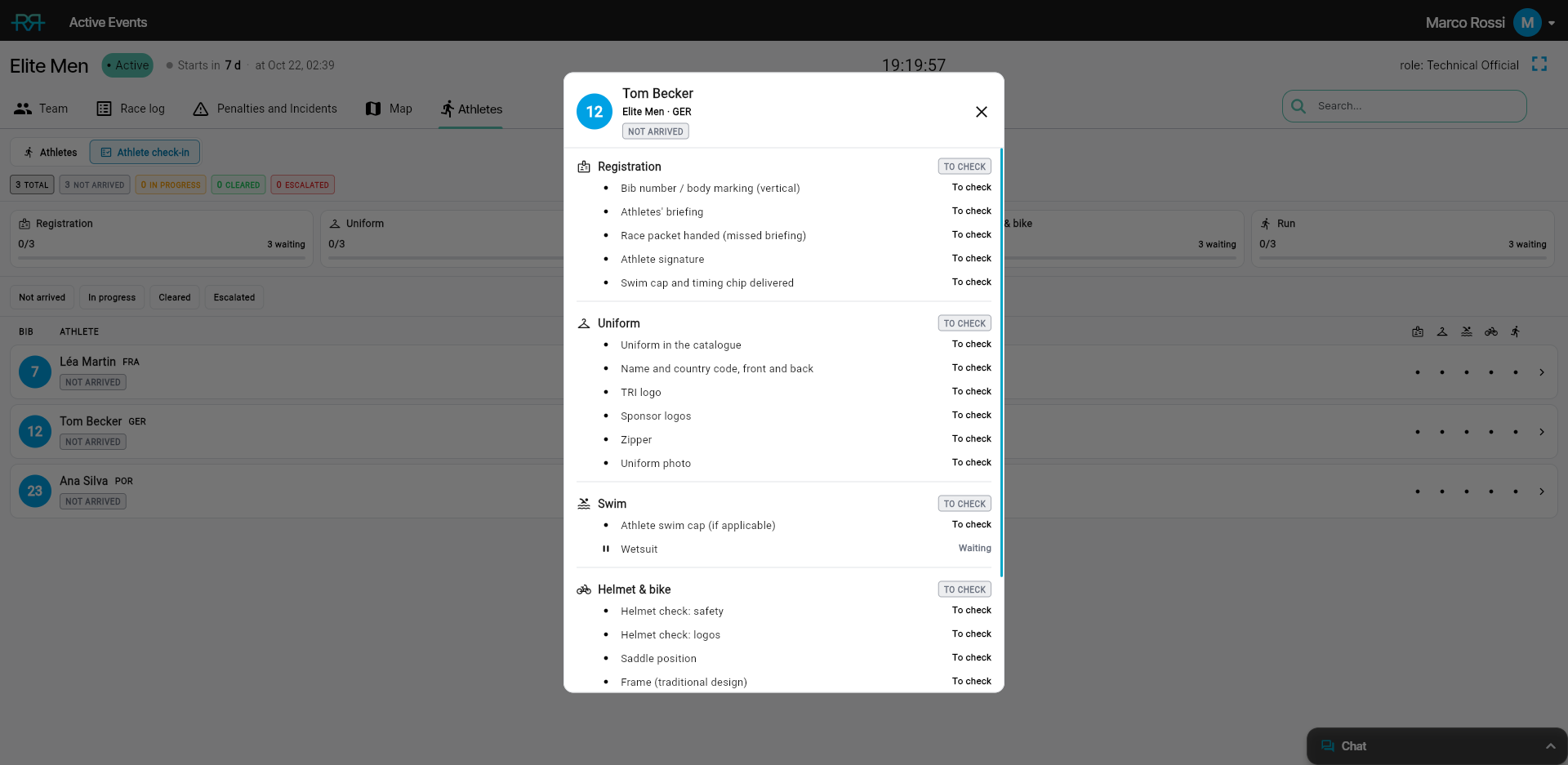
Click an athlete to see all their checks and answers, station by station.
The overview is read-only: officials tick at the stations. The switch shows while check-in is on for the event, for officials with a check-in permission and for everyone who can edit the event.
After the event
When the event is marked as completed, check-in closes: the tool disappears and nothing more can be ticked.
Check-in photos, signatures and any other check-in files are deleted 72 hours after the event is marked as completed. Athletes with an open matter, such as an unresolved escalation or a DSQ, keep theirs for longer.
Full details
Everything below is optional reading — open a section when you need it.
Who sees the tool, and what they can do
The Athlete check-in tool appears in race mode when your organisation has athlete check-in, it's switched on for the event, and the race isn't a practice (demo) race. What you can do depends on the permissions in your role:
- Can do race check-in — work the stations: tick checks, take photos and signatures, escalate, and check in bibs by number.
- Can manage check-in — put an athlete on hold or release them, and void an answer.
- Can disqualify (DSQ), together with Can do race check-in — answer an escalated check.
- Can modify event, without a check-in permission — follow everything read-only (see below).
On races with TO assignments, the permissions of your TO assignment for that race count; otherwise your event role does. If the tool is missing or a button stays off, ask your technical delegate.
Following check-in read-only in race mode
If you can edit the event — as a technical delegate usually can — but have no check-in permission, you still get the Athlete check-in tool in race mode. You can open the stations and the overview, type bibs and read every athlete's checks. Every answer button is off, and you can't take photos, void answers or check in a bib that isn't on the start list.
What the states and statuses mean
A check is one of:
- Pending (shown as To check in lists) — not answered yet.
- OK, Corrected, Escalated or N/A — answered.
- Waiting — the check waits for a decision outside check-in. The wetsuit checks show Waiting for the wetsuit decision until a wetsuit decision for the race is recorded with the Environment tool. If wetsuits aren't allowed, those checks disappear.
An athlete is one of:
- Not arrived — nothing ticked yet. The athletes' briefing doesn't count: it's usually the day before.
- In progress — some checks answered.
- Cleared — every check OK, corrected or not applicable.
- Escalated — at least one check is escalated.
- On hold, Late and DNS — shown only when an athlete has that status. Athletes who did not start (DNS) are left out of the station counts.
Measurements, values and development shoes
- Measurements such as Zipper, or Saddle position on Elite and U23 races: ✓ opens a field in centimetres. Type the value and tap Save as OK.
- Wave number on para races: type it the same way.
- Development shoes: choose No development shoes or Development shoes declared.
The value shows under the check. To change it, tap ✓ again.
Photos and the athlete's signature
- Athlete signature — ✓ opens a signature pad. The athlete signs under Sign here, then you tap Done. Clear starts again; closing the pad saves nothing.
- Uniform photo — ✓ opens your phone's camera. If you can't take one, the app asks No photo — why?: Athlete declined, No camera available or Other.
- Other photos — some checks can take an optional photo. Tap the check's name, then Take photo.
A check with a photo or a signature shows its upload, such as Photo uploading 45%, Photo waiting for connection or Photo uploaded. To look at it, tap the check's name, then the photo; pinch to zoom.
Photos come straight from the camera: you can't attach one from your gallery. The app straightens and shrinks each photo, leaves out its location, and deletes its own copy once the upload is done. Some Android camera apps keep a copy in your gallery as well. Looking at a photo doesn't save it to your phone.
Photos and signatures are taken in the app, not on the web. If camera access is off, the app tells you to allow it for RaceRanger in your phone's settings.
The upload list (tap the strip at the top of the tool) shows each photo still on your phone. One that can never upload — kept on the phone for too long, gone from the phone, or refused because check-in has closed — shows as Not uploaded; you can dismiss it there.
Shoes, wheels, frames and uniforms: the reference lists
Some checks look the equipment up in a reference list.
- The running-shoe, wheel and frame checks — ✓ opens a search. Type the make or model and tap the match. Each match shows what matters, such as the rim depth, a frame type to check, or the dates of a development shoe. A development shoe outside its dates, or a shoe withdrawn from the list, is highlighted. If it isn't on the list, tap Not on the list and type the Make and Model.
- Uniform in the catalogue — at the Uniform station, the approved uniform for the athlete's country appears above the checks (beside them on a tablet). Tap the drawing to zoom in, and pinch to zoom further. If it's the uniform the athlete wears, tap ✓. When the country has several designs, tap the one the athlete wears. If none of them match, tap None of these — nothing is saved — and answer the check with the spanner or ! instead. With no country on record, type the three-letter code in Federation, such as GER.
The name and date of the list show at the bottom of each search. The lists download to your phone while it's online and then work offline. Without a list on your phone, you type the shoe's make and model, and the other checks take a plain ✓. A match only helps you: the answer is still yours.
Correcting, changing and voiding answers
- The spanner asks how it was corrected: Corrected on the spot or Other. The Uniform station offers more, such as Logos covered. You can add a short note.
- On Athletes' briefing, the middle button is a clock: it records Late briefing given.
- To change an answer, tap another button. An escalated check is the exception: see Escalating a check.
- Tap a check's name to see everything about it: the limit, the answer, the reason and note, the time, and any photos.
- Void answer — with Can manage check-in, open a check's details, tap Void answer and pick why: Wrong athlete, Ticked by mistake or Other. The check is open again and shows the reason. Voiding an escalated check also needs the permission to disqualify.
The overview in detail
- The status filters show a count each. On hold, Late and DNS appear only when an athlete has that status.
- The marks for each station: a tick for done, the spanner for corrected, ! for escalated, a dot for still to check, a dash for not applicable, and a pause sign for waiting.
- After you tap a station's icon, the list's heading reads Missing at and the station's name. Tap the icon again to see everyone.
- On a tablet, the stations and the overview sit side by side, and at a station the keypad stays beside the athlete's checks.
When the tool shows a message instead of stations
- Athlete check-in is being prepared for this race… — check-in was just switched on. Give it a moment.
-
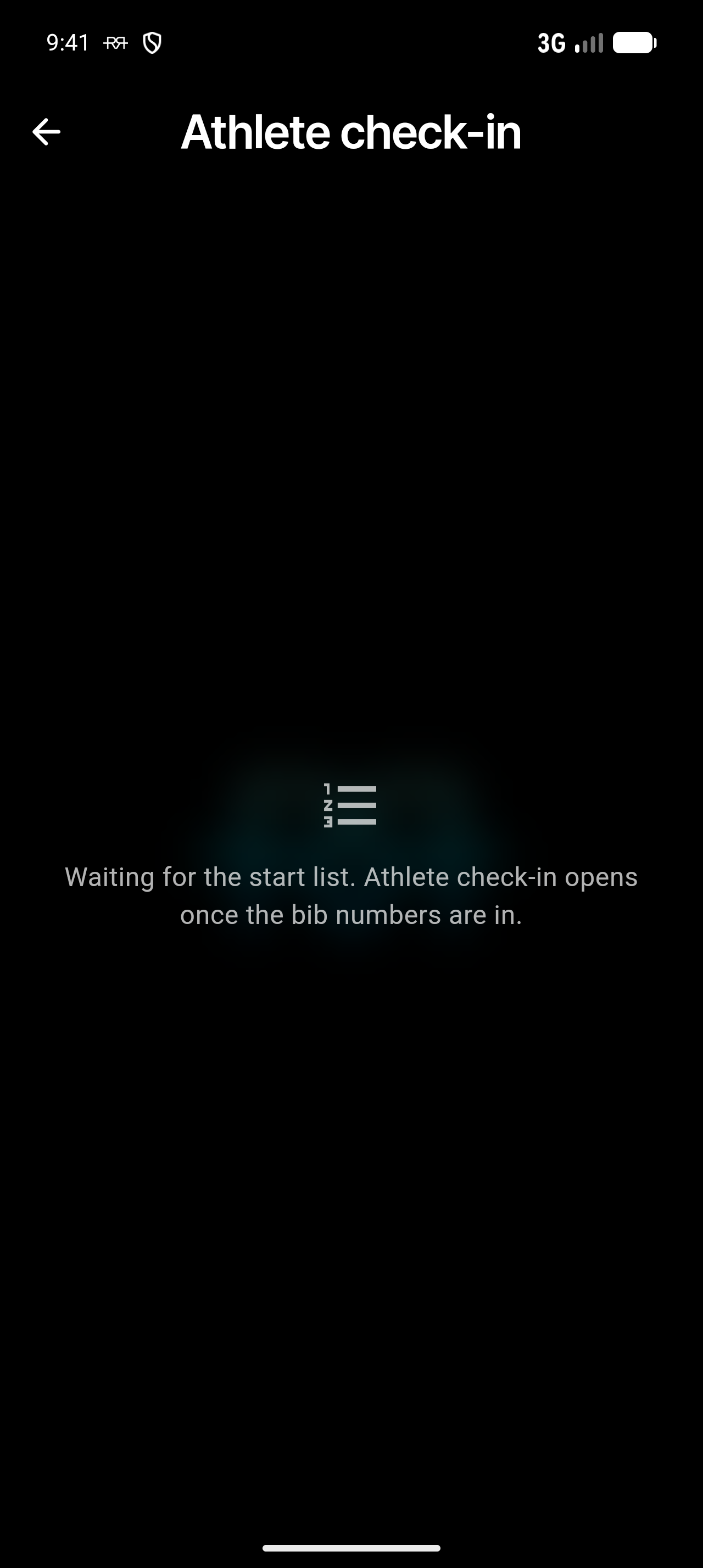
Waiting for the start list. Athlete check-in opens once the bib numbers are in. — the race's start list is imported and hasn't arrived yet. The stations open by themselves once it has.
-
This race has no athlete check-in — its name names no check-in category (Elite, U23, Junior, or a para class such as PTS4), and nobody has set its checklist. The event organisers set it in the race settings on the web; the stations appear as soon as they do.
- Athlete check-in is switched off for this race. — the race's checklist is set to No athlete check-in.
- Preparing this athlete's check-in… — the athlete was only just added to the start list.
- Nothing to check here for this athlete. — the athlete has no checks at this station.
Races without an imported start list
On a race whose start list isn't imported, you can check in any bib in the race's number ranges, even with no athlete on the start list. The card says Not on the start list and Checked in by number, and the overview shows the bib as Number only once something is ticked. When an athlete with that bib is added later, their check-in takes over what was ticked for the number.
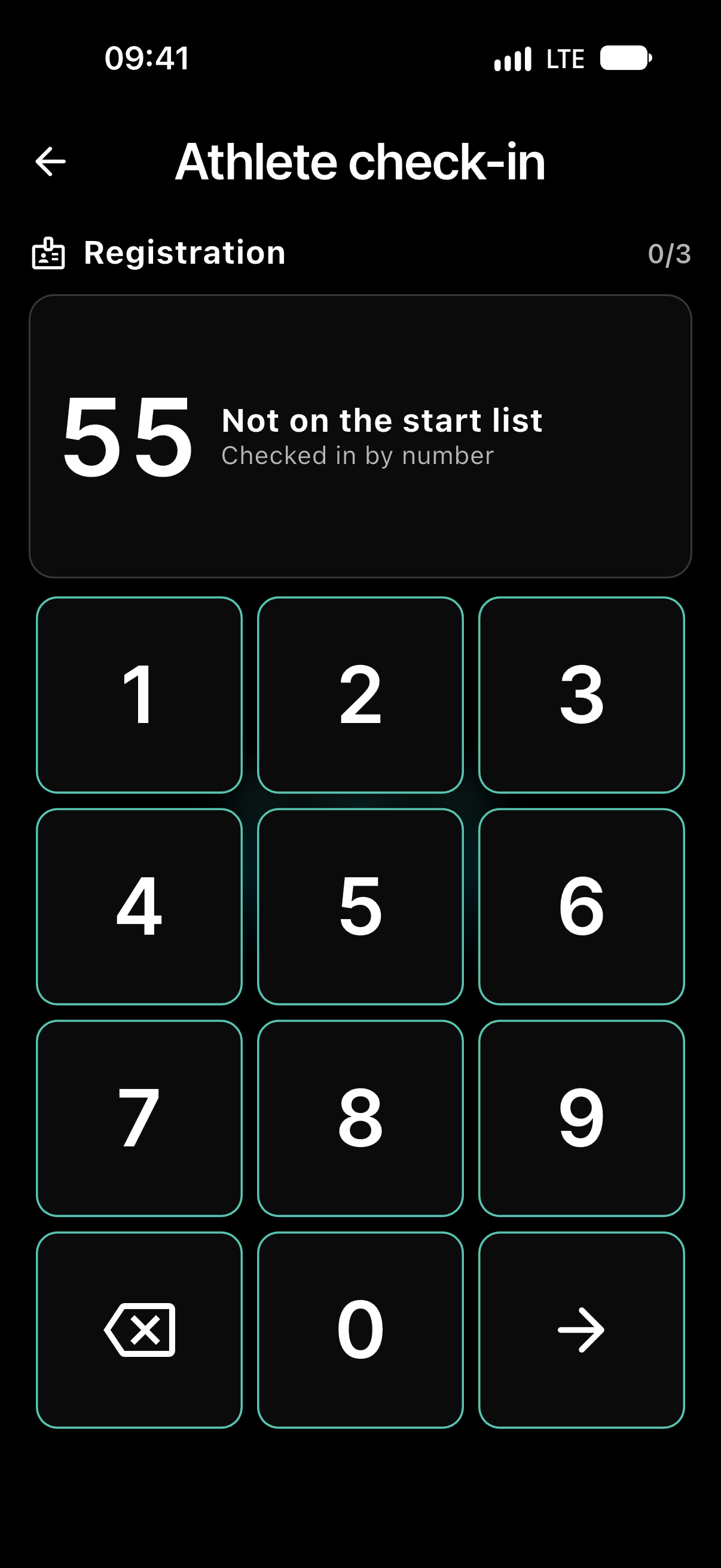
A bib outside the race's numbers shows Not in this race's numbers, with the ranges. On a race with an imported start list, a bib that isn't on it shows No athlete with this number.